







Question: please provide screen shot for all these and explain steps how you did it. thanks 11. Download and install Wireshark on your computer. Go to
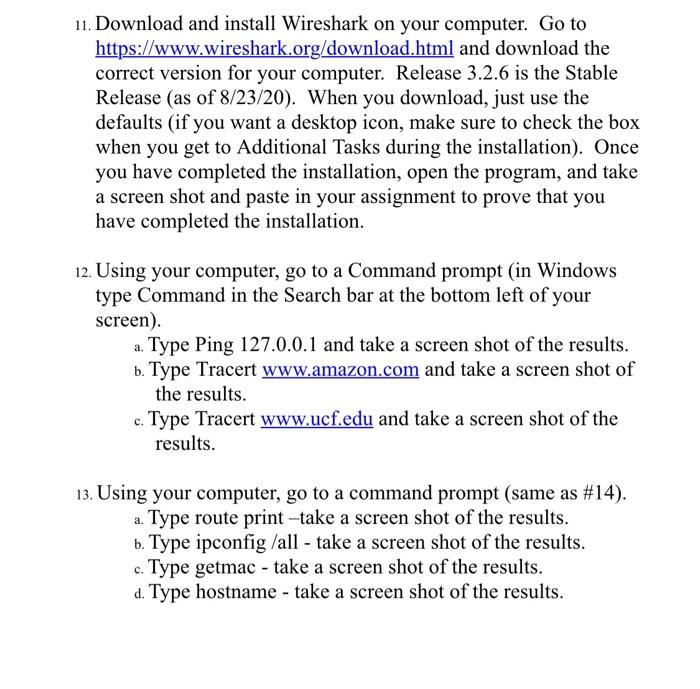
11. Download and install Wireshark on your computer. Go to https://www.wireshark.org/download.html and download the correct version for your computer. Release 3.2.6 is the Stable Release (as of 8/23/20 ). When you download, just use the defaults (if you want a desktop icon, make sure to check the box when you get to Additional Tasks during the installation). Once you have completed the installation, open the program, and take a screen shot and paste in your assignment to prove that you have completed the installation. 12. Using your computer, go to a Command prompt (in Windows type Command in the Search bar at the bottom left of your screen). a. Type Ping 127.0.0.1 and take a screen shot of the results. b. Type Tracert www.amazon.com and take a screen shot of the results. c. Type Tracert www.ucf.edu and take a screen shot of the results. 13. Using your computer, go to a command prompt (same as \#14). a. Type route print-take a screen shot of the results. b. Type ipconfig /all - take a screen shot of the results. c. Type getmac - take a screen shot of the results. d. Type hostname - take a screen shot of the results
Step by Step Solution
There are 3 Steps involved in it

Get step-by-step solutions from verified subject matter experts
 Study Help