







Question: Please reference the photos in order and solve them. set of tools that help you work with text information efficiently and easily. This tutorial is
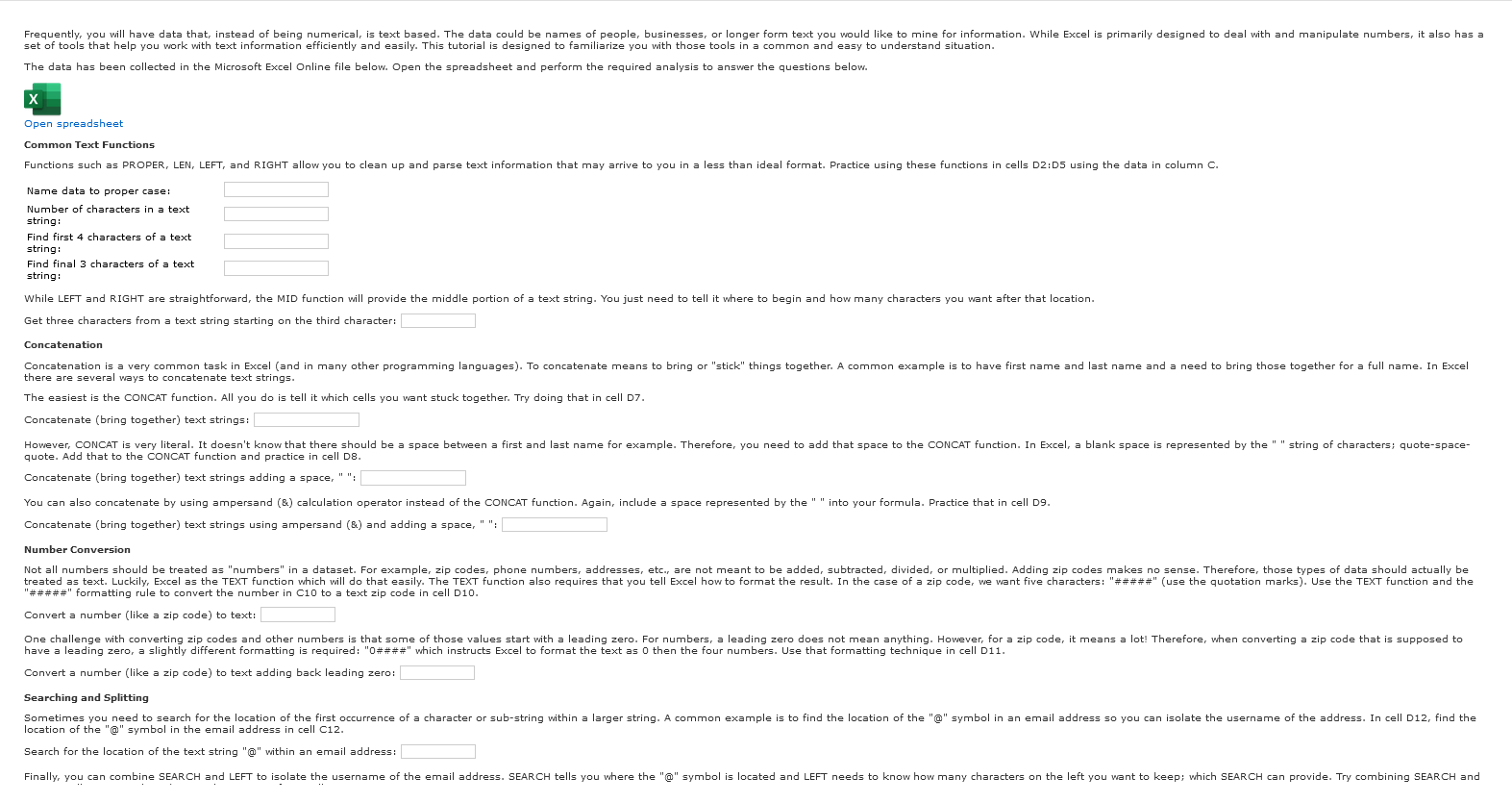
Please reference the photos in order and solve them. set of tools that help you work with text information efficiently and easily. This tutorial is designed to familiarize you with those tools in a common and easy to understand situation.
The data has been collected in the Microsoft Excel Online file below. Open the spreadsheet and perform the required analysis to answer the questions below.
Open spreadsheet
Common Text Functions
Name data to proper case:
Number of characters in a text string:
Find first characters of a text string:
Find final characters of a text
string:
Get three characters from a text string starting on the third character:
Concatenation there are several ways to concatenate text strings.
The easiest is the CONCAT function. All you do is tell it which cells you want stuck together. Try doing that in cell D
Concatenate bring together text strings: quote. Add that to the CONCAT function and practice in cell D
Concatenate bring together text strings adding a space, :
Concatenate bring together text strings using ampersand & and adding a space, :
Number Conversion ##### formatting rule to convert the number in C to a text zip code in cell D
Convert a number like a zip code to text: have a leading zero, a slightly different formatting is required: #### which instructs Excel to format the text as then the four numbers. Use that formatting technique in cell D
Convert a number like a zip code to text adding back leading zero:
Searching and Splitting
Search for the location of the text string @ within an email address: Get three characters from a text string starting on the third character:
Concatenation there are several ways to concatenate text strings.
The easiest is the CONCAT function. All you do is tell it which cells you want stuck together. Try doing that in cell D
Concatenate bring together text strings: quote. Add that to the CONCAT function and practice in cell D
Concatenate bring together text strings adding a space, :
Concatenate bring together text strings using ampersand & and adding a space, :
Number Conversion ##### formatting rule to convert the number in C to a text zip code in cell D
Convert a number like a zip code to text: have a leading zero, a slightly different formatting is required: #### which instructs Excel to format the text as then the four numbers. Use that formatting technique in cell D
Convert a number like a zip code to text adding back leading zero:
Searching and Splitting location of the @ symbol in the email address in cell C
Search for the location of the text string @ within an email address: LEFT in cell D to isolate the email username from cell C
Note: there is one slight modification you will need to make to the SEARCH part of the formula to get just the username. See if you can figure it out.
Split off username from email address. Hint: search for @ symbol:
Text Data Cleaning and Manipulation the values for the last row below.
Note: These are meant to be challenging. So just take your time and work thought each column logically using trial and error if necessary.
Hint: The last column for zip code, will require a nested IF function to first see if the numeric zip code is or characters long so you then know which formatting to apply.
Proper Name First Name Last Name Short Name First L New Zip Code
Step by Step Solution
There are 3 Steps involved in it
1 Expert Approved Answer
Step: 1 Unlock

Question Has Been Solved by an Expert!
Get step-by-step solutions from verified subject matter experts
Step: 2 Unlock
Step: 3 Unlock
 Study Help