







Question: please show how to do it in step and what should be displayed in linux 1. Login to your student account. Become root. (I have
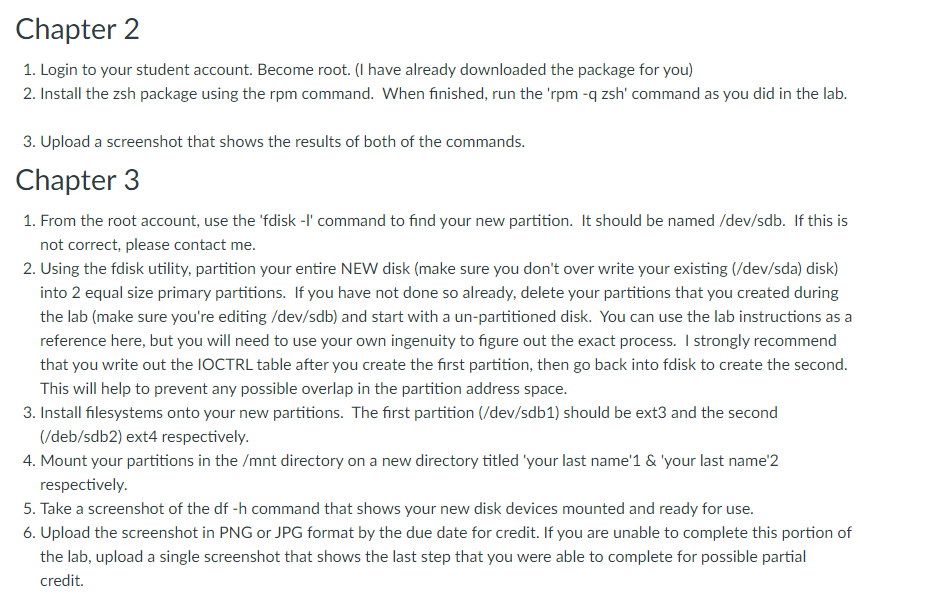
please show how to do it in step and what should be displayed in linux
1. Login to your student account. Become root. (I have already downloaded the package for you) 2. Install the zsh package using the rpm command. When finished, run the 'rpm - q zsh' command as you did in the lab. 3. Upload a screenshot that shows the results of both of the commands. Chapter 3 1. From the root account, use the 'fdisk -l' command to find your new partition. It should be named /dev/sdb. If this is not correct, please contact me. 2. Using the fdisk utility, partition your entire NEW disk (make sure you don't over write your existing (/dev/sda) disk) into 2 equal size primary partitions. If you have not done so already, delete your partitions that you created during the lab (make sure you're editing /dev/sdb) and start with a un-partitioned disk. You can use the lab instructions as a reference here, but you will need to use your own ingenuity to figure out the exact process. I strongly recommend that you write out the IOCTRL table after you create the first partition, then go back into fdisk to create the second. This will help to prevent any possible overlap in the partition address space. 3. Install filesystems onto your new partitions. The first partition (/dev/sdb1) should be ext3 and the second (/deb/sdb2) ext4 respectively. 4. Mount your partitions in the /mnt directory on a new directory titled 'your last name' 1& 'your last name' 2 respectively. 5. Take a screenshot of the dfh command that shows your new disk devices mounted and ready for use. 6. Upload the screenshot in PNG or JPG format by the due date for credit. If you are unable to complete this portion of
Step by Step Solution
There are 3 Steps involved in it

Get step-by-step solutions from verified subject matter experts
 Study Help