







Question: Please, show me the step-by-step OR link for the ACCESS that you use to answer. thank you OPEN ACCESS. CREATE A DATABASE. 1. ~ ~
Please, show me the step-by-step OR link for the ACCESS that you use to answer. thank you
OPEN ACCESS. CREATE A DATABASE.
1. ~ ~ ~ ~
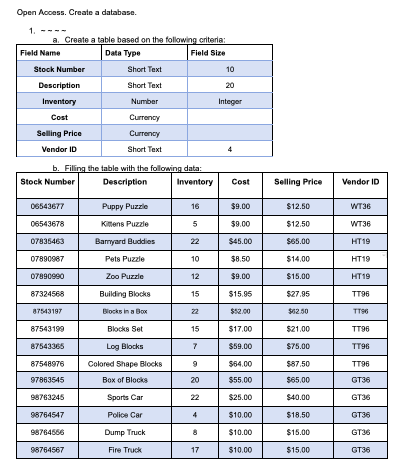
A) Create a table based on the following criteria: (SEE THE PICTURE ATTACHED)
B) Filling the table with the following data: (SEE THE PICTURE ATTACHED)
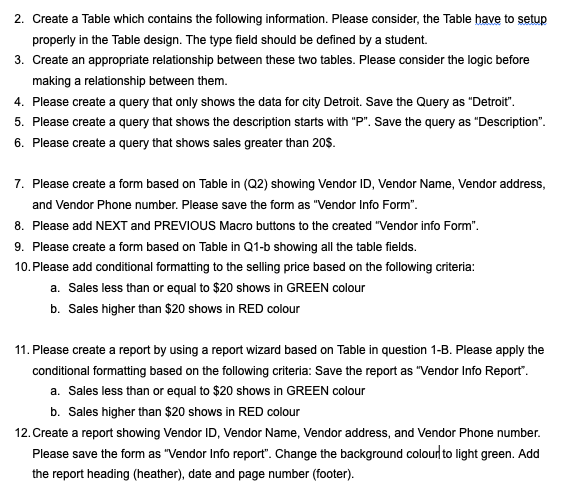
2. Create a Table which contains the following information. Please consider, the Table have to setup properly in the Table design. The type field should be defined by a student.
3. Create an appropriate relationship between these two tables. Please consider the logic before making a relationship between them.
4. Please create a query that only shows the data for city Detroit. Save the Query as Detroit.
5. Please create a query that shows the description starts with P. Save the query as Description.
6. Please create a query that shows sales greater than 20$.
7. Please create a form based on Table in (Q2) showing Vendor ID, Vendor Name, Vendor address, and Vendor Phone number. Please save the form as Vendor Info Form.
8. Please add NEXT and PREVIOUS Macro buttons to the created Vendor info Form.
9. Please create a form based on Table in Q1-b showing all the table fields.
10. Please add conditional formatting to the selling price based on the following criteria:
A) Sales less than or equal to $20 shows in GREEN colour
B) Sales higher than $20 shows in RED colour
11. Please create a report by using a report wizard based on Table in question 1-B. Please apply the conditional formatting based on the following criteria: Save the report as Vendor Info Report.
A) Sales less than or equal to $20 shows in GREEN colour
B) Sales higher than $20 shows in RED colour
12. Create a report showing Vendor ID, Vendor Name, Vendor address, and Vendor Phone number. Please save the form as Vendor Info report. Change the background colour to light green. Add the report heading (heather), date and page number (footer).
Open Aocess. Create a database. 1. . Craate a table hased on the followinn critarie: b. Fillina the table with the following data: 2. Create a Table which contains the following information. Please consider, the Table have to setup properly in the Table design. The type field should be defined by a student. 3. Create an appropriate relationship between these two tables. Please consider the logic before making a relationship between them. 4. Please create a query that only shows the data for city Detroit. Save the Query as "Detroit". 5. Please create a query that shows the description starts with "P". Save the query as "Description". 6. Please create a query that shows sales greater than 20$. 7. Please create a form based on Table in (Q2) showing Vendor ID, Vendor Name, Vendor address, and Vendor Phone number. Please save the form as "Vendor Info Form". 8. Please add NEXT and PREVIOUS Macro buttons to the created "Vendor info Form". 9. Please create a form based on Table in Q1-b showing all the table fields. 10. Please add conditional formatting to the selling price based on the following criteria: a. Sales less than or equal to $20 shows in GREEN colour b. Sales higher than $20 shows in RED colour 11. Please create a report by using a report wizard based on Table in question 1-B. Please apply the conditional formatting based on the following criteria: Save the report as "Vendor Info Report". a. Sales less than or equal to $20 shows in GREEN colour b. Sales higher than $20 shows in RED colour 12. Create a report showing Vendor ID, Vendor Name, Vendor address, and Vendor Phone number. Please save the form as "Vendor Info report". Change the background colourt to light green. Add the report heading (heather), date and page number (footer)
Step by Step Solution
There are 3 Steps involved in it

Get step-by-step solutions from verified subject matter experts
 Study Help