







Question: > PLEASE SHOW STEP BY STEP INSTRUCTIONS Exp19_Excel_AppCapstone_Intro_Collection Project Description: You are the financial manager for Judis Art Gallery. One of your clients, Raymond Chancellor,
> PLEASE SHOW STEP BY STEP INSTRUCTIONS
Exp19_Excel_AppCapstone_Intro_Collection
Project Description:
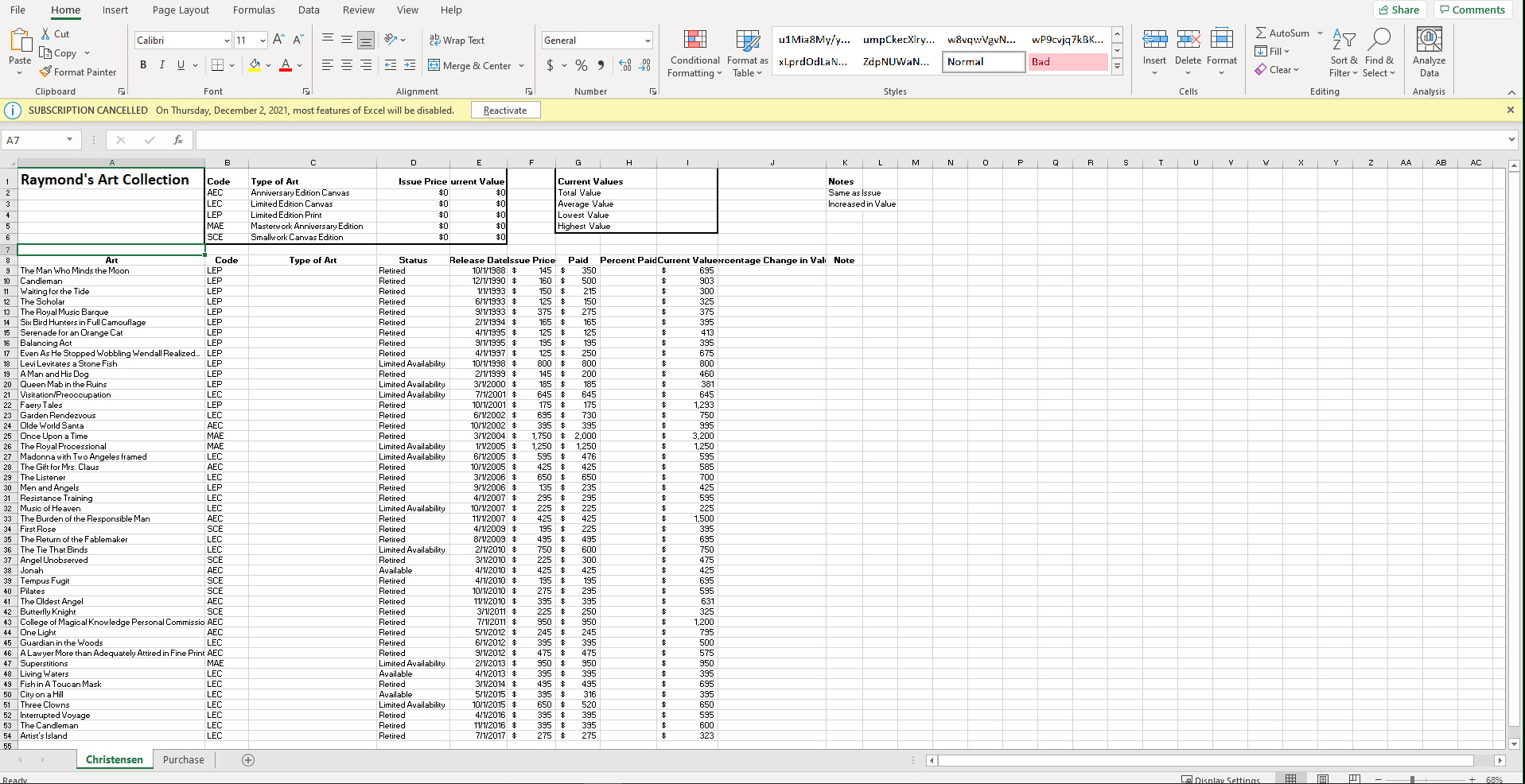
You are the financial manager for Judis Art Gallery. One of your clients, Raymond Chancellor, has a large collection of limited edition signed art by James C. Christensen (1942-2017). Over the years, you have helped Raymond maintain a list of his collection, including the title of the art, medium, issue date, issue price, the price he paid, and current market values. Most of the art is sold out from the publisher, which increases the value of the art. Other art is still readily available or is available in limited quantities. You want to update the list so that he can properly insure his collection.
| 1 | Start Excel. Download and open the file named Exp19_Excel_AppCapstone_Intro_Collection.xlsx. Grader has automatically added your last name to the beginning of the filename. |
| 2 | Select the range A1:A6 on the Christensen worksheet, merge the cells, and apply Middle Align vertical alignment. |
| 3 | Change the width of column K to 17.00, select the range K1:K3, and apply Thick Outside Borders. |
| 4 | Click cell C9, and freeze panes so that rows 1 through 8 and columns A and B are frozen. |
| 5 | Select the range E9:E54 and apply the Mar-12 date format. |
| 6 | Find all occurrences of Retired and replace them with Sold Out. |
| 7 | Click cell H9 on the Christensen worksheet, and insert a formula that calculates the percentage Raymond paid of the issue price by dividing the amount Paid by the Issue Price. Copy the formula from cell H9 to the range H10:H54. |
| 8 | Click cell J9, and insert a formula that calculates the percentage change in value by subtracting the Issue Price from the Current Value and then dividing that result by the Issue Price. Copy the formula from cell J9 to the range J10:J54. |
| 9 | Apply Percent Style with one decimal place to the ranges H9:H54 and J9:J54. |
| 10 | Insert in the Current Values section at the top of the worksheet summary functions that use the range I9:I54. In cell I2, calculate the total of all the Current Values. In cell I3, calculate the average current value. in cell I4, calculate the lowest current value. In cell I5, calculate the highest current value. |
| 11 | Click cell C9 and insert a VLOOKUP function that looks up the code in cell B9, compares it to the codes and types of art in the range B2:C6, and returns the type of art. Copy the function in cell C9 to the range C9:C54. Hide column B that contains the codes. |
| 12 | Click cell K9 and insert an IF function that determines if the Issue Price is equal to the Current Value. If the values are the same, display Same as Issue (using the cell reference K2); otherwise, display Increased in Value (using the cell reference K3). Copy the function from cell K9 to the range K10:K54. |
| 13 | Display the Purchase worksheet, insert a row above Monthly Payment. Type Monthly Payments in 1 Year in cell A5 and type 12 in cell B5. |
| 14 | In cell B6 in the Purchasing sheet, insert the payment function to calculate the monthly payment using cell references, not numbers, in the function, and make sure the function displays a positive result. Apply Accounting Number Format and the Output cell style to cell B6. |
| 15 | Display the Christensen worksheet, select the range C1:E6, and create a clustered column chart. |
| 16 | Cut the chart and paste it in cell A57, change the height to 4", and change the width to 6.5". Add Alt Text The column chart compares total issue prices to total current values by type of art. (include the period). |
| 17 | Type Raymonds Art Collection for the chart title, apply bold, and Black, Text 1 font color. Place the legend at the top of the chart. Add Primary Minor Horizontal gridlines. |
| 18 | Create a pie chart using the ranges C2:C6 and E2:E6, and then move the chart to a new chart sheet named Current Values. Move the Current Values sheet to the right of the Purchase sheet. |
| 19 | Type Percentage of Total Current Value as the chart title and change the font size to 18 pt. Choose Colorful Palette 3 for the chart colors. Add this description for Alt Text: The pie chart shows each art type by percentage of total current value. (include the period). |
| 20 | Hide the legend. Add data labels for categories and percentages; remove value data labels. Change the font size to 16 pt, bold, and Black, Text 1 font color for the data labels. |
| 21 | Explode the Masterwork Anniversary Edition slice by 15% and change the fill color to Light Blue. |
| 22 | Display the Christensen worksheet, click in any cell within the dataset, convert the data to a table, assign a table name Collection, and apply Green, Table Style Light 14. |
| 23 | Apply a conditional format to the range J9:J54 that highlights cells where the value is greater than 200% with Green Fill with Dark Green Text. |
| 24 | Sort the dataset by Type of Art in alphabetical order and then within Type of Art, sort by Current Value from largest to smallest. |
| 25 | Set a filter to display art that equals Sold Out as the status. |
| 26 | Add a total row to display the sum of the Issue Price, Paid, and Current Values columns. Remove the total for the Note column. |
| 27 | Select the Purchase sheet, set 2" top margin, and center horizontally on page. |
| 28 | Select the Christensen sheet, select Landscape orientation, Legal paper size, set 0.2" left and right margins, 0.5" top and bottom margins, and set row 8 to repeat at the top of pages. |
| 29 | On the Christensen worksheet, change the width of column A to 27, the width of column D to 11, the width of column J to 12. Wrap text in cell A1 and cell J8. |
| 30 | Create a footer with Exploring Series on the left side, the sheet tab code in the center, and file name code on the right side on the Christensen sheet. |
| 31 | Save and close Exp19_Excel_AppCapstone_Intro_Collection.xlsx. Exit Excel. Submit the file as directed. |
> PLEASE SHOW STEP BY STEP INSTRUCTIONS File Home Insert Page Layout Formulas Data Review View Help Share Comments General wP9cvjq7kBK... AutoSum Fill AY . ILI HA u1Mia My/y... umpCkecXlry... w&vqwVgvN... Conditional Format as xLprdodlaN... ZdpNUWAN... Normal Formatting Table Styles Fm IN Analyze Data $ % ) CO - X Cut Calibri 11 - A A = 2 Wrap Text [6 Copy Paste BIU A & Format Painter Es - Merge & Center Clipboard Font Alignment SUBSCRIPTION CANCELLED On Thursday, December 2, 2021, most features of Excel will be disabled. Reactivate Bad Insert Delete Format Clear Sort & Find & Filter - Select Number Cells Editing Analysis X AZ y B D G H J K L N o P R S . U Y W X Y z AA . AB Ac 1 Raymond's Art Collection Code AEC LEC LEP MAE SCE Type of Art Anniversary Edition Canvas Limited Edition Canvas Limited Edition Print Masterwork Anniversary Edition Smallwork Canvas Edition Issue Price urrent Value $0 $0 $0 $0 $0 $0 $0 $0 $0 $0 Current Values Total Value Average Value Lowest Value Highest Value Notes Same as Issue Increased in Value 4 5 6 Type of Art LEP LEP 8 Art Code 9 The Man Who Minds the Moon LEP 10 Candleman LEP 11 Waiting for the Tide LEP 12 The Scholar LEP 13 The Royal Music Barque 14 Six Bird Hunters in Full Camouflage LEP 15 Serenade for an Orange Cat 16 Balancing Act LEP 17 Even As He Stopped Wobbling Wendall Realized... LEP 18 Levi Levitates a Stone Fish LEP 19 A Man and His Dog LEP 20 Queen Mab in the Ruins LEP 21 Visitation/Preoccupation LEC 22 Faery Tales LEP 23 Garden Rendezvous LEC 24 Olde World Santa AFC 25 Once Upon a Time MAE 26 The Royal Processional MAE 27 Madonna with Two Angeles framed LEC 28 The Gift for Mrs. Claus AEC 29 The Listener LEC 30 Men and Angels LEP 31 Resistance Training LEC 32 Music of Heaven LEC 33 The Burden of the Responsible Man AEC 34 First Rose SCE 35 The Return of the Fablemaker LEC 36 The Tie That Binds LEC 37 Angel Unobserved SCE 38 Jonah AEC 39 Tempus Fugit SCE 40 Pilates SCE 41 The Oldest Angel AFC 42 Butterfly Knight SCE 43 College of Magical Knowledge Personal Commissio AEC 44 One Light AEC 45 Guardian in the Woods LEC 46 A Lawyer More than Adequately Attired in Fine Print AEC 47 Superstitions MAE 48 Living Waters LEC 49 Fish in A Toucan Mask LEC 50 City on a Hill LEC 51 Three Clowns LEC 52 Interrupted Voyage LEC 53 The Candleman LEC 54 Artist's Island LEC 55 Christensen Purchase + Status Retired Retired Retired Retired Retired Retired Retired Retired Retired Limited Availability Retired Limited Availability Limited Availability Retired Retired Retired Retired Limited Availability Limited Availability Retired Retired Retired Retired Limited Availability Retired Retired Retired Limited Availability Retired Available Retired Retired Retired Retired Retired Retired Retired Retired Limited Availability Available Retired Available Limited Availability Retired Retired Retired Release Datelssue Price Paid Percent Paid Current Valuercentage Change in Val Note 10/1/1988 $ 145 $ 350 $ 695 12/1/1990 $ 160 $ 500 $ 903 1/1/1993 $ 150 $ 215 $ 300 6/1/1993 $ 125 $ 150 $ 325 9/1/1993 $ 375 $ 275 $ 375 2/1/1994 $ 165 $ 165 $ 395 4/1/1995 $ 125 $ 125 $ 413 9/1/1995 $ 195 $ 195 $ 395 4/1/1997 $ 125 $ 250 $ 675 10/1/1998 $ 800 $ 800 $ 800 2/1/1999 $ 145 $ 200 $ 460 3/1/2000 $ 185 $ 185 $ 381 7/1/2001 $ 645 $ 645 $ 645 10/1/2001 $ 175 $ 175 1,293 6/1/2002 $ 695 $ 730 $ 750 10/1/2002 $ 395 $ 395 $ 995 3/1/2004 $ 1,750 $ 2.000 $ 3,200 1/1/2005 $ 1,250 $ 1,250 $ 1,250 6/1/2005 $ 595 $ 476 $ 595 10/1/2005 $ 425 $ 425 $ 585 3/1/2006 $ 650 $ 650 $ 700 9/1/2006 $ 135 $ 235 $ 425 4/1/2007 $ 295 $ 295 $ 595 10/1/2007 $ 225 $ 225 $ 225 11/1/2007 $ 425 $ 425 $ 1,500 4/1/2009 $ 195 $ 225 $ 395 8/1/2009 $ 495 $ 495 $ 695 2/1/2010 $ 750 $ 600 $ 750 3/1/2010 $ 225 $ 300 $ 475 4/1/2010 $ 425 $ 425 425 4/1/2010 $ 195 $ 195 $ 695 10/1/2010 $ 275 $ 295 $ 595 11/1/2010 $ 395 $ 395 $ 631 3/1/2011 225 $ 250 $ 325 7/1/2011 $ 950 $ 950 $ 1,200 5/1/2012 $ 245 $ 245 $ 795 6/1/2012 $ 395 $ 395 $ 500 9/1/2012 $ 475 $ 475 $ 575 2/1/2013 $ 950 $ 950 $ 950 4/1/2013 $ 395 $ 395 $ 395 3/1/2014 $ 495 $ 495 $ 695 5/1/2015 $ 395 $ 316 $ 395 10/1/2015 $ 650 $ 520 $ 650 4/1/2016 $ 395 $ 395 $ 595 11/1/2016 $ 395 $ 395 $ 600 7/1/2017 $ 275 $ 275 $ 323 Ready Display Settings !!! 68%
Step by Step Solution
There are 3 Steps involved in it

Get step-by-step solutions from verified subject matter experts
 Study Help