







Question: Please show the formulas needed and explain how to do this, thank you. c. Click the Loopup Table worksheet, Assign the range name tours to
Please show the formulas needed and explain how to do this, thank you.
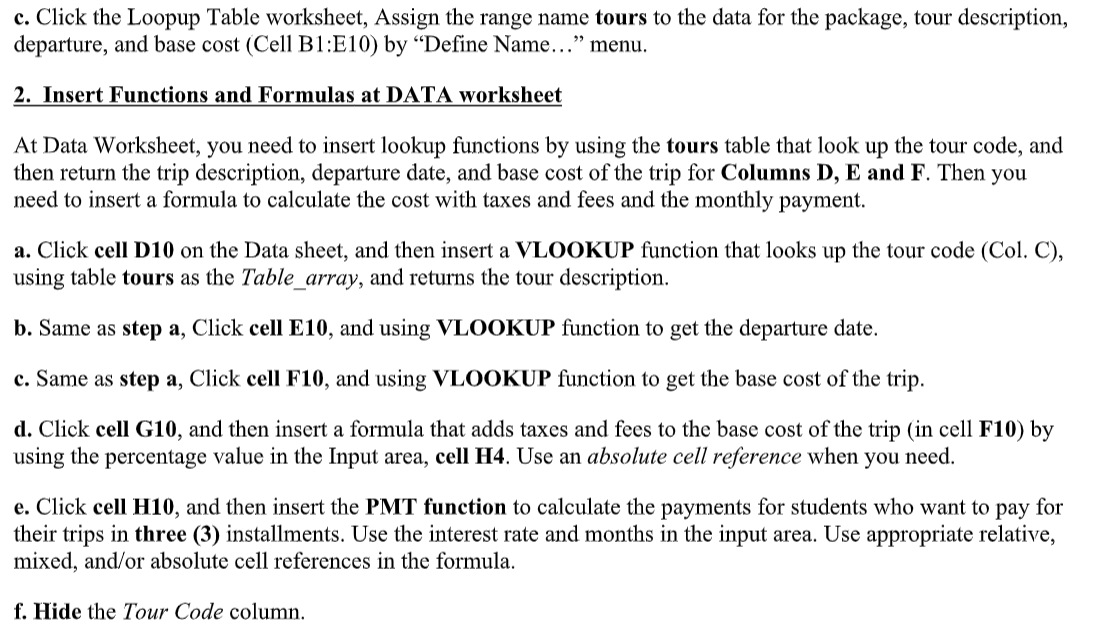
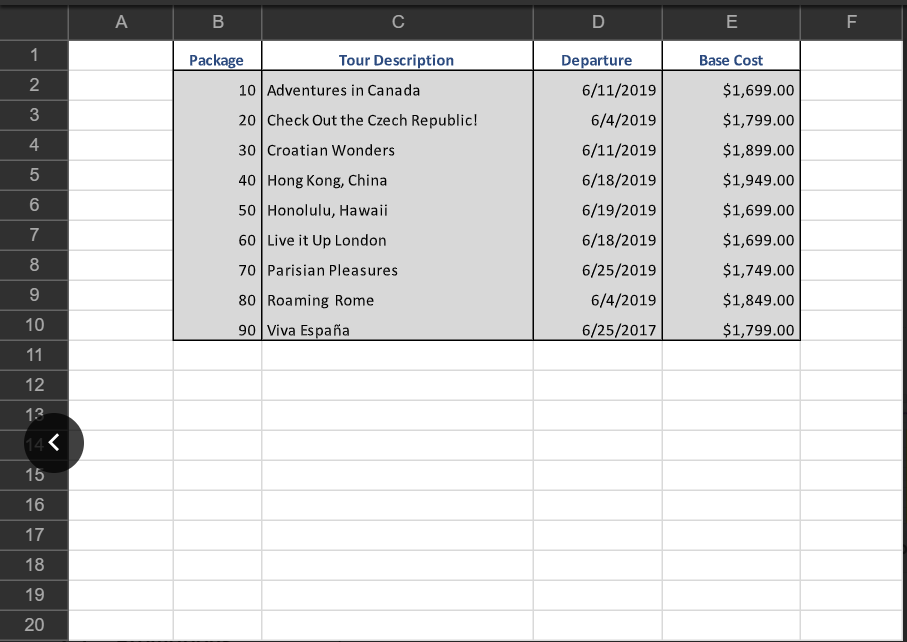
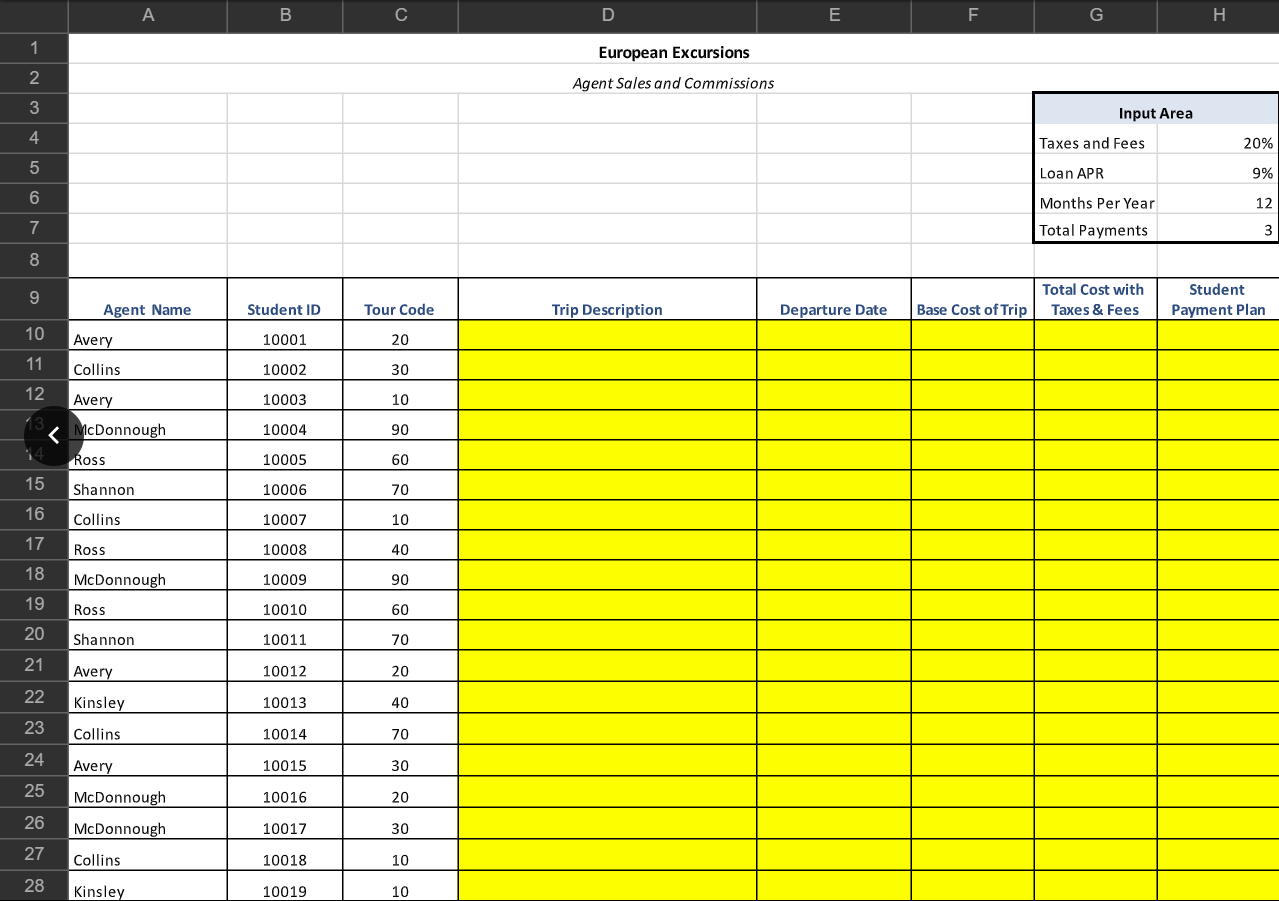
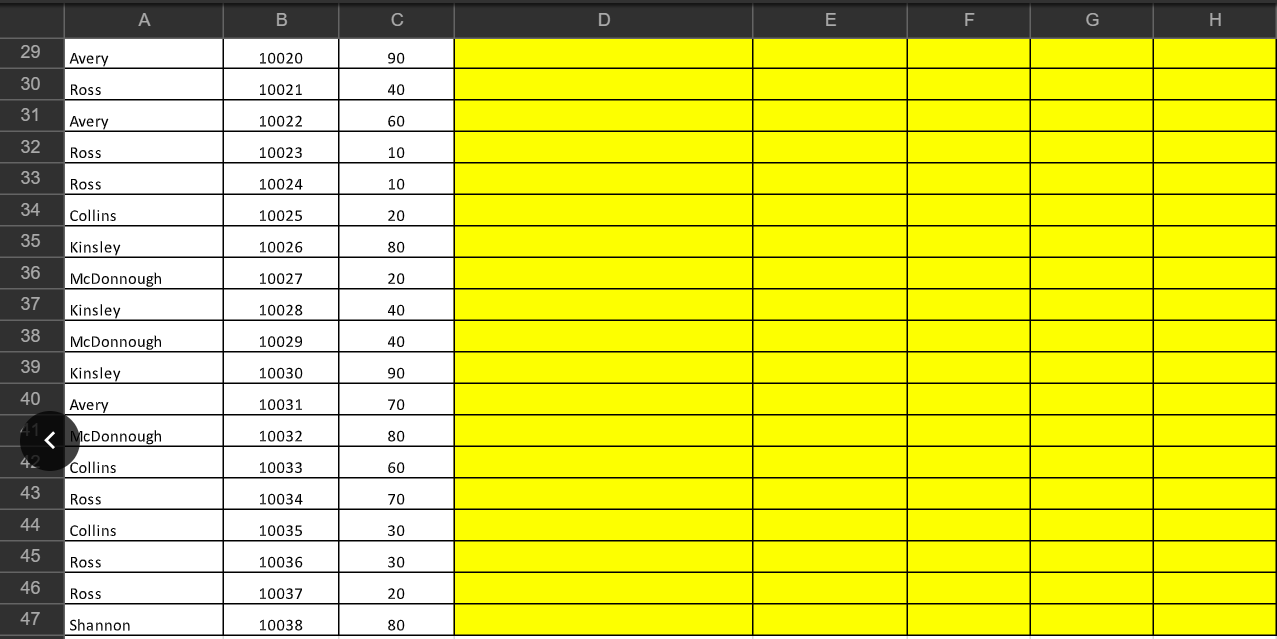
c. Click the Loopup Table worksheet, Assign the range name tours to the data for the package, tour description, departure, and base cost (Cell B1:E10) by "Define Name..." menu. 2. Insert Functions and Formulas at DATA worksheet At Data Worksheet, you need to insert lookup functions by using the tours table that look up the tour code, and then return the trip description, departure date, and base cost of the trip for Columns D, E and F. Then you need to insert a formula to calculate the cost with taxes and fees and the monthly payment. a. Click cell D10 on the Data sheet, and then insert a VLOOKUP function that looks up the tour code (Col. C), using table tours as the Table_array, and returns the tour description. b. Same as step a, Click cell E10, and using VLOOKUP function to get the departure date. c. Same as step a, Click cell F10, and using VLOOKUP function to get the base cost of the trip. d. Click cell G10, and then insert a formula that adds taxes and fees to the base cost of the trip (in cell F10) by using the percentage value in the Input area, cell H4. Use an absolute cell reference when you need. e. Click cell H10, and then insert the PMT function to calculate the payments for students who want to pay for their trips in three (3) installments. Use the interest rate and months in the input area. Use appropriate relative, mixed, and/or absolute cell references in the formula
Step by Step Solution
There are 3 Steps involved in it

Get step-by-step solutions from verified subject matter experts
 Study Help