



Question: Please submit a screen shot of the virtual box installed and running to show that it is up and working. click Add CD/DVD Device, which
Please submit a screen shot of the virtual box installed and running to show that it is up and working.
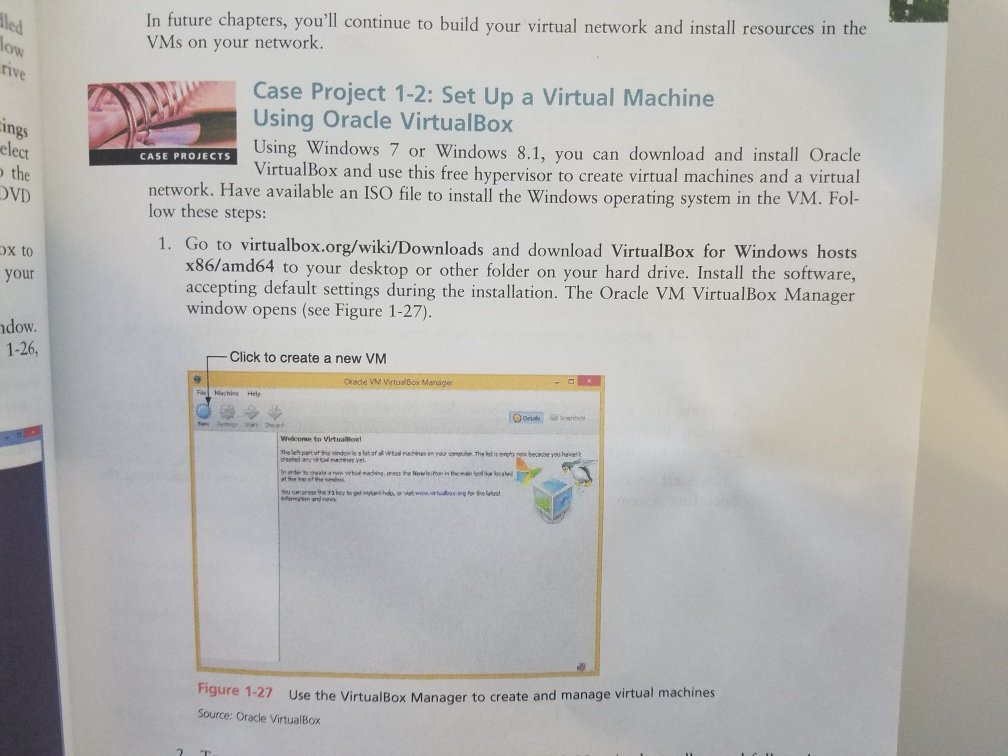
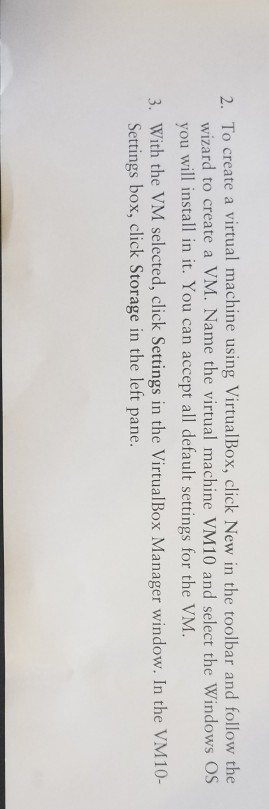
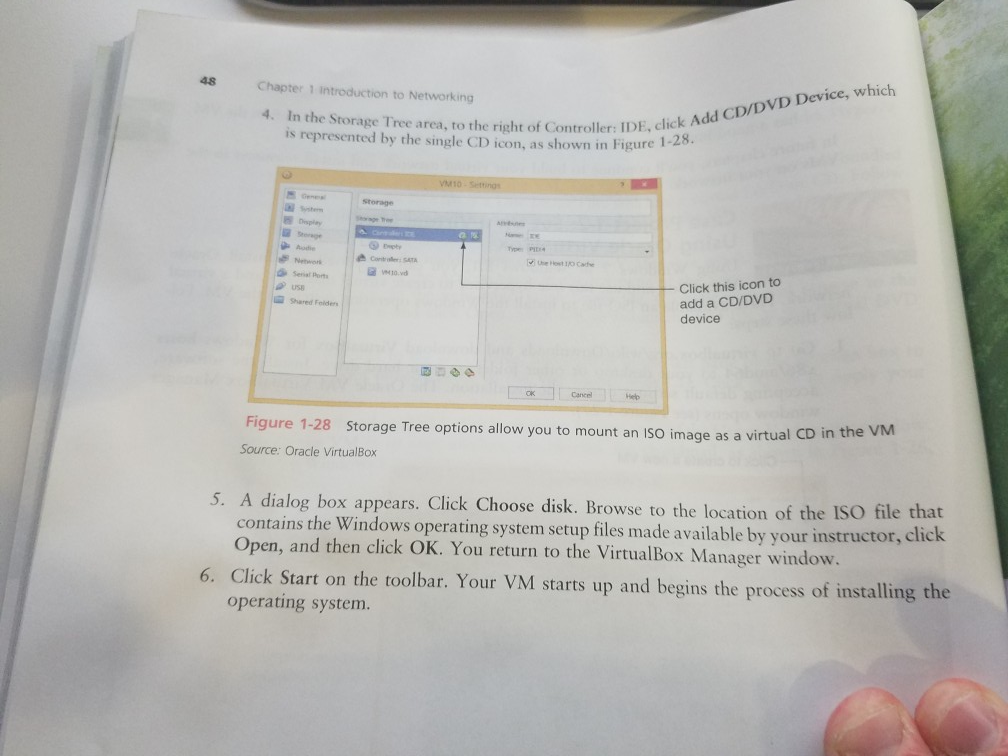
click Add CD/DVD Device, which 1-28 48 Chapter 1 introduction to Networking 4. In the Storage Tree area, to the right of Controller: IDE, C is represented by the single CD icon, as shown in Figure Display d senal Porti Click this icon to add a CD/DVD device Shared Folders Cance Figure 1-28 Storage Tree options allow you to mount an ISO image as a virtual CD in the VM Source: Oracle VirtualBox S. A dialog box appears. Click Choose disk. Browse to the location of the ISO file that contains the Windows operating system setup files made available by your instructor, c lick Open, and then click OK. You return to the VirtualBox Manager window. 6. Click Start on the toolbar. Your VM starts up and begins the process of installing the operating system
Step by Step Solution
There are 3 Steps involved in it

Get step-by-step solutions from verified subject matter experts