



Question: Please use Microsoft Excel EA1-R1 Display the Accounting Equation In this exercise, you will enter the beginning and ending accounting equations in Excel. The beginning
Please use Microsoft Excel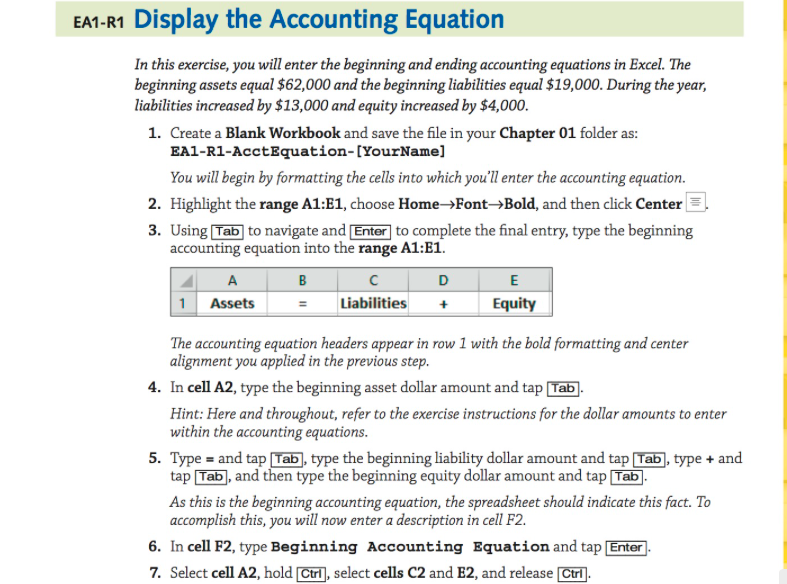
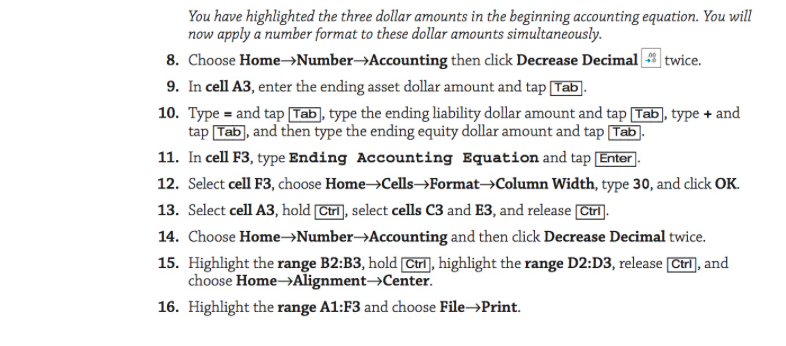
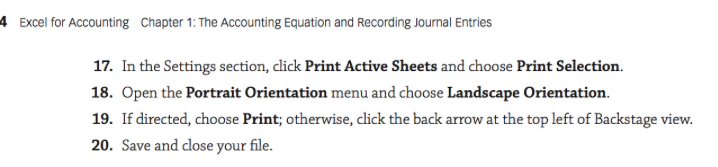
EA1-R1 Display the Accounting Equation In this exercise, you will enter the beginning and ending accounting equations in Excel. The beginning assets equal $62,000 and the beginning liabilities equal $19,000. During the year, liabilities increased by $13,000 and equity increased by $4,000 1. Create a Blank Workbook and save the file in your Chapter 01 folder as EA1-R1-AcctEquation-[YourName] You will begin by formatting the cells into which you'll enter the accounting equation. 2. Highlight the range A1:E1, choose HomeFontBold, and then click Center 3. Using [Tab] to navigate and Enter to complete the final entry, type the beginning accounting equation into the range A1:E1. 1 Assets Liabilities+ Equity The accounting equation headers appear in row 1 with the bold formatting and center alignment you applied in the previous step. In cell A2, type the beginning asset dollar amount and tap Tab. Hint: Here and throughout, refer to the exercise instructions for the dollar amounts to enter within the accounting equations 4. 5. Type- and tap [Tab, type the beginning liability dollar amount and tap [Tab, type and tap [Tab, and then type the beginning equity dollar amount and tap [Tab As this is the beginning accounting equation, the spreadsheet should indicate this fact. To accomplish this, you will now enter a description in cell F2. 6. In cell F2, type Beginning Accounting Equation and tap Enter 7. Select cell A2, hold Ctril, select cells C2 and E2, and release Ctrl
Step by Step Solution
There are 3 Steps involved in it

Get step-by-step solutions from verified subject matter experts