





Question: please use Microsoft Project and type step by step Exercise #1 Open a New project Define the project using the Project Guide: Set Start Date

please use Microsoft Project and type step by step
please use Microsoft Project and type step by

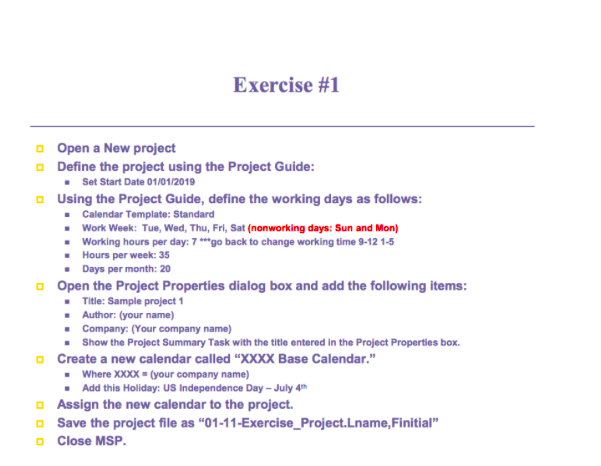
Exercise #1 Open a New project Define the project using the Project Guide: Set Start Date 01/01/2019 . Using the Project Guide, define the working days as follows: Calendar Template: Standard Work Week: Tue, Wed, Thu,Fri, Sat (nonworking days: Sun and Mon) . Working hours per day: 7 ***go back to change working time 9-12 1-5 Hours per week: 35 Days per month: 20 Open the Project Properties dialog box and add the following items: Title: Sample project 1 Author: (your name) . Company: (Your company name) Show the Project Summary Task with the title entered in the Project Properties box. Create a new calendar called "XXXX Base Calendar." Where XXXX = (your company name) . Add this Holiday: US Independence Day - July 4 Assign the new calendar to the project. Save the project file as 01-11-Exercise_Project.Lname, Finitial" Close MSP. Exercise #1 Open a New project Define the project using the Project Guide: Set Start Date 01/01/2019 . Using the Project Guide, define the working days as follows: Calendar Template: Standard Work Week: Tue, Wed, Thu,Fri, Sat (nonworking days: Sun and Mon) . Working hours per day: 7 ***go back to change working time 9-12 1-5 Hours per week: 35 Days per month: 20 Open the Project Properties dialog box and add the following items: Title: Sample project 1 Author: (your name) . Company: (Your company name) Show the Project Summary Task with the title entered in the Project Properties box. Create a new calendar called "XXXX Base Calendar." Where XXXX = (your company name) . Add this Holiday: US Independence Day - July 4 Assign the new calendar to the project. Save the project file as 01-11-Exercise_Project.Lname, Finitial" Close MSP

Step by Step Solution

There are 3 Steps involved in it

1 Expert Approved Answer
Step: 1 Unlock blur-text-image

Question Has Been Solved by an Expert!

Get step-by-step solutions from verified subject matter experts

Step: 2 Unlock
Step: 3 Unlock

Students Have Also Explored These Related General Management Questions!