







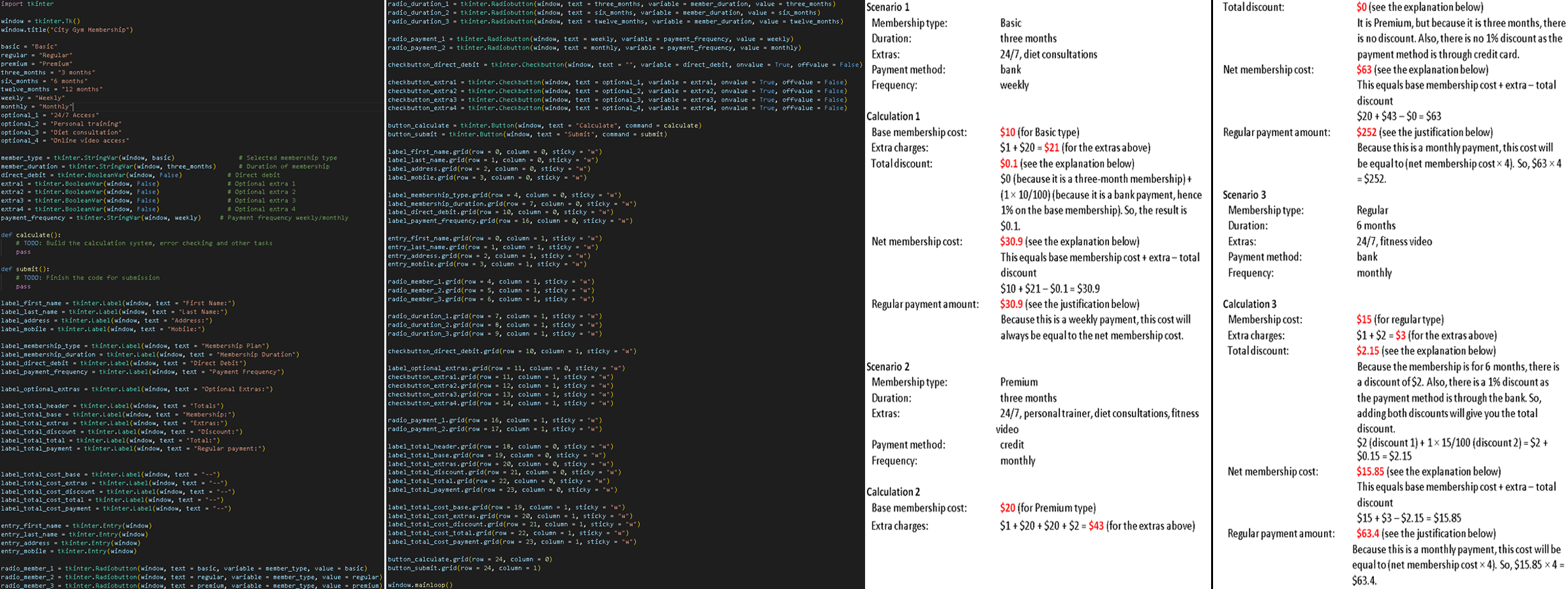
Question: Please use my code and the calculation appendix images to answer the following: Part B: Pricing and calculations When the user clicks the calculate button,
Please use my code and the calculation appendix images to answer the following: Part B: Pricing and calculations
When the user clicks the calculate button, if an option has not been selected the application should warn the user and stop the calculation.
If all required options have been selected, the application should check the selected options on the interface and calculate:
base membership cost based on the membership type
total extras as selected by the user for example, diet consultation
membership duration discount
payment type discount.
Once the application has calculated each option, it will be able to use those values to calculate:
total membership cost
regular payment amount based on the weekly or monthly selection.
Notes:
The total membership cost is the final total of membership type and extras, with any discounts deducted. This will be considered the weekly total.
If monthly is selected, multiply the weekly total by four to get the monthly total.
The calculations should be based on the options the user selected on the interface. It is recommended to store the information into individual variables. Pricing
The pricing section of your application should include the following.
The three membership types and weekly base costs for each are:
Basic: $Regular: $Premium: $
After the client chooses one of the base costs, they then select the duration of their membership. Either or months
oIf months is selected, the client receives a discount of $
oIf months is selected, the client receives a discount of $
If the client chooses to pay by direct debit, they receive a discount off the base cost of the membership type selected not including extras
The client can then select from any of the following extras. Costs are per week.
oaccess is $
oPersonal training is $
oDiet consultation is $
oOnline video access is $
All the above discounts, membership costs, and extras are on a weekly basis.
The client can choose to pay weekly or monthly. If they select to pay monthly, you only need to multiply their total by four. Calculated totals
Use Appendix Calculations to help with calculating different membership scenarios.
When calculating, the application should display the subtotals and totals to the user.
Membership cost: Based on the membership type they selected, such as basic. It does not consider the duration or the duration discount.
Total discount: Includes the duration discount and direct debit discount.
Extras: The total of all the extras the client has selected. However, extras are optional, and the client may not have selected any.
Total cost: The final total for membership type and extras, minus any discounts.
Regular payment amount: The payment cost is based on the weekly or monthly selection. Part C: Updating the interface
After the calculations are made, update the interface of the application to display the totals. The values rounded to two decimal places. For example, should be shown as Part D: Validation and error checking The application should provide an appropriate warning message to the user and not write to the file if there are errors found. The following criteria must be considered. No text field should be empty. No radio button component should go unselected. The first and last name fields should not contain any number. You do not need to validate the address. The best place to perform this validation and error checking is when the user attempts to submit the form. Part E: Writing the memberdata text file Once validation and error checking has been performed, the application should write all the users selections into a text file. The file name for this should be membersdata.txtWrite this file to the same directory the program is being run from. Part F: Form completion
Once the user has submitted the form and the data has been successfully written into the file: Let the user know the data has been saved successfully by displaying a message box or similar prompt. The form is cleared to allow for another user to enter their data.
Step by Step Solution
There are 3 Steps involved in it
1 Expert Approved Answer
Step: 1 Unlock

Question Has Been Solved by an Expert!
Get step-by-step solutions from verified subject matter experts
Step: 2 Unlock
Step: 3 Unlock
 Study Help