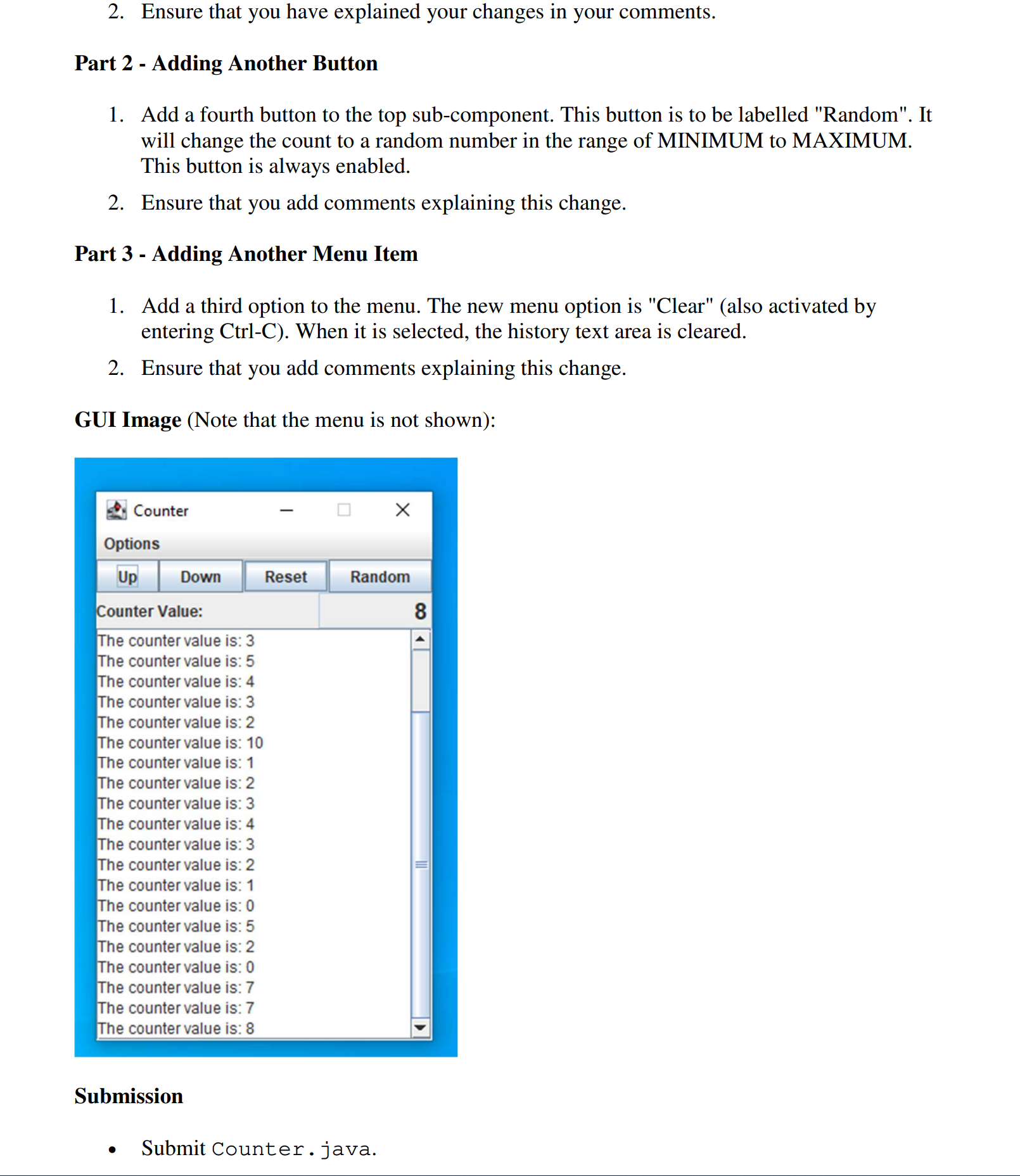
Question: Please with his question Part 1 - Changing the GUI Layout 1. Update the constructor of the Counter class as follows: a. The top level

Please with his question
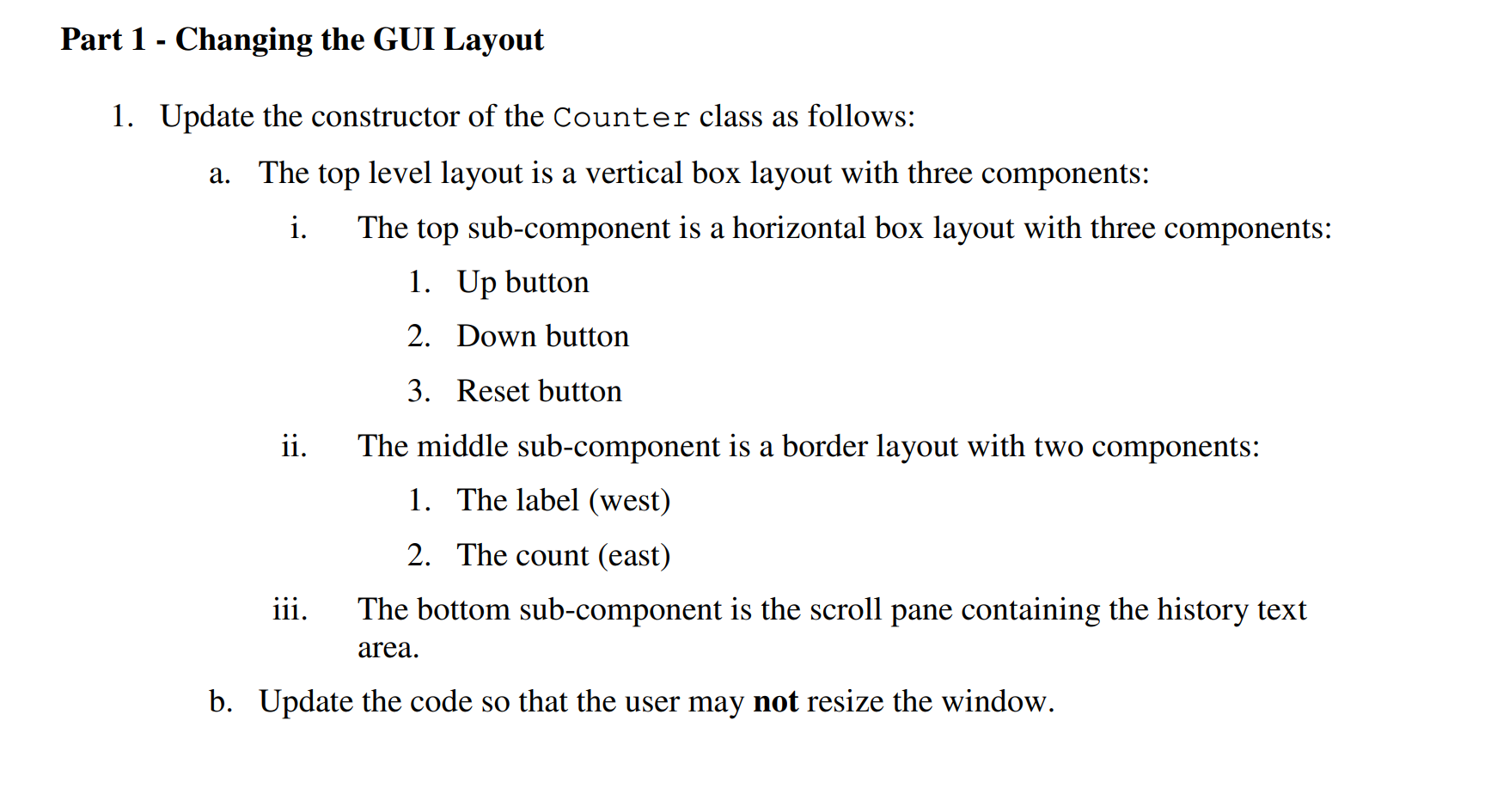
Please with his question Part 1 - Changing thePlease with his question Part 1 - Changing the
Part 1 - Changing the GUI Layout 1. Update the constructor of the Counter class as follows: a. The top level layout is a vertical box layout with three components: i. The top sub-component is a horizontal box layout with three components: 1. Up button 2. Down button 3. Reset button ii. The middle sub-component is a border layout with two components: 1. The label (west) 2. The count (east) iii. The bottom sub-component is the scroll pane containing the history text area. b. Update the code so that the user may not resize the window. 2. Ensure that you have explained your changes in your comments. Part 2 - Adding Another Button 1. Add a fourth button to the top sub-component. This button is to be labelled "Random". It will change the count to a random number in the range of MINIMUM to MAXIMUM. This button is always enabled 2. Ensure that you add comments explaining this change. Part 3 - Adding Another Menu Item 1. Add a third option to the menu. The new menu option is "Clear" (also activated by entering Ctrl-C). When it is selected, the history text area is cleared. 2. Ensure that you add comments explaining this change. GUI Image (Note that the menu is not shown): Counter 0 X Options Up Down Reset Random Counter Value: CO The counter value is: 3 The counter value is: 5 The counter value is: 4 The counter value is: 3 The counter value is: 2 The counter value is: 10 The counter value is: 1 The counter value is: 2 The counter value is: 3 The counter value is: 4 The counter value is: 3 The counter value is: 2 The counter value is: 1 The counter value is: 0 The counter value is: 5 The counter value is: 2 The counter value is: 0 The counter value is: 7 The counter value is: 7 The counter value is: 8 Submission . Submit Counter . java

Step by Step Solution

There are 3 Steps involved in it

1 Expert Approved Answer
Step: 1 Unlock blur-text-image

Question Has Been Solved by an Expert!

Get step-by-step solutions from verified subject matter experts

Step: 2 Unlock
Step: 3 Unlock

Students Have Also Explored These Related Programming Questions!