







Question: pls help me to do the entire lab Lab Exercise 3 Examining DHCP and NAT with Wireshark1 OBJECTIVE: In this lab, we'll use Wireshark to
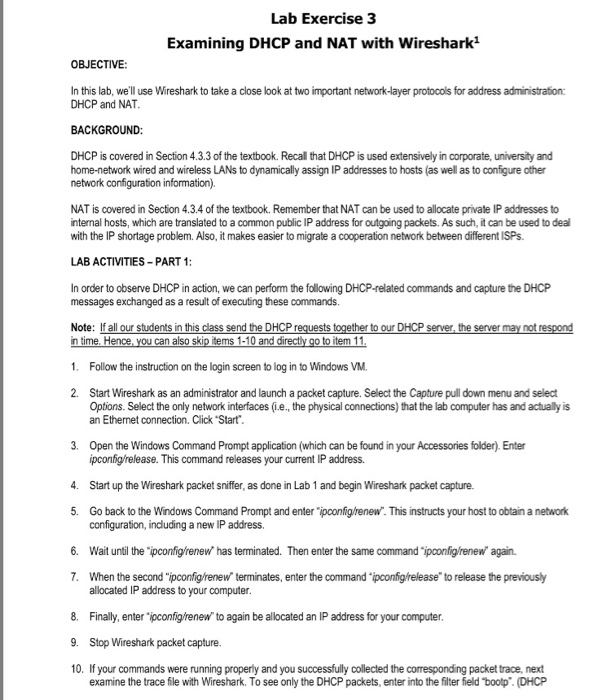
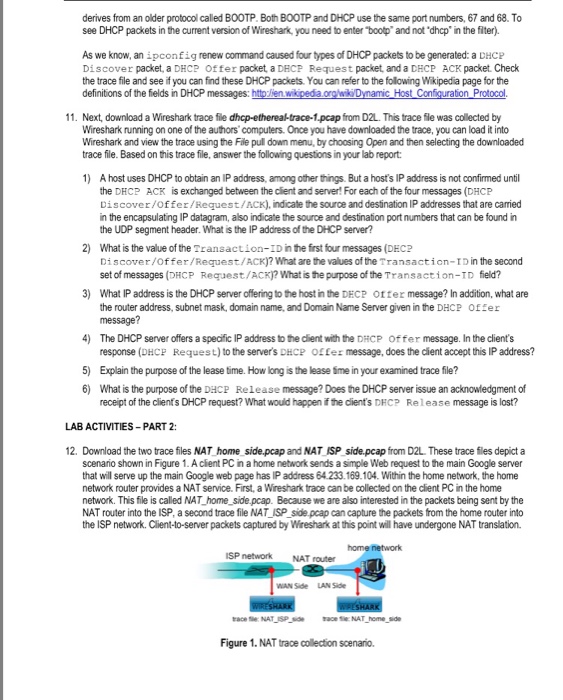
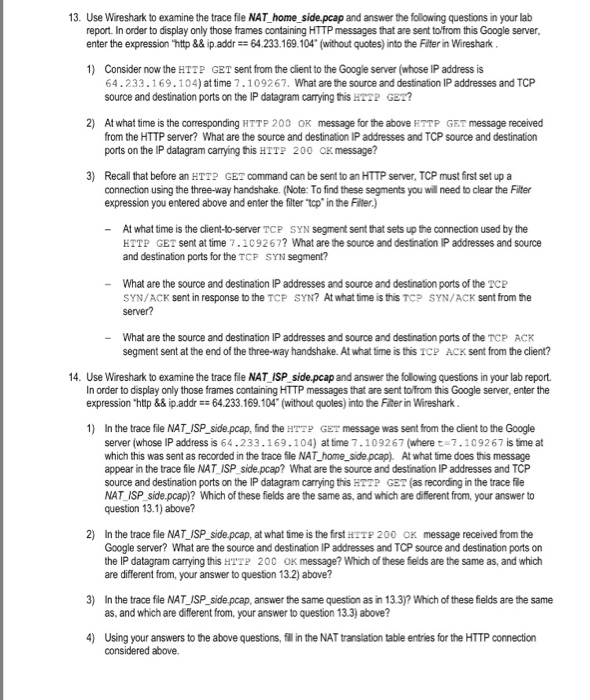
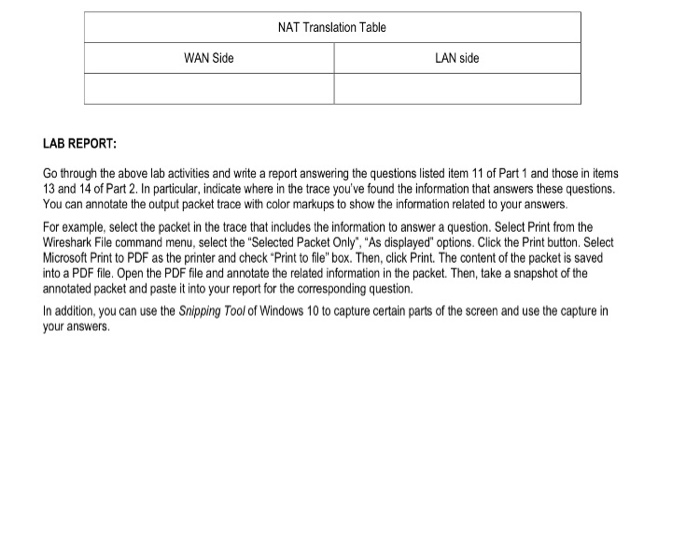
Lab Exercise 3 Examining DHCP and NAT with Wireshark1 OBJECTIVE: In this lab, we'll use Wireshark to take a close look at two important network-layer protocols for address administration: DHCP and NAT BACKGROUND: DHCP is covered in Section 4.3.3 of the textbook. Recall that DHCP is used extensively in corporate, university and home-network wired and wireless LANs to dynamically assign IP addresses to hosts (as well as to configure other network configuration information). NAT is covered in Section 4.3.4 of the textbook. Remember that NAT can be used to allocate private IP addresses to nternal hosts, which are translated to a common public IP address for outgoing packets. As such, it can be used to deal with the IP shortage problem. Also, it makes easier to migrate a cooperation network between different ISPs. LAB ACTIVITIES- PART 1: In order to observe DHCP in action, we can perform the following DHCP-related commands and capture the DHCP messages exchanged as a result of executing these commands Note: Ifal in 10 and time. Hence 1. Follow the instruction on the login screen to log in to Windows VM. 2. Start Wireshark as an administrator and launch a packet capture. Select the Capture pull down menu and select tem Options. Select the only network interfaces (ie., the physical connections) that the lab computer has and actually is an Ethernet connection. Click Start 3. Open the Windows Command Prompt application (which can be found in your Accessories folder). Enter pconfig/release. This command releases your current IP address. 4. Start up the Wireshark packet sniffer, as done in Lab 1 and begin Wireshark packet capture. 5. Go back to the Windows Command Prompt and enter "ipconfighenew. This instructs your host to obtain a network configuration, indluding a new IP address. 6. Wait until the "ipconfigrenew has terminated. Then enter the same command "ipconfig/renew again. 7. When the second "ipconfig/renew terminates, enter the command "ipconfig/release"to release the previousy allocated IP address to your computer Finally, enter .pconfigrenew" to again be allocated an lP address for your computer. Stop Wireshark packet capture. 9. 10. If your commands were running properly and you successfully collected the corresponding packet trace, next examine the trace file with Wireshark. To see only the DHCP packets, enter into the filter field bootp. (DHCP Lab Exercise 3 Examining DHCP and NAT with Wireshark1 OBJECTIVE: In this lab, we'll use Wireshark to take a close look at two important network-layer protocols for address administration: DHCP and NAT BACKGROUND: DHCP is covered in Section 4.3.3 of the textbook. Recall that DHCP is used extensively in corporate, university and home-network wired and wireless LANs to dynamically assign IP addresses to hosts (as well as to configure other network configuration information). NAT is covered in Section 4.3.4 of the textbook. Remember that NAT can be used to allocate private IP addresses to nternal hosts, which are translated to a common public IP address for outgoing packets. As such, it can be used to deal with the IP shortage problem. Also, it makes easier to migrate a cooperation network between different ISPs. LAB ACTIVITIES- PART 1: In order to observe DHCP in action, we can perform the following DHCP-related commands and capture the DHCP messages exchanged as a result of executing these commands Note: Ifal in 10 and time. Hence 1. Follow the instruction on the login screen to log in to Windows VM. 2. Start Wireshark as an administrator and launch a packet capture. Select the Capture pull down menu and select tem Options. Select the only network interfaces (ie., the physical connections) that the lab computer has and actually is an Ethernet connection. Click Start 3. Open the Windows Command Prompt application (which can be found in your Accessories folder). Enter pconfig/release. This command releases your current IP address. 4. Start up the Wireshark packet sniffer, as done in Lab 1 and begin Wireshark packet capture. 5. Go back to the Windows Command Prompt and enter "ipconfighenew. This instructs your host to obtain a network configuration, indluding a new IP address. 6. Wait until the "ipconfigrenew has terminated. Then enter the same command "ipconfig/renew again. 7. When the second "ipconfig/renew terminates, enter the command "ipconfig/release"to release the previousy allocated IP address to your computer Finally, enter .pconfigrenew" to again be allocated an lP address for your computer. Stop Wireshark packet capture. 9. 10. If your commands were running properly and you successfully collected the corresponding packet trace, next examine the trace file with Wireshark. To see only the DHCP packets, enter into the filter field bootp. (DHCP
Step by Step Solution
There are 3 Steps involved in it

Get step-by-step solutions from verified subject matter experts
 Study Help