







Question: plus show full code in html and i will add imagies where they go 1. Download circlesoftlogo.gif, circlesoftbullet.gif to your images folder and pagestarter.html to
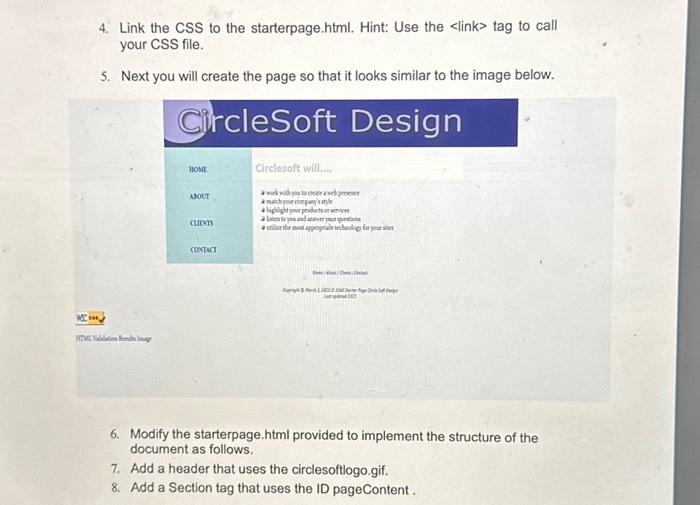
1. Download circlesoftlogo.gif, circlesoftbullet.gif to your images folder and pagestarter.html to your assignments folder. The pagestarter.html file contains the basic text for the page without any CSS. 2. Define the title tag for your page that uniquely identifies your page as yours. 3. Create an external stylesheet called starter.css based on the criteria below. Save the CSS file in your CSS folder. a. Use the body selector to configure the global properties for the document. - Margins should be 0 for top and bottom set to auto for the left and right to auto to center the page. - Page background color to a color that fits the color scheme of the other items on the page and text to black. - Define a font family. b. Use the header selector to format the logo area. - Define the logo area to a darkblue to match the logo and the text to a contrasting blue. The selected colors should go with the logo colors. - Define the max-width to 1000px - Margins should be the same on all sides based on the space on the page (hint: what does auto do?). c. Create a style that formats an image inside a header selector that sets the image width to 100%. d. Use the nav selector to format the navigation area. - Use a dark blue textcolor, Light blue background color, No underlining on the links and a large font. - Define the font as bold - Width of the navigation 150px - Float the navigation to the left - Add padding 2px on the top and bottom and 10px on the right and left. e. Create a pseudo-class for the navigation specific hover to be white. f. Create pseudo-classes for the for all links (a:link a:visited a:hover). - Link color is dark blue - Visited color is black - Hover color is white g. Create style for all links to have no underlines. h. Use the Heading 2 selector to format the heading "Circlesoft Will..." - Define Text color as light blue and a background of white - Define the font-family as Verdana. - Define the padding to 10px. i. Use the footer selector to format the footer. - Clear the floats. - Use a .75em for your font- size, italic, choose a fontfamily. - Text should be centered. - Define max width to 1000px. - Define Margin to auto for all 4 sides. j. Configure the unordered list (ul) to use the image cireclesoftbullet.gif as the bullet in the list. k. Using the Main selector to contain them main content. - Float left - Width 60% 1. Create an ID called pageContent. - Set the max width to 1000px - Margin should be auto on all sides - No border. 4. Link the CSS to the starterpage.html. Hint: Use the tag to call your CSS file. 5. Next you will create the page so that it looks similar to the image below. Hosit ADokT cIINTs contact Circlesoft will.... avitist putsonterat prococe -ientionerer 6. Modify the starterpage.html provided to implement the structure of the document as follows. 7. Add a header that uses the circlesoftlogo.gif. 8. Add a Section tag that uses the ID pageContent . 6. Modify the starterpage.html provided to implement the structure of the document as follows. 7. Add a header that uses the circlesoftlogo.gif. 8. Add a Section tag that uses the ID pageContent. 9. Navigation - Implement the navigation using unordered list. 10. Main with the role="main" (see class example) a. Inside the main should be the unordered list. 11. Add a footer tag that contains the navigation in the p tag and the copyright and last updated information
Step by Step Solution
There are 3 Steps involved in it

Get step-by-step solutions from verified subject matter experts
 Study Help