







Question: Problem 5-10 Your son has been accepted into college. This college guarantees that your son's tuition will not increase for the four years he attends
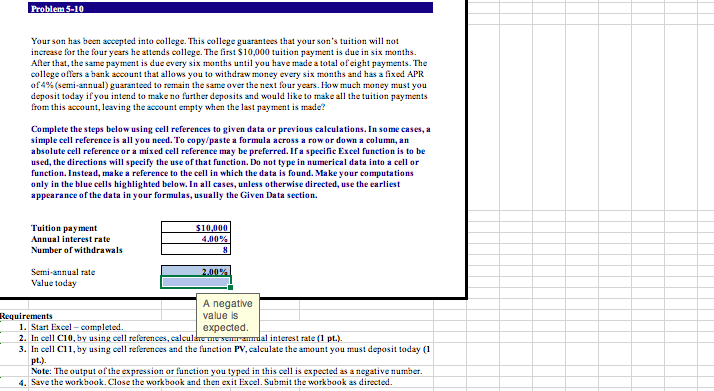
Problem 5-10 Your son has been accepted into college. This college guarantees that your son's tuition will not increase for the four years he attends college. The first $10,000 tuition payment is due in six months. After that, the same payment is due every six months until you have made a total of eight payments. The college offers a bank account that allows you to withdraw money every six months and has a fixed APR of 4% (semi-annual) guaranteed to remain the same over the next four years. How much money must you deposit today if you intend to make no further deposits and would like to make all the tuition payments from this account, leaving the account empty when the last payment is made? Complete the steps below using cell references to given data or previous calculations. In some cases, a simple cell reference is all you need. To copy/paste a formula across a row or down a column, an absolute cell reference or a mixed cell reference may be preferred. If a specific Excel function is to be used, the directions will specify the use of that function. Do not type in numerical data into a cell or function. Instead, make a reference to the cell in which the data is found. Make your computations only in the blue cells highlighted below. In all cases, unless otherwise directed, use the earliest appearance of the data in your formulas, usually the Given Data section. Tuition payment Annual interest rate Number of withdrawals $10,000 4.00% Semi-annual rate Value today A negative Requirements value is 1. Start Excel - completed expected 2. In cell C10, by using cell references, calculate the secondal interest rate (1 pt.). 3. In cell C11, by using cell references and the function PV, calculate the amount you must deposit today (1 pt.) Note: The output of the expression or function you typed in this cell is expected as a negative number. 4. Save the workbook. Close the workbook and then exit Excel. Submit the workbook as directed
Step by Step Solution
There are 3 Steps involved in it

Get step-by-step solutions from verified subject matter experts
 Study Help