







Question: Problem #6 Before modifying the Request URL, use SAVE AS to save to Problem6a. Note that for problems #6-8 you will need to use the
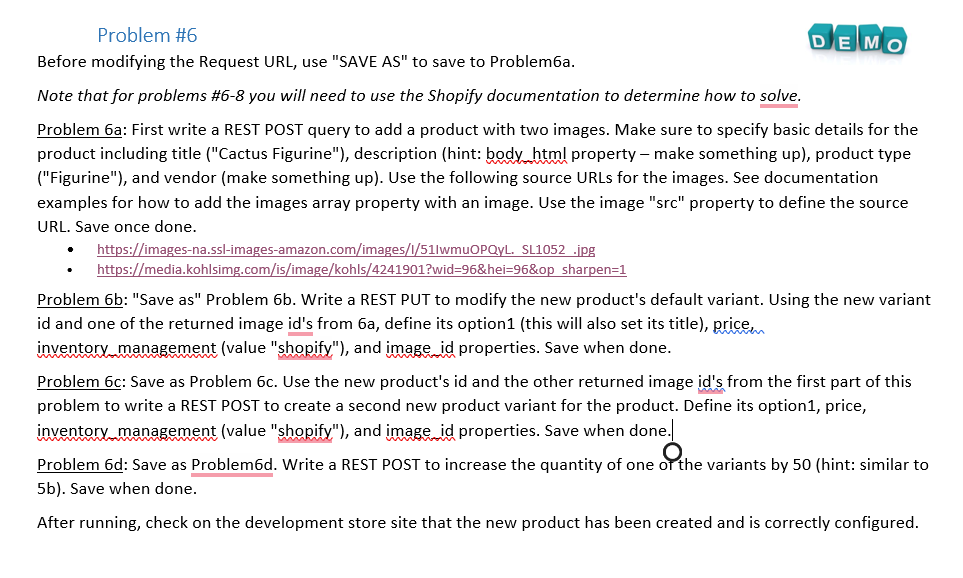
Problem \#6 Before modifying the Request URL, use "SAVE AS" to save to Problem6a. Note that for problems \#6-8 you will need to use the Shopify documentation to determine how to solve. Problem 6a: First write a REST POST query to add a product with two images. Make sure to specify basic details for the product including title ("Cactus Figurine"), description (hint: body html property - make something up), product type ("Figurine"), and vendor (make something up). Use the following source URLs for the images. See documentation examples for how to add the images array property with an image. Use the image "src" property to define the source URL. Save once done. - https://images-na.ssl-images-amazon.com/images///51/wmuOPQyL. SL1052 .jpg - https://media.kohlsimg.com/is/image/kohls/4241901?wid=96\&hei=96\&op sharpen=1 Problem 6b: "Save as" Problem 6b. Write a REST PUT to modify the new product's default variant. Using the new variant id and one of the returned image id's from 6a, define its option1 (this will also set its title), price inventory management (value "shopify"), and image id properties. Save when done. Problem 6c: Save as Problem 6c. Use the new product's id and the other returned image id's from the first part of this problem to write a REST POST to create a second new product variant for the product. Define its option1, price, inventory management (value "shopify"), and image id properties. Save when done.| Problem 6d: Save as Problem6d. Write a REST POST to increase the quantity of one of the variants by 50 (hint: similar to 5b). Save when done. After running, check on the development store site that the new product has been created and is correctly configured
Step by Step Solution
There are 3 Steps involved in it

Get step-by-step solutions from verified subject matter experts
 Study Help