



Question: Problem solutions must make full use of defined name ranges using the labels indicated for each Problem 5 : Charting Re - create the Excel
Problem solutions must make full use of defined name ranges using the labels indicated for each Problem : Charting
Recreate the Excel chart below Figure that draws on the Forecasting worksheet data comparing the
total customer base under each of the two scenarios. Insert it at the top of the previous problem's
worksheet
Figure : Market Capture Projections
There are multiple ways to create a chart like this. One way is to select the column of values for "Total
Customers" for the first scenario and create a simple chart.
Select the data and select: Insert Insert Line Chart There are several chart types available;
you may use line or scatter chart type.
Now from the second scenario select the values from the "Total Customers" column and copy
CTRLC or CommandC to the system Clipboard.
Click the edge of the existing chart and paste CTRLV or CommandV the Clipboard values to
add the second, comparison line.
You can click anywhere on the chart to reveal the three tool buttons beside the chart; use the
top tool or choose the option from the tool bar to modify various chart elements:
Chart Elements Chart Styles and Chart Filters
Or rightclick on the specific area of the chart then select Format Chart Area options to refine
your chart elements with all appropriate labels, etc. as per the example
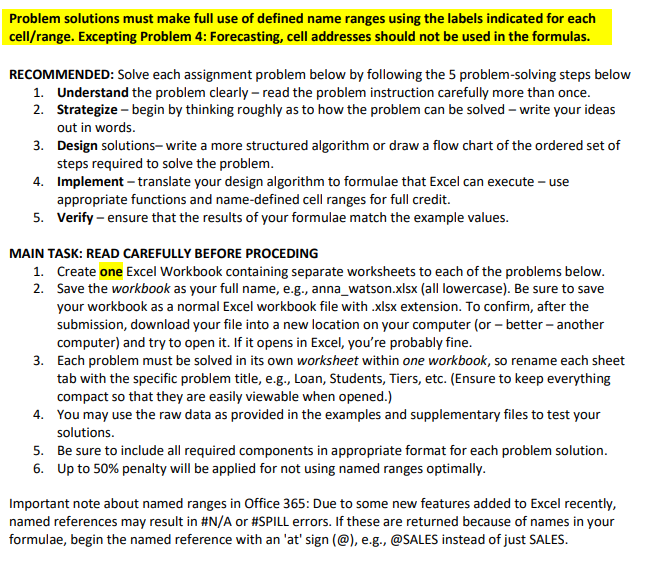
cellrange Excepting Problem : Forecasting, cell addresses should not be used in the formulas.
RECOMMENDED: Solve each assignment problem below by following the problemsolving steps below
Understand the problem clearly read the problem instruction carefully more than once.
Strategize begin by thinking roughly as to how the problem can be solved write your ideas
out in words.
Design solutions write a more structured algorithm or draw a flow chart of the ordered set of
steps required to solve the problem.
Implement translate your design algorithm to formulae that Excel can execute use
appropriate functions and namedefined cell ranges for full credit.
Verify ensure that the results of your formulae match the example values.
MAIN TASK: READ CAREFULLY BEFORE PROCEDING
Create one Excel Workbook containing separate worksheets to each of the problems below.
Save the workbook as your full name, eg annawatson.xlsx all lowercase Be sure to save
your workbook as a normal Excel workbook file with xlsx extension. To confirm, after the
submission, download your file into a new location on your computer or better another
computer and try to open it If it opens in Excel, you're probably fine.
Each problem must be solved in its own worksheet within one workbook, so rename each sheet
tab with the specific problem title, eg Loan, Students, Tiers, etc. Ensure to keep everything
compact so that they are easily viewable when opened.
You may use the raw data as provided in the examples and supplementary files to test your
solutions.
Be sure to include all required components in appropriate format for each problem solution.
Up to penalty will be applied for not using named ranges optimally.
Important note about named ranges in Office : Due to some new features added to Excel recently,
named references may result in #NA or #SPILL errors. If these are returned because of names in your
formulae, begin the named reference with an at sign @ eg @SALES instead of just SALES.
Step by Step Solution
There are 3 Steps involved in it
1 Expert Approved Answer
Step: 1 Unlock

Question Has Been Solved by an Expert!
Get step-by-step solutions from verified subject matter experts
Step: 2 Unlock
Step: 3 Unlock