







Question: Procedure 4. Find five circular objects with different diameters. These could be objects such as a food or drink cans, balls of different kinds,
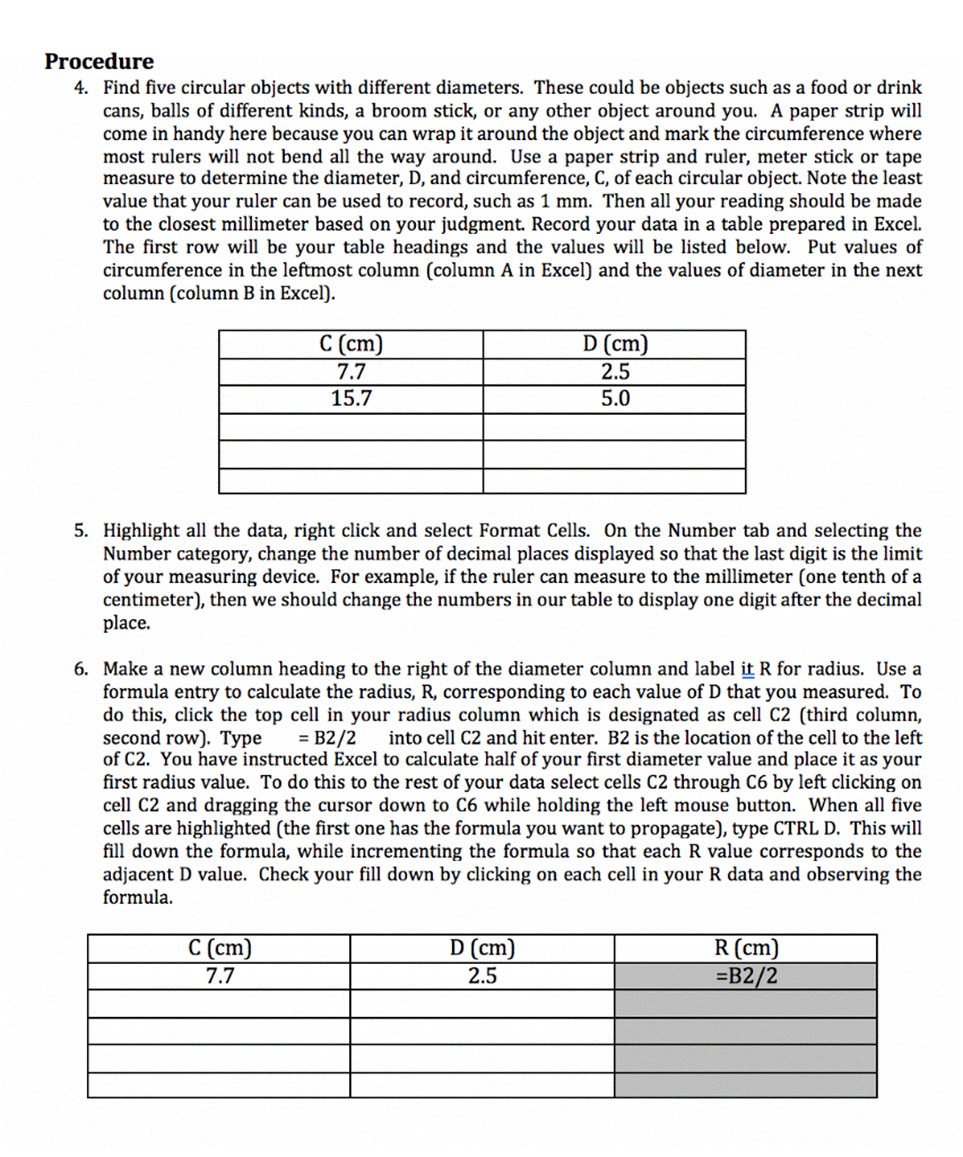
Procedure 4. Find five circular objects with different diameters. These could be objects such as a food or drink cans, balls of different kinds, a broom stick, or any other object around you. A paper strip will come in handy here because you can wrap it around the object and mark the circumference where most rulers will not bend all the way around. Use a paper strip and ruler, meter stick or tape measure to determine the diameter, D, and circumference, C, of each circular object. Note the least value that your ruler can be used to record, such as 1 mm. Then all your reading should be made to the closest millimeter based on your judgment. Record your data in a table prepared in Excel. The first row will be your table headings and the values will be listed below. Put values of circumference in the leftmost column (column A in Excel) and the values of diameter in the next column (column B in Excel). C (cm) 7.7 15.7 5. Highlight all the data, right click and select Format Cells. On the Number tab and selecting the Number category, change the number of decimal places displayed so that the last digit is the limit of your measuring device. For example, if the ruler can measure to the millimeter (one tenth of a centimeter), then we should change the numbers in our table to display one digit after the decimal place. C (cm) 7.7 D (cm) 2.5 5.0 6. Make a new column heading to the right of the diameter column and label it R for radius. Use a formula entry to calculate the radius, R, corresponding to each value of D that you measured. To do this, click the top cell in your radius column which is designated as cell C2 (third column, second row). Type = B2/2 into cell C2 and hit enter. B2 is the location of the cell to the left of C2. You have instructed Excel to calculate half of your first diameter value and place it as your first radius value. To do this to the rest of your data select cells C2 through C6 by left clicking on cell C2 and dragging the cursor down to C6 while holding the left mouse button. When all five cells are highlighted (the first one has the formula you want to propagate), type CTRL D. This will fill down the formula, while incrementing the formula so that each R value corresponds to the adjacent D value. Check your fill down by clicking on each cell your R data and observing the formula. D (cm) 2.5 R (cm) =B2/2 Procedure 4. Find five circular objects with different diameters. These could be objects such as a food or drink cans, balls of different kinds, a broom stick, or any other object around you. A paper strip will come in handy here because you can wrap it around the object and mark the circumference where most rulers will not bend all the way around. Use a paper strip and ruler, meter stick or tape measure to determine the diameter, D, and circumference, C, of each circular object. Note the least value that your ruler can be used to record, such as 1 mm. Then all your reading should be made to the closest millimeter based on your judgment. Record your data in a table prepared in Excel. The first row will be your table headings and the values will be listed below. Put values of circumference in the leftmost column (column A in Excel) and the values of diameter in the next column (column B in Excel). C (cm) 7.7 15.7 5. Highlight all the data, right click and select Format Cells. On the Number tab and selecting the Number category, change the number of decimal places displayed so that the last digit is the limit of your measuring device. For example, if the ruler can measure to the millimeter (one tenth of a centimeter), then we should change the numbers in our table to display one digit after the decimal place. C (cm) 7.7 D (cm) 2.5 5.0 6. Make a new column heading to the right of the diameter column and label it R for radius. Use a formula entry to calculate the radius, R, corresponding to each value of D that you measured. To do this, click the top cell in your radius column which is designated as cell C2 (third column, second row). Type = B2/2 into cell C2 and hit enter. B2 is the location of the cell to the left of C2. You have instructed Excel to calculate half of your first diameter value and place it as your first radius value. To do this to the rest of your data select cells C2 through C6 by left clicking on cell C2 and dragging the cursor down to C6 while holding the left mouse button. When all five cells are highlighted (the first one has the formula you want to propagate), type CTRL D. This will fill down the formula, while incrementing the formula so that each R value corresponds to the adjacent D value. Check your fill down by clicking on each cell your R data and observing the formula. D (cm) 2.5 R (cm) =B2/2 Procedure 4. Find five circular objects with different diameters. These could be objects such as a food or drink cans, balls of different kinds, a broom stick, or any other object around you. A paper strip will come in handy here because you can wrap it around the object and mark the circumference where most rulers will not bend all the way around. Use a paper strip and ruler, meter stick or tape measure to determine the diameter, D, and circumference, C, of each circular object. Note the least value that your ruler can be used to record, such as 1 mm. Then all your reading should be made to the closest millimeter based on your judgment. Record your data in a table prepared in Excel. The first row will be your table headings and the values will be listed below. Put values of circumference in the leftmost column (column A in Excel) and the values of diameter in the next column (column B in Excel). C (cm) 7.7 15.7 5. Highlight all the data, right click and select Format Cells. On the Number tab and selecting the Number category, change the number of decimal places displayed so that the last digit is the limit of your measuring device. For example, if the ruler can measure to the millimeter (one tenth of a centimeter), then we should change the numbers in our table to display one digit after the decimal place. C (cm) 7.7 D (cm) 2.5 5.0 6. Make a new column heading to the right of the diameter column and label it R for radius. Use a formula entry to calculate the radius, R, corresponding to each value of D that you measured. To do this, click the top cell in your radius column which is designated as cell C2 (third column, second row). Type = B2/2 into cell C2 and hit enter. B2 is the location of the cell to the left of C2. You have instructed Excel to calculate half of your first diameter value and place it as your first radius value. To do this to the rest of your data select cells C2 through C6 by left clicking on cell C2 and dragging the cursor down to C6 while holding the left mouse button. When all five cells are highlighted (the first one has the formula you want to propagate), type CTRL D. This will fill down the formula, while incrementing the formula so that each R value corresponds to the adjacent D value. Check your fill down by clicking on each cell your R data and observing the formula. D (cm) 2.5 R (cm) =B2/2 Procedure 4. Find five circular objects with different diameters. These could be objects such as a food or drink cans, balls of different kinds, a broom stick, or any other object around you. A paper strip will come in handy here because you can wrap it around the object and mark the circumference where most rulers will not bend all the way around. Use a paper strip and ruler, meter stick or tape measure to determine the diameter, D, and circumference, C, of each circular object. Note the least value that your ruler can be used to record, such as 1 mm. Then all your reading should be made to the closest millimeter based on your judgment. Record your data in a table prepared in Excel. The first row will be your table headings and the values will be listed below. Put values of circumference in the leftmost column (column A in Excel) and the values of diameter in the next column (column B in Excel). C (cm) 7.7 15.7 5. Highlight all the data, right click and select Format Cells. On the Number tab and selecting the Number category, change the number of decimal places displayed so that the last digit is the limit of your measuring device. For example, if the ruler can measure to the millimeter (one tenth of a centimeter), then we should change the numbers in our table to display one digit after the decimal place. C (cm) 7.7 D (cm) 2.5 5.0 6. Make a new column heading to the right of the diameter column and label it R for radius. Use a formula entry to calculate the radius, R, corresponding to each value of D that you measured. To do this, click the top cell in your radius column which is designated as cell C2 (third column, second row). Type = B2/2 into cell C2 and hit enter. B2 is the location of the cell to the left of C2. You have instructed Excel to calculate half of your first diameter value and place it as your first radius value. To do this to the rest of your data select cells C2 through C6 by left clicking on cell C2 and dragging the cursor down to C6 while holding the left mouse button. When all five cells are highlighted (the first one has the formula you want to propagate), type CTRL D. This will fill down the formula, while incrementing the formula so that each R value corresponds to the adjacent D value. Check your fill down by clicking on each cell your R data and observing the formula. D (cm) 2.5 R (cm) =B2/2
Step by Step Solution
3.42 Rating (152 Votes )
There are 3 Steps involved in it
Circumference C cm Diameter D cm Radius R cm 115 40 2 335 111 555 187 62 31 388 1... View full answer

Get step-by-step solutions from verified subject matter experts
 Study Help