





Question: Project 3-5: Using BestCrypt Third-party software applications can be downloaded to protect files with cryptography. In this project, you download and install Jetico BestCrypt. 1.
Project 3-5: Using BestCrypt Third-party software
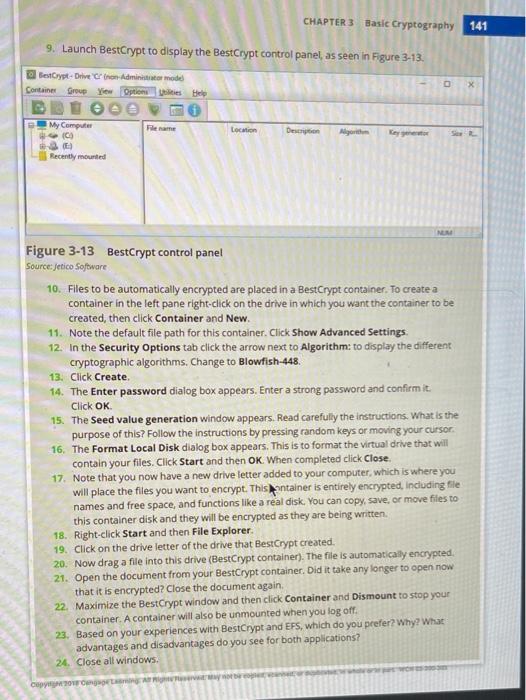
Project 3-5: Using BestCrypt Third-party software applications can be downloaded to protect files with cryptography. In this project, you download and install Jetico BestCrypt. 1. Use your web browser to go to www.jetico.com Note It is not unusual for websites to change the location of where files are stored. If the URL above no longer functions, open a search engine and search for "Jetico BestCrypt". 2. Click Products 3. Click Personal Privacy 4. Click BestCrypt Container Encryption 5. Click Download, 6. Click the Encryption tab. 7. Under BestCrypt Container Encryption click Download, 8. Follow the default installation procedures to install BestCrypt. A computer restart will be necessary Note Note that this is a limited-time evaluation copy. Any files that are encrypted will only be available as read-only after the time limit expires. CHAPTER 3 Basic Cryptography 141 9. Launch BestCrypt to display the BestCrypt control panel, as seen in Figure 3-13. BestCrypt-Drive on Administrator model Container Group Yiew Optionalities Help My Computer WC Location Description Algorithm Recently mounted NUM Figure 3-13 BestCrypt control panel Source: Jetico Software 10. Files to be automatically encrypted are placed in a BestCrypt container. To create a container in the left pane right-click on the drive in which you want the container to be created, then click Container and New 11. Note the default file path for this container. Click Show Advanced Settings 12. In the Security Options tab click the arrow next to Algorithm: to display the different cryptographic algorithms. Change to Blowfish-448. 13. Click Create 14. The Enter password dialog box appears. Enter a strong password and confirmit Click OK 15. The Seed value generation window appears. Read carefully the instructions. What is the purpose of this? Follow the instructions by pressing random keys or moving your cursor 16. The Format Local Disk dialog box appears. This is to format the virtual drive that will contain your files. Click Start and then OK. When completed click Close. 17. Note that you now have a new drive letter added to your computer, which is where you will place the files you want to encrypt. This kintainer is entirely encrypted, including file names and free space, and functions like a real disk. You can copy, save, or move files to this container disk and they will be encrypted as they are being written 18. Right-click Start and then File Explorer. 19. Click on the drive letter of the drive that BestCrypt created. 20. Now drag a file into this drive (BestCrypt container). The file is automatically encrypted. 21. Open the document from your BestCrypt container. Did it take any longer to open now that it is encrypted? Close the document again. 22. Maximize the BestCrypt window and then click Container and Dismount to stop your container. A container will also be unmounted when you log off 23. Based on your experiences with BestCrypt and EFS, which do you prefer? Why? What advantages and disadvantages do you see for both applications? 24. Close all windows. Copy

Step by Step Solution

There are 3 Steps involved in it

1 Expert Approved Answer
Step: 1 Unlock blur-text-image

Question Has Been Solved by an Expert!

Get step-by-step solutions from verified subject matter experts

Step: 2 Unlock
Step: 3 Unlock

Students Have Also Explored These Related General Management Questions!