







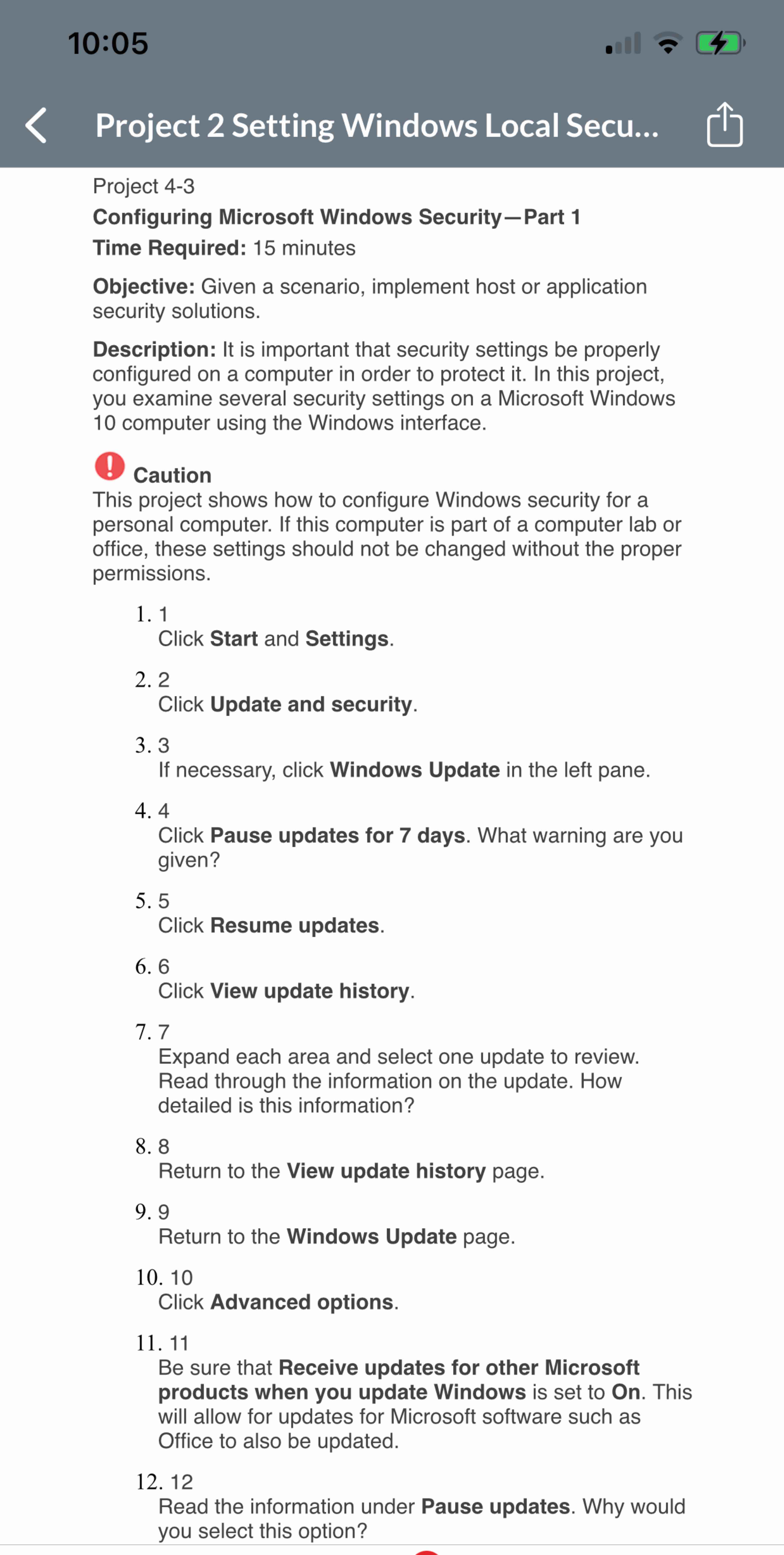
Question: Project 4 - 3 Configuring Microsoft Windows Security Part 1 Time Required: 1 5 minutes Objective: Given a scenario, implement host or application security solutions.
Project
Configuring Microsoft Windows SecurityPart
Time Required: minutes
Objective: Given a scenario, implement host or application security solutions.
Description: It is important that security settings be properly configured on a computer in order to protect it In this project, you examine several security settings on a Microsoft Windows computer using the Windows interface.
b Caution
This project shows how to configure Windows security for a personal computer. If this computer is part of a computer lab or office, these settings should not be changed without the proper permissions.
Click Start and Settings.
Click Update and security.
If necessary, click Windows Update in the left pane.
Click Pause updates for days. What warning are you given?
Click Resume updates.
Click View update history.
Expand each area and select one update to review. Read through the information on the update. How detailed is this information?
Return to the View update history page.
Return to the Windows Update page.
Click Advanced options.
Be sure that Receive updates for other Microsoft products when you update Windows is set to On This will allow for updates for Microsoft software such as Office to also be updated.
Read the information under Pause updates. Why would you select this option?
Step by Step Solution
There are 3 Steps involved in it
1 Expert Approved Answer
Step: 1 Unlock

Question Has Been Solved by an Expert!
Get step-by-step solutions from verified subject matter experts
Step: 2 Unlock
Step: 3 Unlock
 Study Help