







Question: Project Description: 'our friend Kimo is a server at a restaurant. He downloaded data for his customers' food and beverage purchases for the veek. You
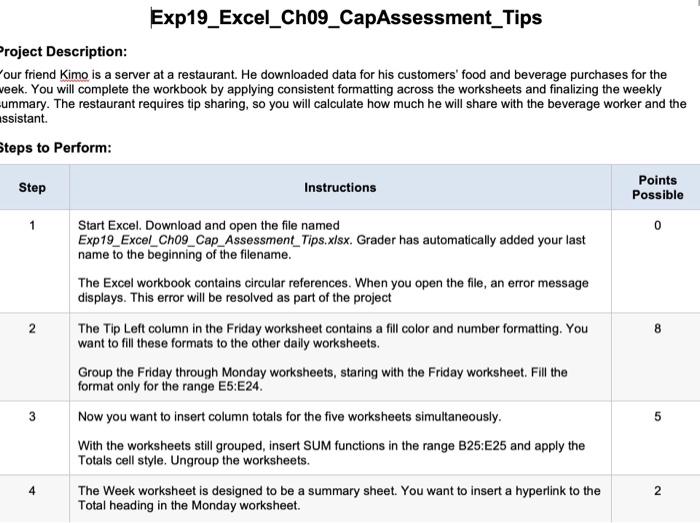
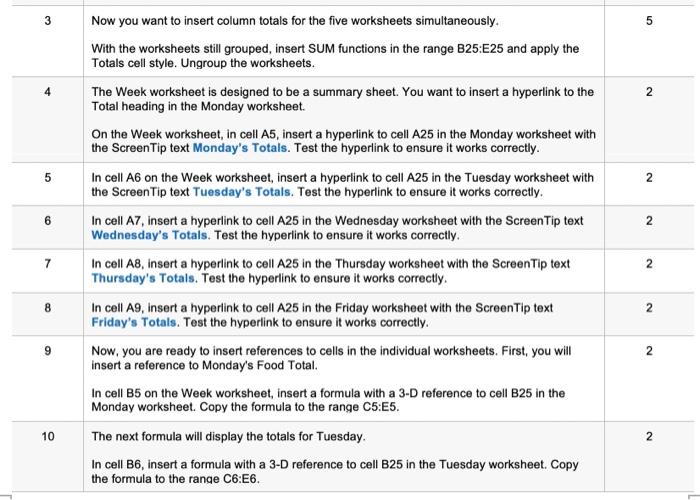
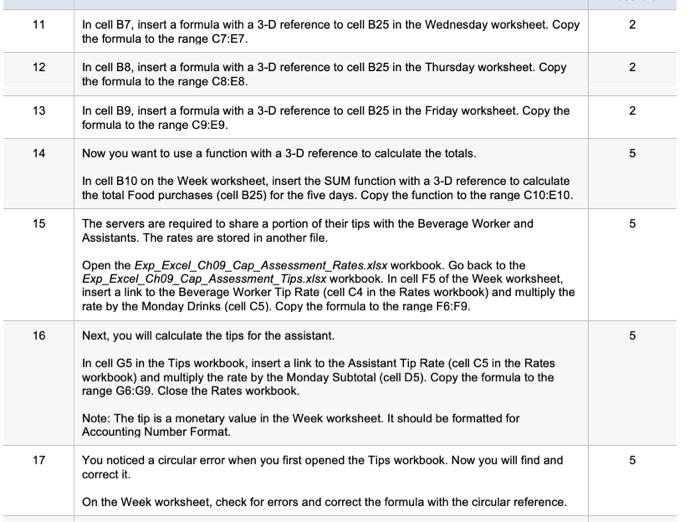
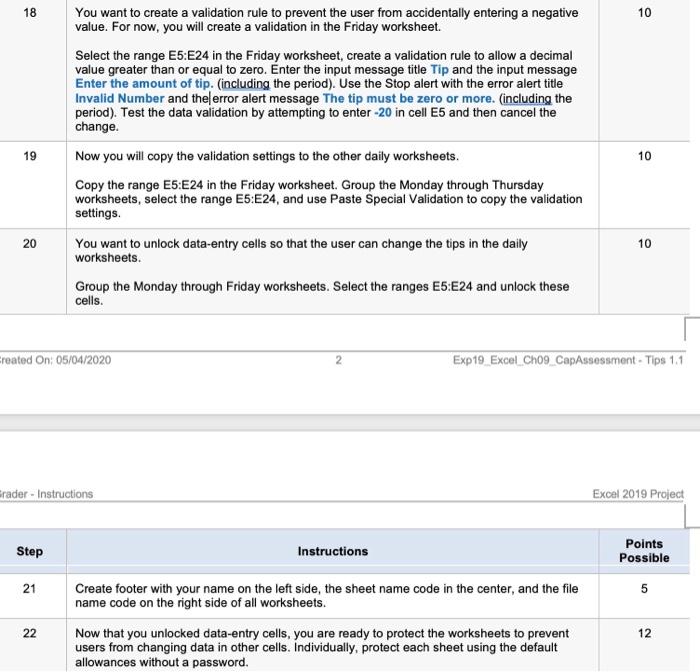
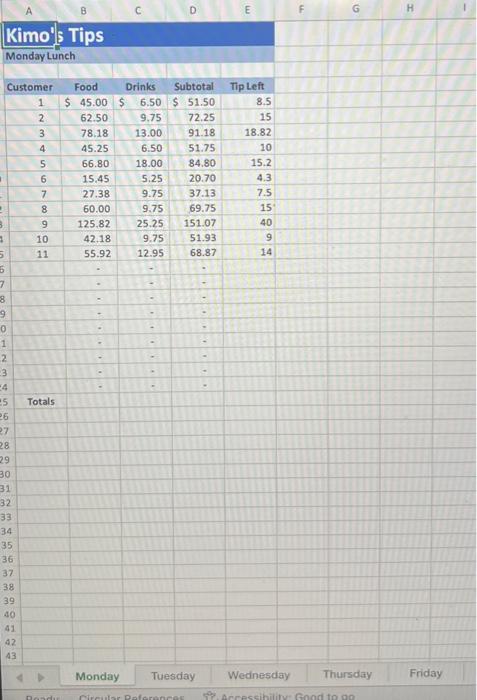
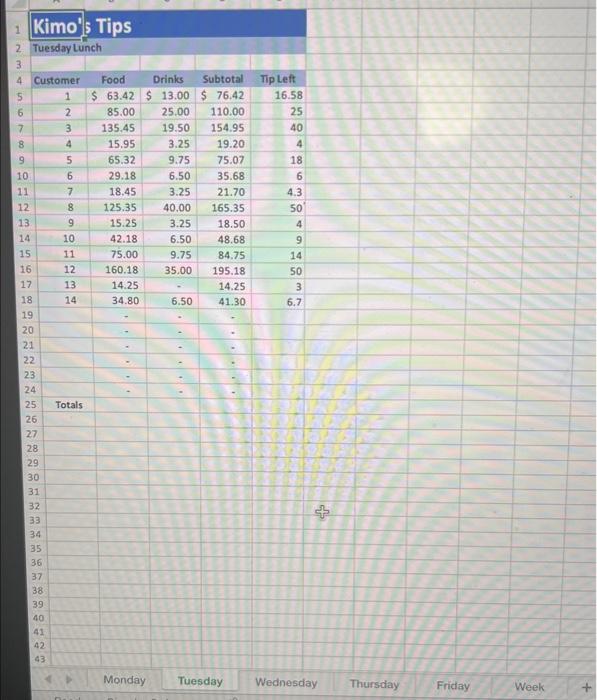
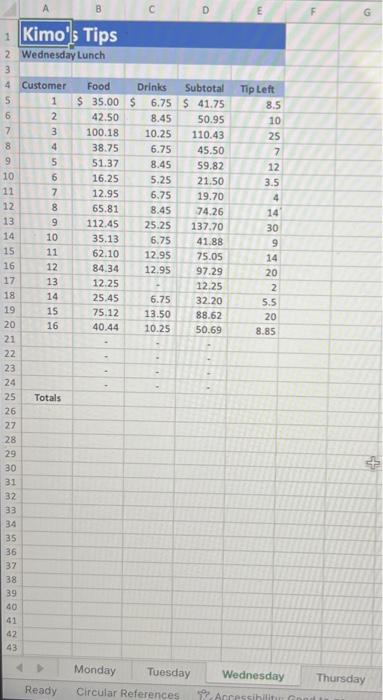
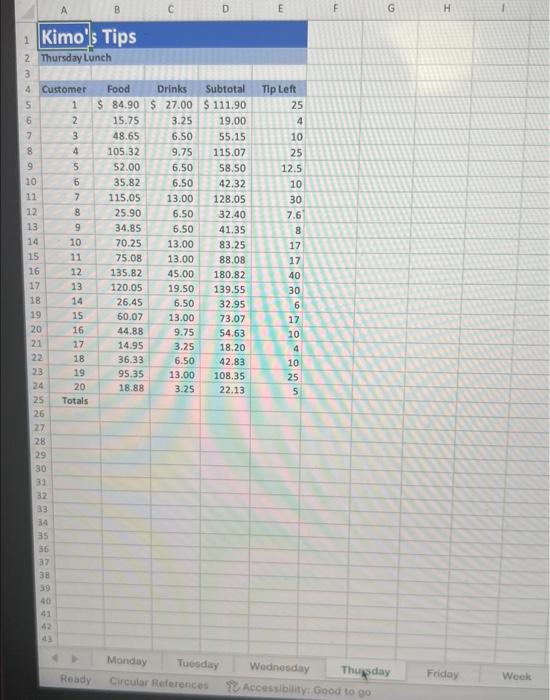
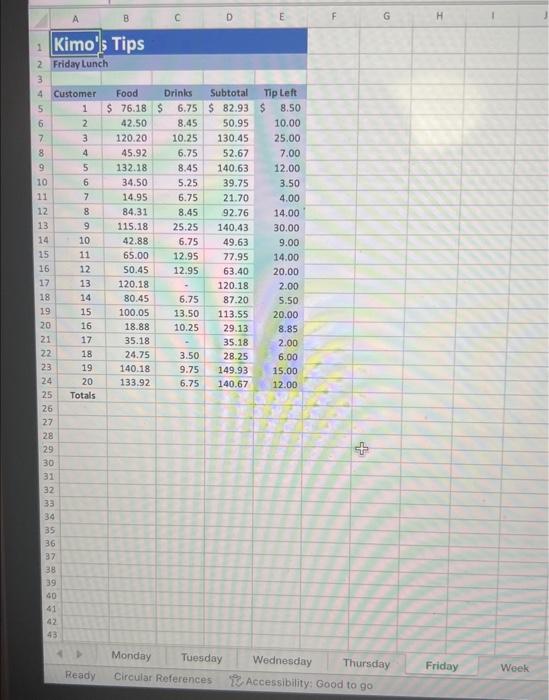
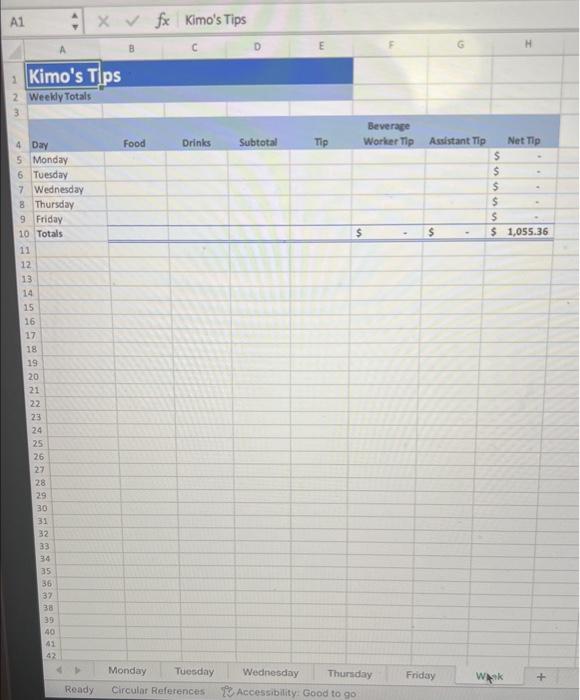
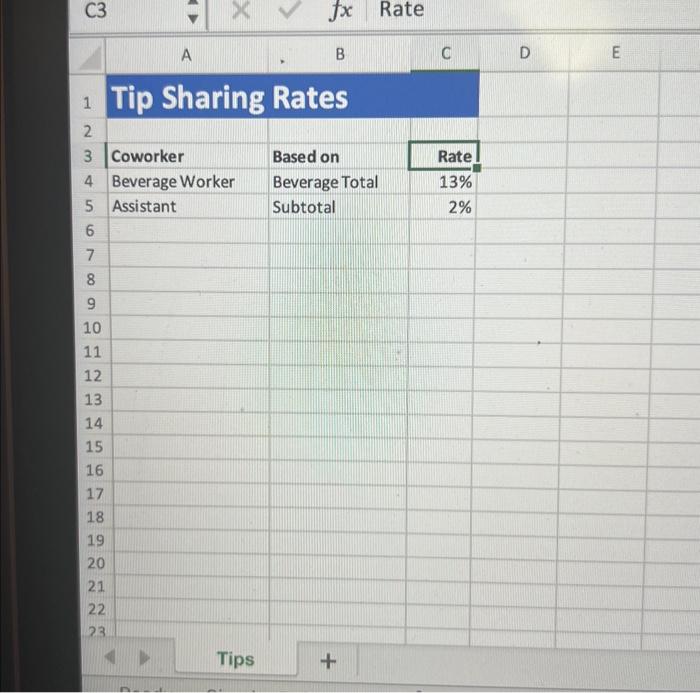
Project Description: 'our friend Kimo is a server at a restaurant. He downloaded data for his customers' food and beverage purchases for the veek. You will complete the workbook by applying consistent formatting across the worksheets and finalizing the weekly ummary. The restaurant requires tip sharing, so you will calculate how much he will share with the beverage worker and the issistant. Steps to Perform: \begin{tabular}{c|l} \hline 11 & IncellB7,insertaformulawitha3-DreferencetocellB25intheWednesdayworksheet.CopytheformulatotherangeC7:E7. \\ \hline 12 & IncellB8,insertaformulawitha3-DreferencetocellB25intheThursdayworksheet.CopytheformulatotherangeC8:E8. \\ \hline 13 & IncellB9,insertaformulawitha3-DreferencetocellB25intheFridayworksheet.CopytheformulatotherangeC9:E9. \\ \hline 14 & Nowyouwanttouseafunctionwitha3-Dreferencetocalculatethetotals.IncellB10ontheWeekworksheet,inserttheSUMfunctionwitha3-DreferencetocalculatethetotalFoodpurchases(cellB25)forthefivedays.CopythefunctiontotherangeC10:E10. \\ \hline \( \begin{array}{l}\text { The servers are required to share a portion of their tips with the Beverage Worker and } \\ \text { Assistants. The rates are stored in another file. } \\ \text { Open the Exp_Excel_ChO9_Cap_Assessment_Rates.xlsx workbook. Go back to the } \\ \text { Exp_Excel_ChO9_Cap_Assessment_Tips.xlsx workbook. In cell F5 of the Week worksheet, } \\ \text { insert a link to the Beverage Worker Tip Rate (cell C4 in the Rates workbook) and multiply the } \\ \text { rate by the Monday Drinks (cell C5). Copy the formula to the range F6:F9. }\end{array} \) \\ \hline Next,youwillcalculatethetipsfortheassistant.IncellG5intheTipsworkbook,insertalinktotheAssistantTipRate(cellC5intheRatesworkbook)andmultiplytheratebytheMondaySubtotal(cellD5).CopytheformulatotherangeG6:G9.ClosetheRatesworkbook.Note:ThetipisamonetaryvalueintheWeekworksheet.ItshouldbeformattedforAccountingNumberFormat. \\ \hline YounoticedacircularerrorwhenyoufirstopenedtheTipsworkbook.Nowyouwillfindandcorrectit. \\ \hline 16 \end{tabular} On the Week worksheet, check for errors and correct the formula with the circular reference. 18 You want to create a validation rule to prevent the user from accidentally entering a negative 10 value. For now, you will create a validation in the Friday worksheet. Select the range E5:E24 in the Friday worksheet, create a validation rule to allow a decimal value greater than or equal to zero. Enter the input message title Tip and the input message Enter the amount of tip. (including the period). Use the Stop alert with the error alert title Invalid Number and the/error alert message The tip must be zero or more. (including the period). Test the data validation by attempting to enter -20 in cell E5 and then cancel the change. Now you will copy the validation settings to the other daily worksheets. 10 Copy the range E5:E24 in the Friday worksheet. Group the Monday through Thursday worksheets, select the range E5:E24, and use Paste Special Validation to copy the validation settings. You want to unlock data-entry cells so that the user can change the tips in the daily 10 worksheets. Group the Monday through Friday worksheets. Select the ranges E5:E24 and unlock these cells. reated On: 05/04/2020 2 Exp19_Excel_Ch09_CapAssessment- Tips 1.1 Excel 2019 Project \begin{tabular}{|l|l|} \hline Step & \multicolumn{1}{c|}{ Instructions } \\ \hline 21 & Createfooterwithyournameontheleftside,thesheetnamecodeinthecenter,andthefilenamecodeontherightsideofallworksheets. \\ \hline 22 & Nowthatyouunlockeddata-entrycells,youarereadytoprotecttheworksheetstopreventusersfromchangingdatainothercells.Individually,protecteachsheetusingthedefaultallowanceswithoutapassword. \\ \hline \end{tabular} Kimo's Tips Monday Lunch \begin{tabular}{|r|r|r|r|r|r|} \hline Customer & \multicolumn{1}{|c|}{ Food } & \multicolumn{1}{c|}{ Drinks } & \multicolumn{1}{|c|}{ Subtotal } & \multicolumn{1}{|c|}{ Tipleft } \\ \hline 1 & $45.00 & $ & 6.50 & $51.50 & 8.5 \\ \hline 2 & 62.50 & 9.75 & 72.25 & 15 \\ \hline 3 & 78.18 & 13.00 & 91.18 & 18.82 \\ \hline 4 & 45.25 & 6.50 & 51.75 & 10 \\ \hline 5 & 66.80 & 18.00 & 84.80 & 15.2 \\ \hline 6 & 15.45 & 5.25 & 20.70 & 4.3 \\ \hline 7 & 27.38 & 9.75 & 37.13 & 7.5 \\ \hline 8 & 60.00 & 9.75 & 69.75 & 15 \\ \hline 9 & 125.82 & 25.25 & 151.07 & 40 \\ \hline 10 & 42.18 & 9.75 & 51.93 & 9 \\ \hline 11 & 55.92 & 12.95 & 68.87 & 14 \\ \hline \end{tabular} Totals 2. Tuesday Lunch \begin{tabular}{|r|r|r|r|r|r|r|} \hline 3 & & & & & \multicolumn{1}{|c|}{} \\ \hline 4 & Customer & \multicolumn{1}{|c|}{ Food } & \multicolumn{1}{|c|}{ Drinks } & Subtotal & \multicolumn{1}{|c|}{ Tpleft } \\ \hline 5 & 1 & $53.42 & $13.00 & $ & 76.42 & 16.58 \\ \hline 6 & 2 & 85.00 & 25.00 & 110.00 & 25 \\ \hline 7 & 3 & 135.45 & 19.50 & 154.95 & 40 \\ \hline 8 & 4 & 15.95 & 3.25 & 19.20 & 4 \\ \hline 9 & 5 & 65.32 & 9.75 & 75.07 & 18 \\ \hline 10 & 6 & 29.18 & 6.50 & 35.68 & 6 \\ \hline 11 & 7 & 18.45 & 3.25 & 21.70 & 4.3 \\ \hline 12 & 8 & 125.35 & 40.00 & 165.35 & 50 \\ \hline 13 & 9 & 15.25 & 3.25 & 18.50 & 4 \\ \hline 14 & 10 & 42.18 & 6.50 & 48.68 & 9 \\ \hline 15 & 11 & 75.00 & 9.75 & 84.75 & 14 \\ \hline 16 & 12 & 160.18 & 35.00 & 195.18 & 50 \\ \hline 17 & 13 & 14.25 & - & 14.25 & 3 \\ \hline 18 & 14 & 34.80 & 6.50 & 41.30 & 6.7 \\ \hline 19 & & & & & \\ \hline \end{tabular} 35 36 38 39 40 41 42 43 1 Kimo A Tios 2. Wednesday Lunch 3 1KimoA.STps 2. Thursday Lunch 3 \begin{tabular}{c|c|ccc} C3 & f(x) Rate \\ \hlineA & A & B & C & D \end{tabular} 1 Tip Sharing Rates \begin{tabular}{|l|l|r|r|} \hline 2 & & & \\ \hline 3 & Coworker & Based on & Rate \\ \hline 4 & Beverage Worker & Beverage Total & 13% \\ \hline 5 & Assistant & Subtotal & 2% \\ \hline & & & \\ \hline \end{tabular} 6 7 8 9 10 11 12 13 14 15 16 17 18 19 20 21 22 23 Project Description: 'our friend Kimo is a server at a restaurant. He downloaded data for his customers' food and beverage purchases for the veek. You will complete the workbook by applying consistent formatting across the worksheets and finalizing the weekly ummary. The restaurant requires tip sharing, so you will calculate how much he will share with the beverage worker and the issistant. Steps to Perform: \begin{tabular}{c|l} \hline 11 & IncellB7,insertaformulawitha3-DreferencetocellB25intheWednesdayworksheet.CopytheformulatotherangeC7:E7. \\ \hline 12 & IncellB8,insertaformulawitha3-DreferencetocellB25intheThursdayworksheet.CopytheformulatotherangeC8:E8. \\ \hline 13 & IncellB9,insertaformulawitha3-DreferencetocellB25intheFridayworksheet.CopytheformulatotherangeC9:E9. \\ \hline 14 & Nowyouwanttouseafunctionwitha3-Dreferencetocalculatethetotals.IncellB10ontheWeekworksheet,inserttheSUMfunctionwitha3-DreferencetocalculatethetotalFoodpurchases(cellB25)forthefivedays.CopythefunctiontotherangeC10:E10. \\ \hline \( \begin{array}{l}\text { The servers are required to share a portion of their tips with the Beverage Worker and } \\ \text { Assistants. The rates are stored in another file. } \\ \text { Open the Exp_Excel_ChO9_Cap_Assessment_Rates.xlsx workbook. Go back to the } \\ \text { Exp_Excel_ChO9_Cap_Assessment_Tips.xlsx workbook. In cell F5 of the Week worksheet, } \\ \text { insert a link to the Beverage Worker Tip Rate (cell C4 in the Rates workbook) and multiply the } \\ \text { rate by the Monday Drinks (cell C5). Copy the formula to the range F6:F9. }\end{array} \) \\ \hline Next,youwillcalculatethetipsfortheassistant.IncellG5intheTipsworkbook,insertalinktotheAssistantTipRate(cellC5intheRatesworkbook)andmultiplytheratebytheMondaySubtotal(cellD5).CopytheformulatotherangeG6:G9.ClosetheRatesworkbook.Note:ThetipisamonetaryvalueintheWeekworksheet.ItshouldbeformattedforAccountingNumberFormat. \\ \hline YounoticedacircularerrorwhenyoufirstopenedtheTipsworkbook.Nowyouwillfindandcorrectit. \\ \hline 16 \end{tabular} On the Week worksheet, check for errors and correct the formula with the circular reference. 18 You want to create a validation rule to prevent the user from accidentally entering a negative 10 value. For now, you will create a validation in the Friday worksheet. Select the range E5:E24 in the Friday worksheet, create a validation rule to allow a decimal value greater than or equal to zero. Enter the input message title Tip and the input message Enter the amount of tip. (including the period). Use the Stop alert with the error alert title Invalid Number and the/error alert message The tip must be zero or more. (including the period). Test the data validation by attempting to enter -20 in cell E5 and then cancel the change. Now you will copy the validation settings to the other daily worksheets. 10 Copy the range E5:E24 in the Friday worksheet. Group the Monday through Thursday worksheets, select the range E5:E24, and use Paste Special Validation to copy the validation settings. You want to unlock data-entry cells so that the user can change the tips in the daily 10 worksheets. Group the Monday through Friday worksheets. Select the ranges E5:E24 and unlock these cells. reated On: 05/04/2020 2 Exp19_Excel_Ch09_CapAssessment- Tips 1.1 Excel 2019 Project \begin{tabular}{|l|l|} \hline Step & \multicolumn{1}{c|}{ Instructions } \\ \hline 21 & Createfooterwithyournameontheleftside,thesheetnamecodeinthecenter,andthefilenamecodeontherightsideofallworksheets. \\ \hline 22 & Nowthatyouunlockeddata-entrycells,youarereadytoprotecttheworksheetstopreventusersfromchangingdatainothercells.Individually,protecteachsheetusingthedefaultallowanceswithoutapassword. \\ \hline \end{tabular} Kimo's Tips Monday Lunch \begin{tabular}{|r|r|r|r|r|r|} \hline Customer & \multicolumn{1}{|c|}{ Food } & \multicolumn{1}{c|}{ Drinks } & \multicolumn{1}{|c|}{ Subtotal } & \multicolumn{1}{|c|}{ Tipleft } \\ \hline 1 & $45.00 & $ & 6.50 & $51.50 & 8.5 \\ \hline 2 & 62.50 & 9.75 & 72.25 & 15 \\ \hline 3 & 78.18 & 13.00 & 91.18 & 18.82 \\ \hline 4 & 45.25 & 6.50 & 51.75 & 10 \\ \hline 5 & 66.80 & 18.00 & 84.80 & 15.2 \\ \hline 6 & 15.45 & 5.25 & 20.70 & 4.3 \\ \hline 7 & 27.38 & 9.75 & 37.13 & 7.5 \\ \hline 8 & 60.00 & 9.75 & 69.75 & 15 \\ \hline 9 & 125.82 & 25.25 & 151.07 & 40 \\ \hline 10 & 42.18 & 9.75 & 51.93 & 9 \\ \hline 11 & 55.92 & 12.95 & 68.87 & 14 \\ \hline \end{tabular} Totals 2. Tuesday Lunch \begin{tabular}{|r|r|r|r|r|r|r|} \hline 3 & & & & & \multicolumn{1}{|c|}{} \\ \hline 4 & Customer & \multicolumn{1}{|c|}{ Food } & \multicolumn{1}{|c|}{ Drinks } & Subtotal & \multicolumn{1}{|c|}{ Tpleft } \\ \hline 5 & 1 & $53.42 & $13.00 & $ & 76.42 & 16.58 \\ \hline 6 & 2 & 85.00 & 25.00 & 110.00 & 25 \\ \hline 7 & 3 & 135.45 & 19.50 & 154.95 & 40 \\ \hline 8 & 4 & 15.95 & 3.25 & 19.20 & 4 \\ \hline 9 & 5 & 65.32 & 9.75 & 75.07 & 18 \\ \hline 10 & 6 & 29.18 & 6.50 & 35.68 & 6 \\ \hline 11 & 7 & 18.45 & 3.25 & 21.70 & 4.3 \\ \hline 12 & 8 & 125.35 & 40.00 & 165.35 & 50 \\ \hline 13 & 9 & 15.25 & 3.25 & 18.50 & 4 \\ \hline 14 & 10 & 42.18 & 6.50 & 48.68 & 9 \\ \hline 15 & 11 & 75.00 & 9.75 & 84.75 & 14 \\ \hline 16 & 12 & 160.18 & 35.00 & 195.18 & 50 \\ \hline 17 & 13 & 14.25 & - & 14.25 & 3 \\ \hline 18 & 14 & 34.80 & 6.50 & 41.30 & 6.7 \\ \hline 19 & & & & & \\ \hline \end{tabular} 35 36 38 39 40 41 42 43 1 Kimo A Tios 2. Wednesday Lunch 3 1KimoA.STps 2. Thursday Lunch 3 \begin{tabular}{c|c|ccc} C3 & f(x) Rate \\ \hlineA & A & B & C & D \end{tabular} 1 Tip Sharing Rates \begin{tabular}{|l|l|r|r|} \hline 2 & & & \\ \hline 3 & Coworker & Based on & Rate \\ \hline 4 & Beverage Worker & Beverage Total & 13% \\ \hline 5 & Assistant & Subtotal & 2% \\ \hline & & & \\ \hline \end{tabular} 6 7 8 9 10 11 12 13 14 15 16 17 18 19 20 21 22 23
Step by Step Solution
There are 3 Steps involved in it

Get step-by-step solutions from verified subject matter experts
 Study Help