







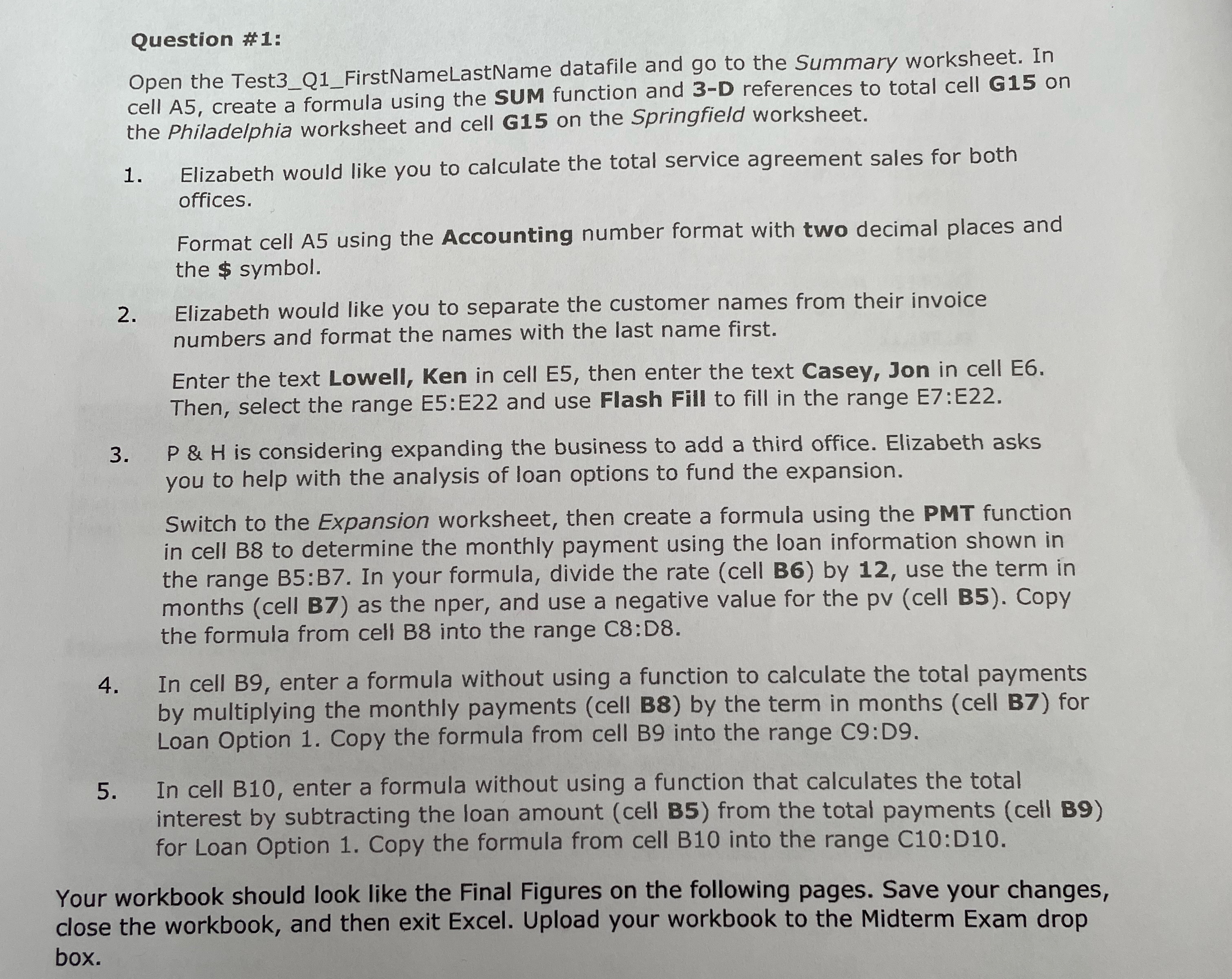
Question: Question # 1 : Open the Test 3 _ Q 1 _ FirstNameLastName datafile and go to the Summary worksheet. In cell A 5 ,
Question #:
Open the TestQFirstNameLastName datafile and go to the Summary worksheet. In cell A create a formula using the SUM function and D references to total cell on the Philadelphia worksheet and cell on the Springfield worksheet.
Elizabeth would like you to calculate the total service agreement sales for both offices.
Format cell A using the Accounting number format with two decimal places and the $ symbol.
Elizabeth would like you to separate the customer names from their invoice numbers and format the names with the last name first.
Enter the text Lowell, Ken in cell E then enter the text Casey, Jon in cell E Then, select the range E:E and use Flash Fill to fill in the range E:E
& is considering expanding the business to add a third office. Elizabeth asks you to help with the analysis of loan options to fund the expansion.
Switch to the Expansion worksheet, then create a formula using the PMT function in cell B to determine the monthly payment using the loan information shown in the range : In your formula, divide the rate cell by use the term in months cell B as the nper, and use a negative value for the pv cell B Copy the formula from cell into the range C:D
In cell B enter a formula without using a function to calculate the total payments by multiplying the monthly payments cell B by the term in months cell B for Loan Option Copy the formula from cell B into the range C:D
In cell B enter a formula without using a function that calculates the total interest by subtracting the loan amount cell B from the total payments cell B for Loan Option Copy the formula from cell B into the range C:D
Your workbook should look like the Final Figures on the following pages. Save your changes, close the workbook, and then exit Excel. Upload your workbook to the Midterm Exam drop box.
Step by Step Solution
There are 3 Steps involved in it
1 Expert Approved Answer
Step: 1 Unlock

Question Has Been Solved by an Expert!
Get step-by-step solutions from verified subject matter experts
Step: 2 Unlock
Step: 3 Unlock
 Study Help