





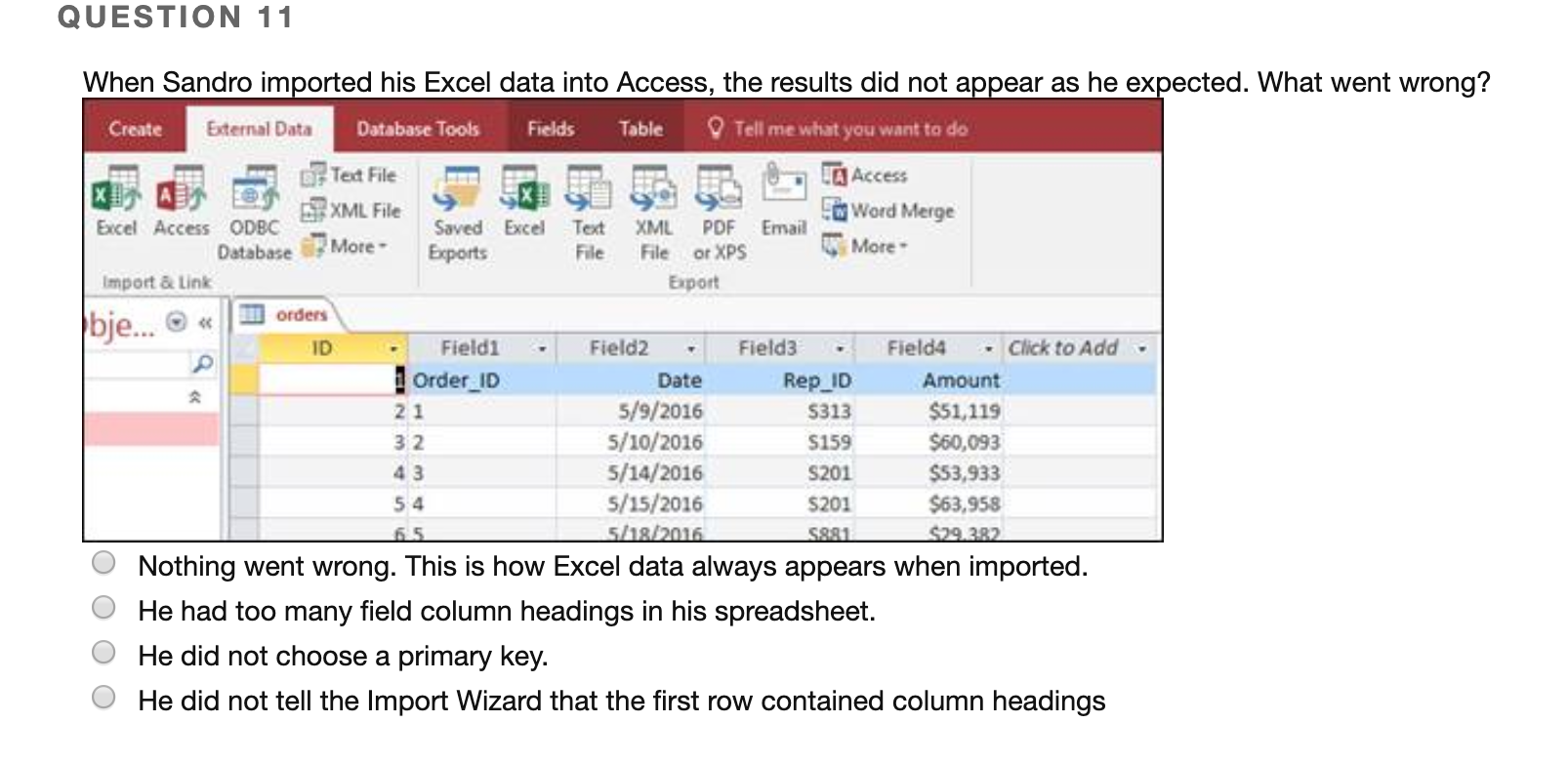
Question: QUESTION 11 When Sandro imported his Excel data into Access, the results did not appear as he expected. What went wrong? Create Fields Table Tell

QUESTION 11 When Sandro imported his Excel dataQUESTION 11 When Sandro imported his Excel dataQUESTION 11 When Sandro imported his Excel data

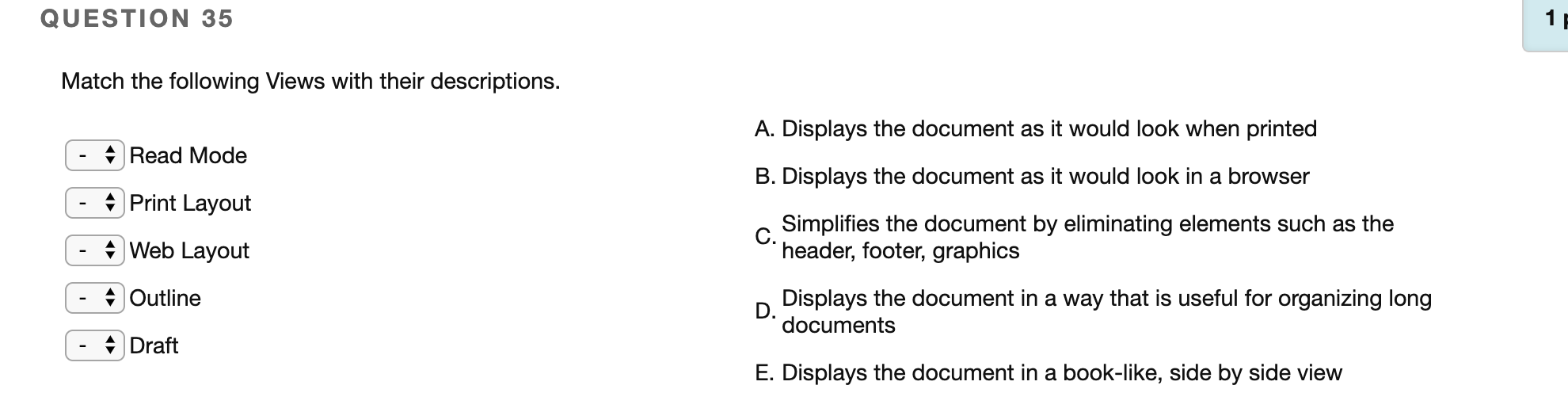
QUESTION 11 When Sandro imported his Excel data into Access, the results did not appear as he expected. What went wrong? Create Fields Table Tell me what you want to do External Data - Database Tools Text File A e XML File Excel Access ODBC Email Saved Excel Exports Text File Database More Word Merge More XML PDF File or XPS Export Import & Link bje... orders ID 21 32 Fieldi - Field2 - Field3 - Field 4 - Click to Add Order_ID Date Rep_ID Amount 5/9/2016 5313 $51,119 5/10/2016 S159 $60,093 43 5/14/2016 S201 $53,933 54 5/15/2016 S201 $63,958 5/18/2016 58.91 O Nothing went wrong. This is how Excel data always appears when imported. O He had too many field column headings in his spreadsheet. O He did not choose a primary key. O He did not tell the Import Wizard that the first row contained column headings $29.382 QUESTION 34 Match the following user actions with their results. (- [Home] (- Scroll up with the scroll bar (- [End] (- Scroll down with the scroll bar (- Down-facing arrow key A. Document view moves down B. Insertion point moves to the end of the current line C. Insertion point moves down one line D. Document view moves up E. Insertion point moves to the beginning of the current line QUESTION 35 Match the following Views with their descriptions. A. Displays the document as it would look when printed (- Read Mode - A Print Layout B. Displays the document as it would look in a browser ( - Web Layout Simplifies the document by eliminating elements such as the header, footer, graphics - (- Outline Draft Displays the document in a way that is useful for organizing long documents E. Displays the document in a book-like, side by side view
Step by Step Solution

There are 3 Steps involved in it

1 Expert Approved Answer
Step: 1 Unlock blur-text-image

Question Has Been Solved by an Expert!

Get step-by-step solutions from verified subject matter experts

Step: 2 Unlock
Step: 3 Unlock

Students Have Also Explored These Related General Management Questions!