



Question: Question 6 Question 7 How are Purchase Orders used in QuickBooks Online? Purchase orders can only be used for inventory items Only one purchase order
Question Question
How are Purchase Orders used in QuickBooks Online?
Purchase orders can only be used for inventory items
Only one purchase order can be added to a bill or expense
Individual lines or a purchase order can be closed even if not shipped
Purchase orders are turned on by default Question
How can Purchase Orders help your client with a large number of
suppliers? Select all that apply.
Establish an agreedupon purchase price
Keep track of obsolete items
Schedule assemblies
Track inventory items only
Keep track of expected deliveries from suppliers
Reduce duplication when entering supplier bills Question
Inventory valuation adjustments in QuickBooks Online:
Can be done by Accountant users only
Can be done by combining two transactions
Can't be done
Can be found in the Inventory Quantity Adjustment screenQuestion
A client's Inventory Valuation Detail shows the following transactions,
all on November :
rows indicating the same Inventory Quantity Adjustment that resulted in a decrease of negative
Widgets in inventory
One Expense for Widgets
What does this tell you?
Widgets were given away as promotional items
There are three lines on the inventory adjustment because the Widgets were
purchased on three different dates
An inventory revaluation workflow was used to reflect a decrease in the value of
Widgets from different FIFO layers
Widgets were thrown out or donated
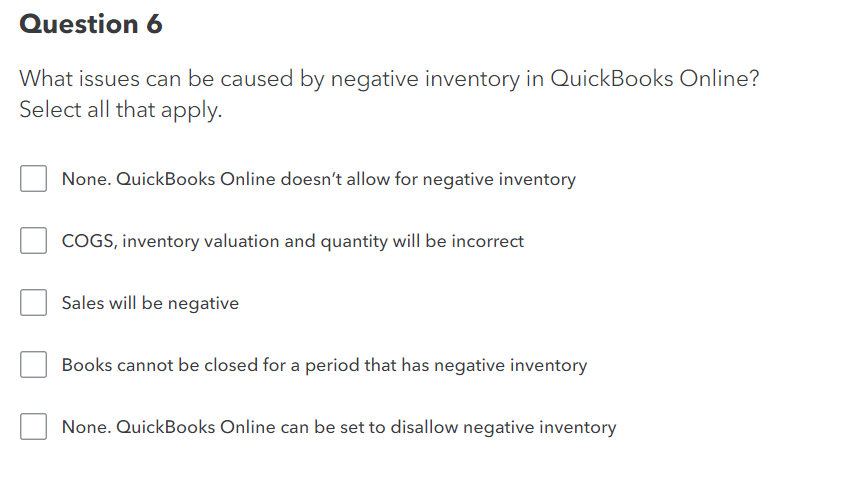
What issues can be caused by negative inventory in QuickBooks Online?
Select all that apply.
None. QuickBooks Online doesn't allow for negative inventory
COGS, inventory valuation and quantity will be incorrect
Sales will be negative
Books cannot be closed for a period that has negative inventory
None. QuickBooks Online can be set to disallow negative inventory
Step by Step Solution
There are 3 Steps involved in it
1 Expert Approved Answer
Step: 1 Unlock

Question Has Been Solved by an Expert!
Get step-by-step solutions from verified subject matter experts
Step: 2 Unlock
Step: 3 Unlock