







Question: Questions 8-12 please Part 2 - Data Validation and Formulas 8. In cell F6 and A14:A38 create data validation rules that allows you to choose
Questions 8-12 please
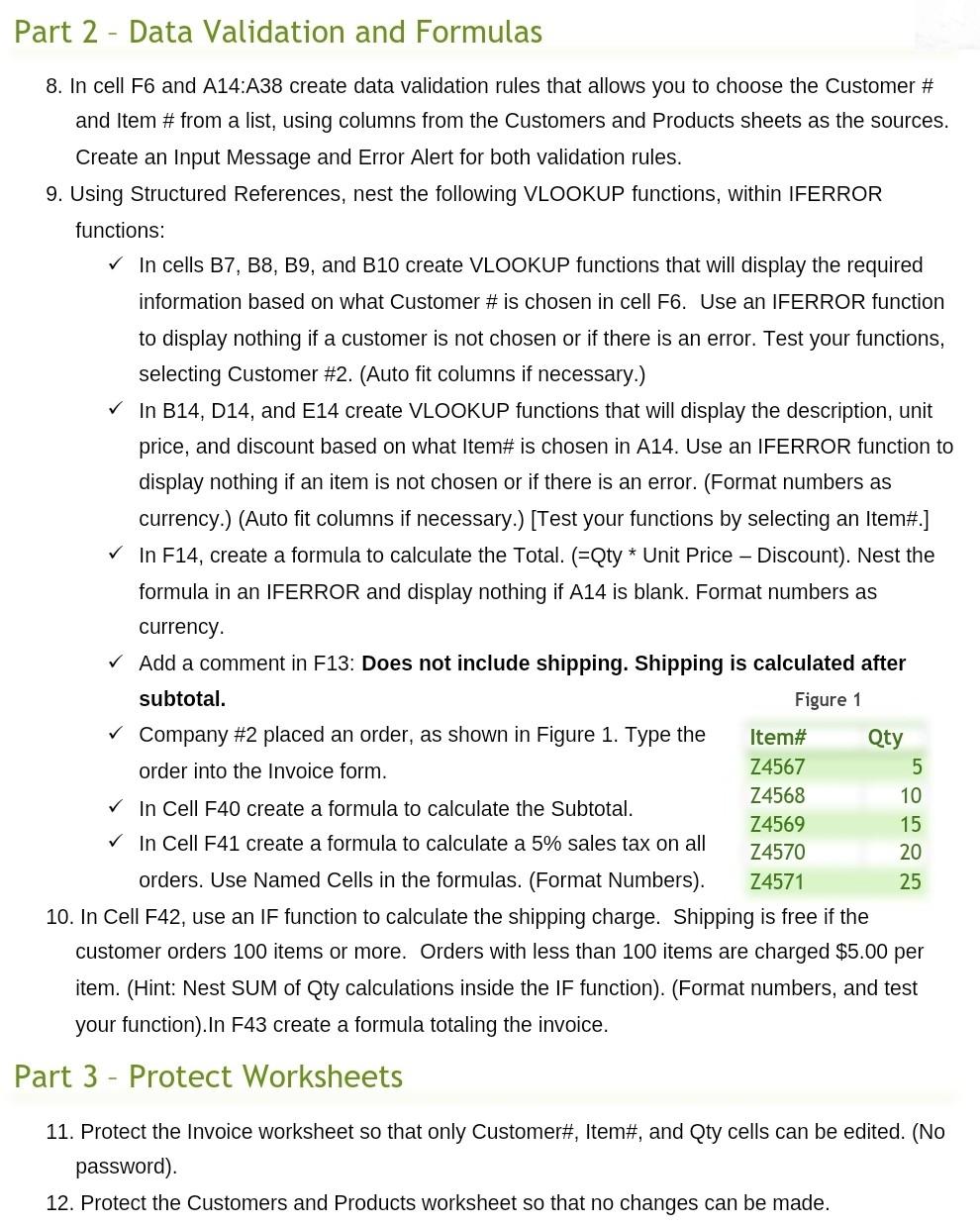
Part 2 - Data Validation and Formulas 8. In cell F6 and A14:A38 create data validation rules that allows you to choose the Customer # and Item # from a list, using columns from the Customers and Products sheets as the sources. Create an Input Message and Error Alert for both validation rules. 9. Using Structured References, nest the following VLOOKUP functions, within IFERROR functions: In cells B7, B8, B9, and B10 create VLOOKUP functions that will display the required information based on what Customer # is chosen in cell F6. Use an IFERROR function to display nothing if a customer is not chosen or if there is an error. Test your functions, selecting Customer #2. (Auto fit columns if necessary.) In B14, D14, and E14 create VLOOKUP functions that will display the description, unit price, and discount based on what Item# is chosen in A14. Use an IFERROR function to display nothing if an item is not chosen or if there is an error. (Format numbers as currency.) (Auto fit columns if necessary.) [Test your functions by selecting an Item#.] In F14, create a formula to calculate the Total. (=Qty * Unit Price Discount). Nest the formula in an IFERROR and display nothing if A14 is blank. Format numbers as currency. Add a comment in F13: Does not include shipping. Shipping is calculated after subtotal. Figure 1 Company #2 placed an order, as shown in Figure 1. Type the Item# Qty order into the Invoice form. Z4567 5 Z4568 10 In Cell F40 create a formula to calculate the Subtotal. Z4569 15 In Cell F41 create a formula to calculate a 5% sales tax on all Z4570 20 orders. Use Named Cells in the formulas. (Format Numbers). 74571 25 10. In Cell F42, use an IF function to calculate the shipping charge. Shipping is free if the customer orders 100 items or more. Orders with less than 100 items are charged $5.00 per item. (Hint: Nest SUM of Qty calculations inside the IF function). (Format numbers, and test your function). In F43 create a formula totaling the invoice. Part 3 - Protect Worksheets 11. Protect the Invoice worksheet so that only Customer#, Item#, and Qty cells can be edited. (No password). 12. Protect the Customers and Products worksheet so that no changes can be made. Part 2 - Data Validation and Formulas 8. In cell F6 and A14:A38 create data validation rules that allows you to choose the Customer # and Item # from a list, using columns from the Customers and Products sheets as the sources. Create an Input Message and Error Alert for both validation rules. 9. Using Structured References, nest the following VLOOKUP functions, within IFERROR functions: In cells B7, B8, B9, and B10 create VLOOKUP functions that will display the required information based on what Customer # is chosen in cell F6. Use an IFERROR function to display nothing if a customer is not chosen or if there is an error. Test your functions, selecting Customer #2. (Auto fit columns if necessary.) In B14, D14, and E14 create VLOOKUP functions that will display the description, unit price, and discount based on what Item# is chosen in A14. Use an IFERROR function to display nothing if an item is not chosen or if there is an error. (Format numbers as currency.) (Auto fit columns if necessary.) [Test your functions by selecting an Item#.] In F14, create a formula to calculate the Total. (=Qty * Unit Price Discount). Nest the formula in an IFERROR and display nothing if A14 is blank. Format numbers as currency. Add a comment in F13: Does not include shipping. Shipping is calculated after subtotal. Figure 1 Company #2 placed an order, as shown in Figure 1. Type the Item# Qty order into the Invoice form. Z4567 5 Z4568 10 In Cell F40 create a formula to calculate the Subtotal. Z4569 15 In Cell F41 create a formula to calculate a 5% sales tax on all Z4570 20 orders. Use Named Cells in the formulas. (Format Numbers). 74571 25 10. In Cell F42, use an IF function to calculate the shipping charge. Shipping is free if the customer orders 100 items or more. Orders with less than 100 items are charged $5.00 per item. (Hint: Nest SUM of Qty calculations inside the IF function). (Format numbers, and test your function). In F43 create a formula totaling the invoice. Part 3 - Protect Worksheets 11. Protect the Invoice worksheet so that only Customer#, Item#, and Qty cells can be edited. (No password). 12. Protect the Customers and Products worksheet so that no changes can be made
Step by Step Solution
There are 3 Steps involved in it

Get step-by-step solutions from verified subject matter experts
 Study Help