







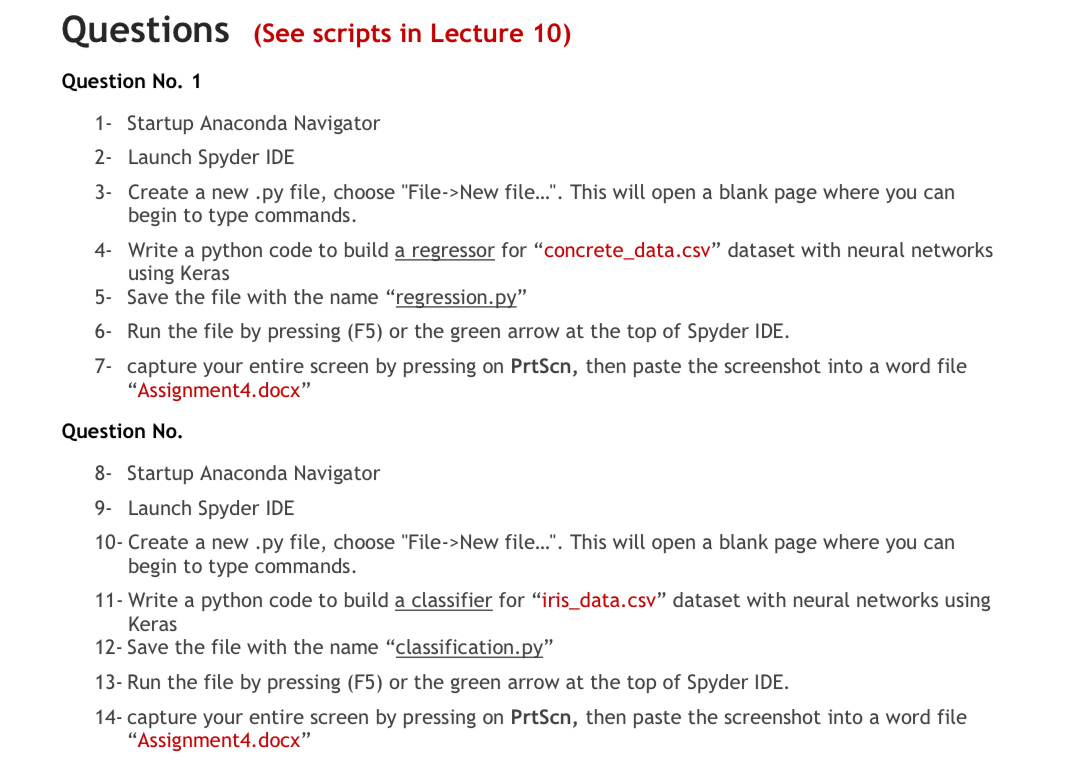
Question: Questions ( See scripts in Lecture 1 0 ) Question No . 1 1 - Startup Anaconda Navigator 2 - Launch Spyder IDE 3 -
Questions See scripts in Lecture
Question No
Startup Anaconda Navigator
Launch Spyder IDE
Create a new py file, choose "FileNew file...". This will open a blank page where you can begin to type commands.
Write a python code to build a regressor for "concretedata.csv dataset with neural networks using Keras
Save the file with the name
regression.py
Run the file by pressing F or the green arrow at the top of Spyder IDE.
capture your entire screen by pressing on PrtSen, then paste the screenshot into a word file "Assignmentdocx"
Question No
Startup Anaconda Navigator
Launch Spyder IDE
Create a new py file, choose "FileNew file...". This will open a blank page where you can begin to type commands.
Write a python code to build a classifier for "irisdata.csv dataset with neural networks using Keras
Save the file with the name
classification.py
Run the file by pressing F or the green arrow at the top of Spyder IDE.
capture your entire screen by pressing on PrtSen, then paste the screenshot into a word file "Assignmentdocx"
Step by Step Solution
There are 3 Steps involved in it
1 Expert Approved Answer
Step: 1 Unlock

Question Has Been Solved by an Expert!
Get step-by-step solutions from verified subject matter experts
Step: 2 Unlock
Step: 3 Unlock
 Study Help