







Question: R7 Chapter 5, Problem 5P | Bookmark Show all steps: ON 12. At the command prompt, type mkfs-text4 /dev/wg00/volume1 and press Enter to format the
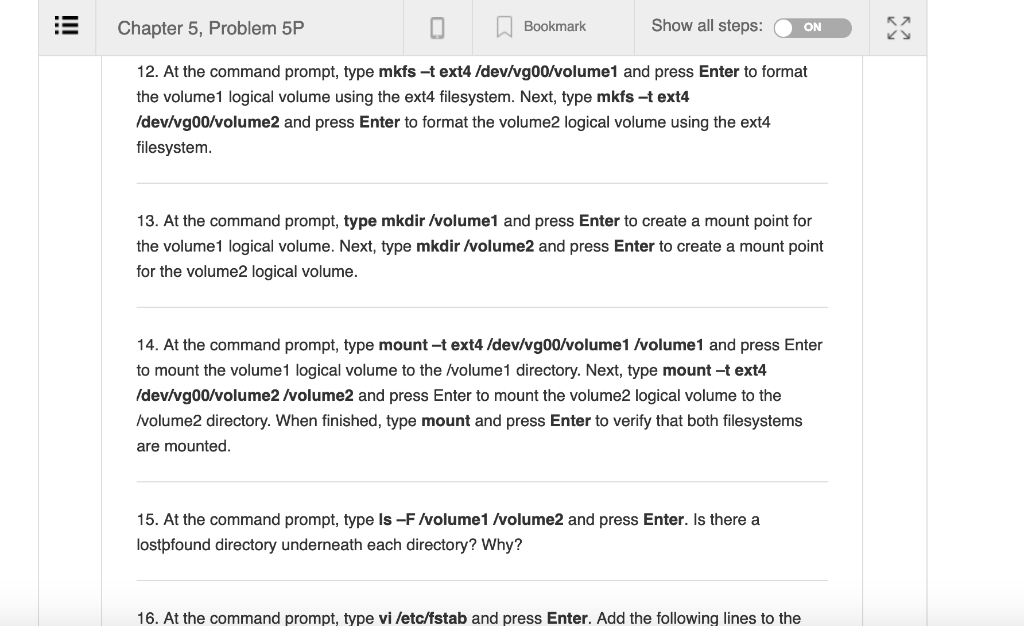
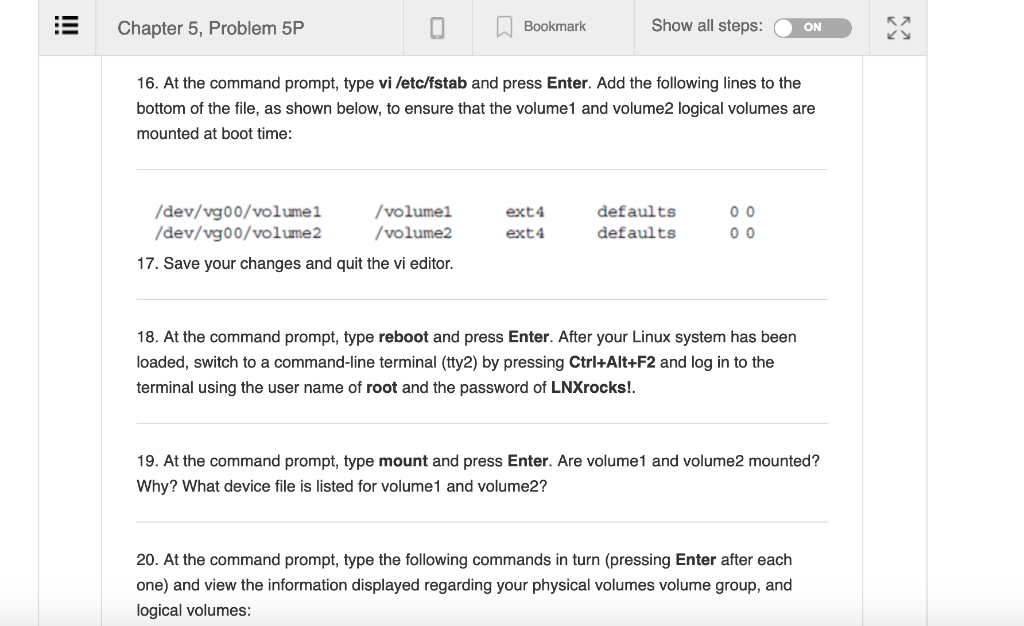
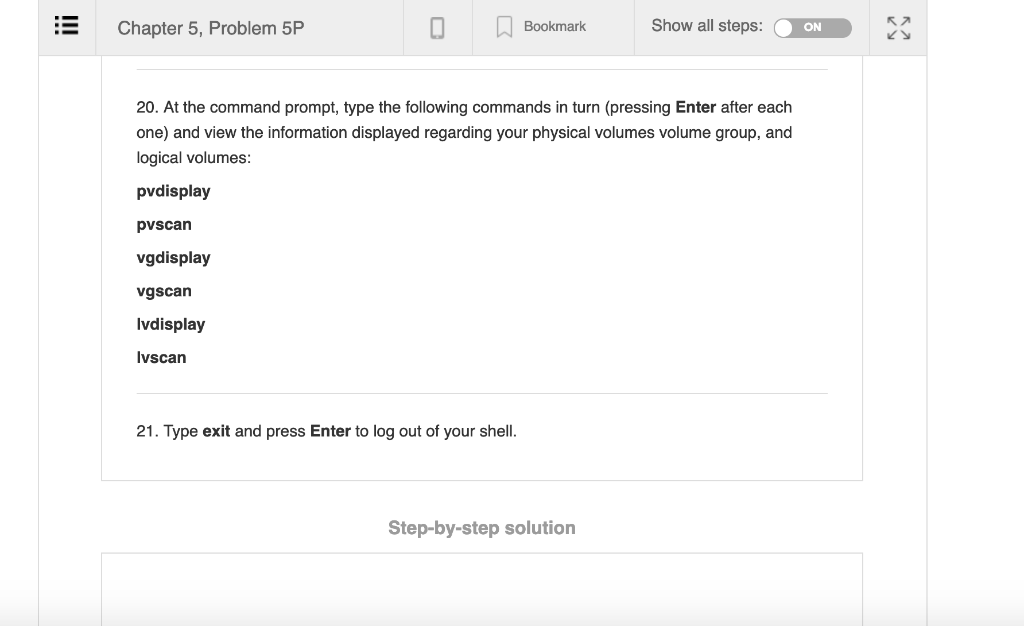
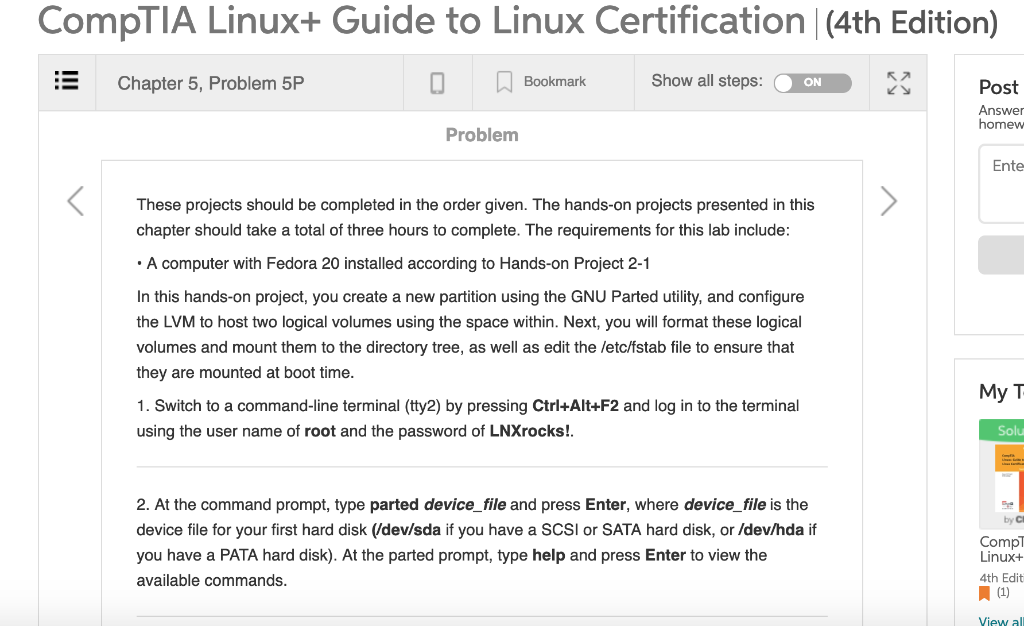
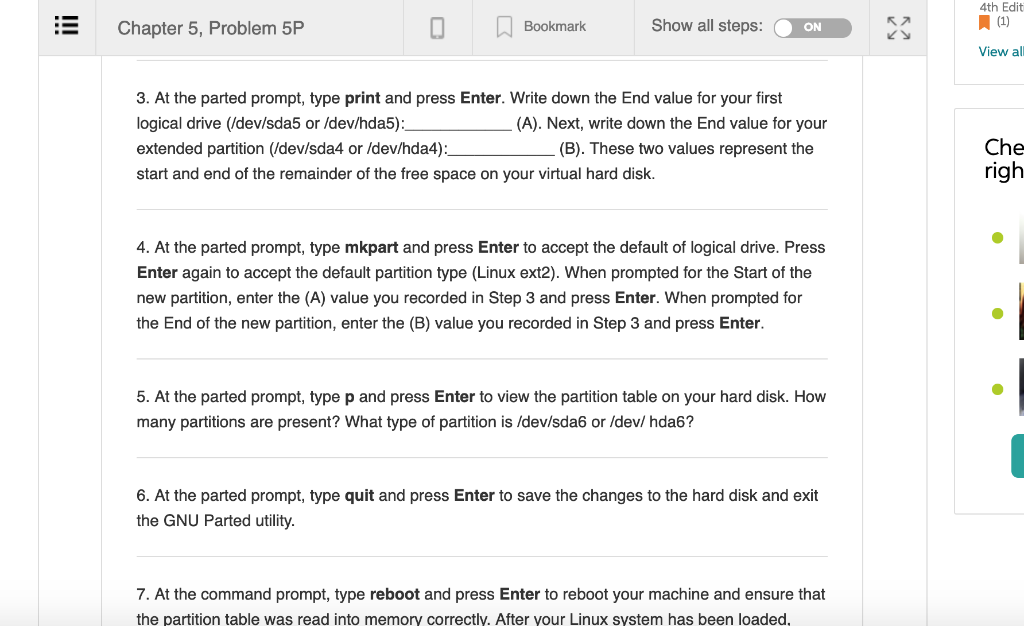
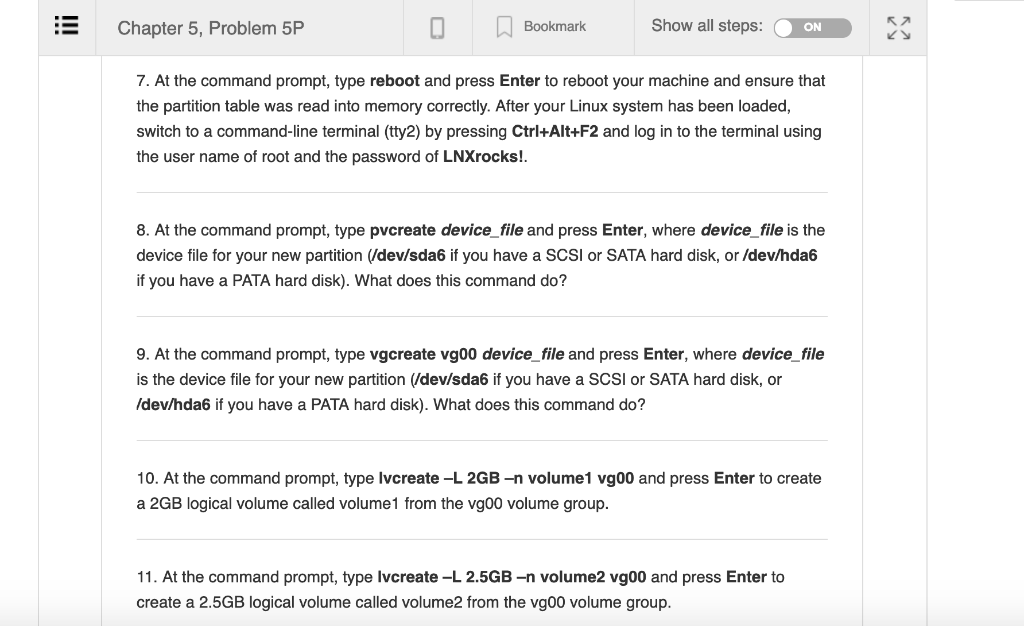
R7 Chapter 5, Problem 5P | Bookmark Show all steps: ON 12. At the command prompt, type mkfs-text4 /dev/wg00/volume1 and press Enter to format the volume1 logical volume using the ext4 filesystem. Next, type mkfs -t ext4 /dev/vg00/volume2 and press Enter to format the volume2 logical volume using the ext4 filesystem. 13. At the command prompt, type mkdir /volume1 and press Enter to create a mount point for the volume1 logical volume. Next, type mkdir/volume2 and press Enter to create a mount point for the volume2 logical volume. 14. At the command prompt, type mount-t ext4 /dev/vg00/volume1 /volume1 and press Enter to mount the volume! logical volume to the /volume1 directory. Next, type mount-t ext4 /dev/vg00/volume2/volume2 and press Enter to mount the volume2 logical volume to the /volume2 directory. When finished, type mount and press Enter to verify that both filesystems are mounted 15. At the command prompt, type Is-F/volume1/volume2 and press Enter. Is there a lostpfound directory underneath each directory? Why? 16. At the command prompt, type vi letc/fstab and press Enter. Add the following lines to the R7 Chapter 5, Problem 5P | Bookmark Show all steps: ON 12. At the command prompt, type mkfs-text4 /dev/wg00/volume1 and press Enter to format the volume1 logical volume using the ext4 filesystem. Next, type mkfs -t ext4 /dev/vg00/volume2 and press Enter to format the volume2 logical volume using the ext4 filesystem. 13. At the command prompt, type mkdir /volume1 and press Enter to create a mount point for the volume1 logical volume. Next, type mkdir/volume2 and press Enter to create a mount point for the volume2 logical volume. 14. At the command prompt, type mount-t ext4 /dev/vg00/volume1 /volume1 and press Enter to mount the volume! logical volume to the /volume1 directory. Next, type mount-t ext4 /dev/vg00/volume2/volume2 and press Enter to mount the volume2 logical volume to the /volume2 directory. When finished, type mount and press Enter to verify that both filesystems are mounted 15. At the command prompt, type Is-F/volume1/volume2 and press Enter. Is there a lostpfound directory underneath each directory? Why? 16. At the command prompt, type vi letc/fstab and press Enter. Add the following lines to the Chapter 5, Problem 5P Show all steps: ON 16. At the command prompt, type vi /etc/fstab and press Enter. Add the following lines to the bottom of the file, as shown below, to ensure that the volume1 and volume2 logical volumes are mounted at boot time /dev/vg00/volume1 dev/vg00/volume2 /volumel /volume2 defaults defaults ext4 ext4 17. Save your changes and quit the vi editor. 18. At the command prompt, type reboot and press Enter. After your Linux system has been loaded, switch to a command-line terminal (tty2) by pressing Ctrl+Alt+F2 and log in to the terminal using the user name of root and the password of LNXrocks!. 19. At the command prompt, type mount and press Enter. Are volume1 and volume2 mounted? Why? What device file is listed for volume1 and volume2? 20. At the command prompt, type the following commands in turn (pressing Enter after each one) and view the information displayed regarding your physical volumes volume group, and logical volumes Chapter 5, Problem 5P Bookmark Show all steps: N 20. At the command prompt, type the following commands in turn (pressing Enter after each one) and view the information displayed regarding your physical volumes volume group, and logical volumes pvdisplay pvscan vgdisplay vgscan lvdisplay Ivscan 21. Type exit and press Enter to log out of your shell. Step-by-step solution CompTIA Linux+ Guide to Linux Certification |(4th Edition) Chapter 5, Problem 5P Bookmark Show all steps Post Answer homew ON Problem Ente These projects should be completed in the order given. The hands-on projects presented in this chapter should take a total of three hours to complete. The requirements for this lab include A computer with Fedora 20 installed according to Hands-on Project 2-1 In this hands-on project, you create a new partition using the GNU Parted utility, and configure the LVM to host two logical volumes using the space within. Next, you will format these logical volumes and mount them to the directory tree, as well as edit the letc/fstab file to ensure that they are mounted at boot time 1. Switch to a command-line terminal (tty2) by pressing Ctrl+Alt+F2 and log in to the terminal using the user name of root and the password of LNXrocks! My T Solu 2. At the command prompt, type parted device file and press Enter, where device_file is the device file for your first hard disk (/dev/sda if you have a SCSI or SATA hard disk, or /dev/hda if you have a PATA hard disk). At the parted prompt, type help and press Enter to view the available commands by Cl Compl Linux+ 4th Edit 4th Edit Chapter 5, Problem 5P Bookmark Show all steps: (1) ON View all 3. At the parted prompt, type print and press Enter. Write down the End value for your first logical drive (dev/sda5 or/dev/hda5): extended partition (/dev/sda4 or /dev/hda4) start and end of the remainder of the free space on your virtual hard disk. (A). Next, write down the End value for your Che righ (B). These two values represent the 4. At the parted prompt, type mkpart and press Enter to accept the default of logical drive. Press Enter again to accept the default partition type (Linux ext2). When prompted for the Start of the new partition, enter the (A) value you recorded in Step 3 and press Enter. When prompted for the End of the new partition, enter the (B) value you recorded in Step 3 and press Enter. 5. At the parted prompt, type p and press Enter to view the partition table on your hard disk. How many partitions are present? What type of partition is /dev/sda6 or /dev/ hda6? 6. At the parted prompt, type quit and press Enter to save the changes to the hard disk and exit the GNU Parted utility. 7. At the command prompt, type reboot and press Enter to reboot your machine and ensure that the partition table was read into memory correctly. After your Linux system has been loaded Chapter 5, Problem 5P BookmarkShow all steps: ON 7. At the command prompt, type reboot and press Enter to reboot your machine and ensure that the partition table was read into memory correctly. After your Linux system has been loaded switch to a command-line terminal (tty2) by pressing Ctrl+Alt+F2 and log in to the terminal using the user name of root and the password of LNXrocks!. 8. At the command prompt, type pvcreate device file and press Enter, where device_file is the device file for your new partition (/dev/sda6 if you have a SCSI or SATA hard disk, or /dev/hda6 f you have a PATA hard disk). What does this command do? 9. At the command prompt, type vgcreate vg00 device_file and press Enter, where device_file is the device file for your new partition (/dev/sda6 if you have a SCSI or SATA hard disk, or /dev/hda6 if you have a PATA hard disk). What does this command do? 0. At the command prompt, type Ivcreate -L 2GB-n volume1 vg00 and press Enter to create a 2GB logical volume called volume1 from the vg00 volume group. 1. At the command prompt, type lvcreate -L 2.5GB-n volume2 vg00 and press Enter to create a 2.5GB logical volume called volume2 from the vg00 volume group. R7 Chapter 5, Problem 5P | Bookmark Show all steps: ON 12. At the command prompt, type mkfs-text4 /dev/wg00/volume1 and press Enter to format the volume1 logical volume using the ext4 filesystem. Next, type mkfs -t ext4 /dev/vg00/volume2 and press Enter to format the volume2 logical volume using the ext4 filesystem. 13. At the command prompt, type mkdir /volume1 and press Enter to create a mount point for the volume1 logical volume. Next, type mkdir/volume2 and press Enter to create a mount point for the volume2 logical volume. 14. At the command prompt, type mount-t ext4 /dev/vg00/volume1 /volume1 and press Enter to mount the volume! logical volume to the /volume1 directory. Next, type mount-t ext4 /dev/vg00/volume2/volume2 and press Enter to mount the volume2 logical volume to the /volume2 directory. When finished, type mount and press Enter to verify that both filesystems are mounted 15. At the command prompt, type Is-F/volume1/volume2 and press Enter. Is there a lostpfound directory underneath each directory? Why? 16. At the command prompt, type vi letc/fstab and press Enter. Add the following lines to the R7 Chapter 5, Problem 5P | Bookmark Show all steps: ON 12. At the command prompt, type mkfs-text4 /dev/wg00/volume1 and press Enter to format the volume1 logical volume using the ext4 filesystem. Next, type mkfs -t ext4 /dev/vg00/volume2 and press Enter to format the volume2 logical volume using the ext4 filesystem. 13. At the command prompt, type mkdir /volume1 and press Enter to create a mount point for the volume1 logical volume. Next, type mkdir/volume2 and press Enter to create a mount point for the volume2 logical volume. 14. At the command prompt, type mount-t ext4 /dev/vg00/volume1 /volume1 and press Enter to mount the volume! logical volume to the /volume1 directory. Next, type mount-t ext4 /dev/vg00/volume2/volume2 and press Enter to mount the volume2 logical volume to the /volume2 directory. When finished, type mount and press Enter to verify that both filesystems are mounted 15. At the command prompt, type Is-F/volume1/volume2 and press Enter. Is there a lostpfound directory underneath each directory? Why? 16. At the command prompt, type vi letc/fstab and press Enter. Add the following lines to the Chapter 5, Problem 5P Show all steps: ON 16. At the command prompt, type vi /etc/fstab and press Enter. Add the following lines to the bottom of the file, as shown below, to ensure that the volume1 and volume2 logical volumes are mounted at boot time /dev/vg00/volume1 dev/vg00/volume2 /volumel /volume2 defaults defaults ext4 ext4 17. Save your changes and quit the vi editor. 18. At the command prompt, type reboot and press Enter. After your Linux system has been loaded, switch to a command-line terminal (tty2) by pressing Ctrl+Alt+F2 and log in to the terminal using the user name of root and the password of LNXrocks!. 19. At the command prompt, type mount and press Enter. Are volume1 and volume2 mounted? Why? What device file is listed for volume1 and volume2? 20. At the command prompt, type the following commands in turn (pressing Enter after each one) and view the information displayed regarding your physical volumes volume group, and logical volumes Chapter 5, Problem 5P Bookmark Show all steps: N 20. At the command prompt, type the following commands in turn (pressing Enter after each one) and view the information displayed regarding your physical volumes volume group, and logical volumes pvdisplay pvscan vgdisplay vgscan lvdisplay Ivscan 21. Type exit and press Enter to log out of your shell. Step-by-step solution CompTIA Linux+ Guide to Linux Certification |(4th Edition) Chapter 5, Problem 5P Bookmark Show all steps Post Answer homew ON Problem Ente These projects should be completed in the order given. The hands-on projects presented in this chapter should take a total of three hours to complete. The requirements for this lab include A computer with Fedora 20 installed according to Hands-on Project 2-1 In this hands-on project, you create a new partition using the GNU Parted utility, and configure the LVM to host two logical volumes using the space within. Next, you will format these logical volumes and mount them to the directory tree, as well as edit the letc/fstab file to ensure that they are mounted at boot time 1. Switch to a command-line terminal (tty2) by pressing Ctrl+Alt+F2 and log in to the terminal using the user name of root and the password of LNXrocks! My T Solu 2. At the command prompt, type parted device file and press Enter, where device_file is the device file for your first hard disk (/dev/sda if you have a SCSI or SATA hard disk, or /dev/hda if you have a PATA hard disk). At the parted prompt, type help and press Enter to view the available commands by Cl Compl Linux+ 4th Edit 4th Edit Chapter 5, Problem 5P Bookmark Show all steps: (1) ON View all 3. At the parted prompt, type print and press Enter. Write down the End value for your first logical drive (dev/sda5 or/dev/hda5): extended partition (/dev/sda4 or /dev/hda4) start and end of the remainder of the free space on your virtual hard disk. (A). Next, write down the End value for your Che righ (B). These two values represent the 4. At the parted prompt, type mkpart and press Enter to accept the default of logical drive. Press Enter again to accept the default partition type (Linux ext2). When prompted for the Start of the new partition, enter the (A) value you recorded in Step 3 and press Enter. When prompted for the End of the new partition, enter the (B) value you recorded in Step 3 and press Enter. 5. At the parted prompt, type p and press Enter to view the partition table on your hard disk. How many partitions are present? What type of partition is /dev/sda6 or /dev/ hda6? 6. At the parted prompt, type quit and press Enter to save the changes to the hard disk and exit the GNU Parted utility. 7. At the command prompt, type reboot and press Enter to reboot your machine and ensure that the partition table was read into memory correctly. After your Linux system has been loaded Chapter 5, Problem 5P BookmarkShow all steps: ON 7. At the command prompt, type reboot and press Enter to reboot your machine and ensure that the partition table was read into memory correctly. After your Linux system has been loaded switch to a command-line terminal (tty2) by pressing Ctrl+Alt+F2 and log in to the terminal using the user name of root and the password of LNXrocks!. 8. At the command prompt, type pvcreate device file and press Enter, where device_file is the device file for your new partition (/dev/sda6 if you have a SCSI or SATA hard disk, or /dev/hda6 f you have a PATA hard disk). What does this command do? 9. At the command prompt, type vgcreate vg00 device_file and press Enter, where device_file is the device file for your new partition (/dev/sda6 if you have a SCSI or SATA hard disk, or /dev/hda6 if you have a PATA hard disk). What does this command do? 0. At the command prompt, type Ivcreate -L 2GB-n volume1 vg00 and press Enter to create a 2GB logical volume called volume1 from the vg00 volume group. 1. At the command prompt, type lvcreate -L 2.5GB-n volume2 vg00 and press Enter to create a 2.5GB logical volume called volume2 from the vg00 volume group
Step by Step Solution
There are 3 Steps involved in it

Get step-by-step solutions from verified subject matter experts
 Study Help