







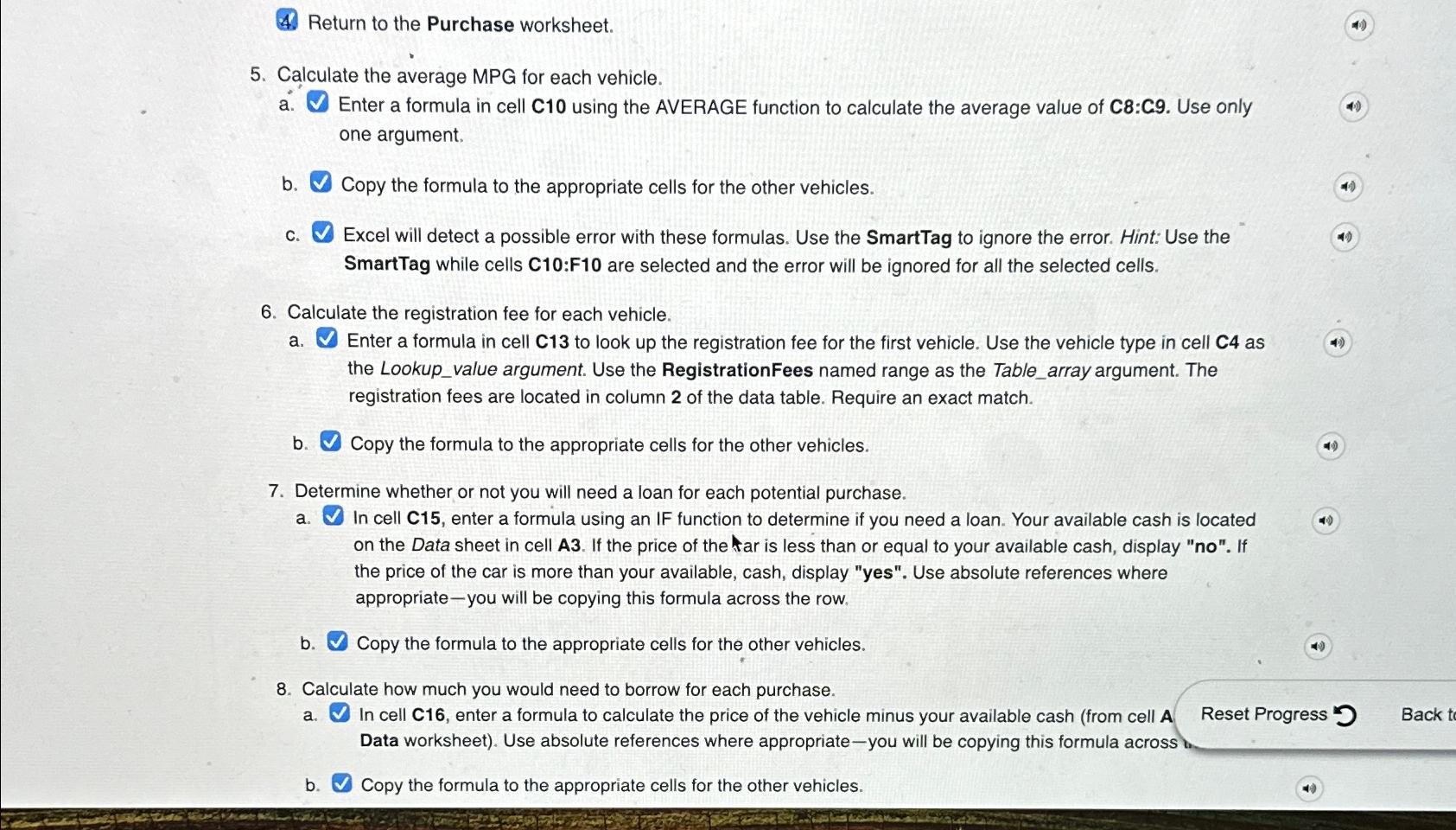
Question: Return to the Purchase worksheet. 5 . Calculate the average MPG for each vehicle. a . Enter a formula in cell C 1 0 using
Return to the Purchase worksheet.
Calculate the average MPG for each vehicle.
a Enter a formula in cell C using the AVERAGE function to calculate the average value of C:C Use only one argument.
b Copy the formula to the appropriate cells for the other vehicles.
c Excel will detect a possible error with these formulas. Use the SmartTag to ignore the error. Hint: Use the SmartTag while cells C:F are selected and the error will be ignored for all the selected cells.
Calculate the registration fee for each vehicle.
a Enter a formula in cell to look up the registration fee for the first vehicle. Use the vehicle type in cell as the Lookupvalue argument. Use the RegistrationFees named range as the Tablearray argument. The registration fees are located in column of the data table. Require an exact match.
b Copy the formula to the appropriate cells for the other vehicles.
Determine whether or not you will need a loan for each potential purchase.
a In cell enter a formula using an IF function to determine if you need a loan. Your available cash is located on the Data sheet in cell A If the price of the tar is less than or equal to your available cash, display no If the price of the car is more than your available, cash, display "yes". Use absolute references where appropriateyou will be copying this formula across the row.
b Copy the formula to the appropriate cells for the other vehicles.
Calculate how much you would need to borrow for each purchase.
a In cell C enter a formula to calculate the price of the vehicle minus your available cash from cell A
Reset Progress Data worksheet Use absolute references where appropriateyou will be copying this formula across
b Copy the formula to the appropriate cells for the other vehicles.
Step by Step Solution
There are 3 Steps involved in it
1 Expert Approved Answer
Step: 1 Unlock

Question Has Been Solved by an Expert!
Get step-by-step solutions from verified subject matter experts
Step: 2 Unlock
Step: 3 Unlock
 Study Help