







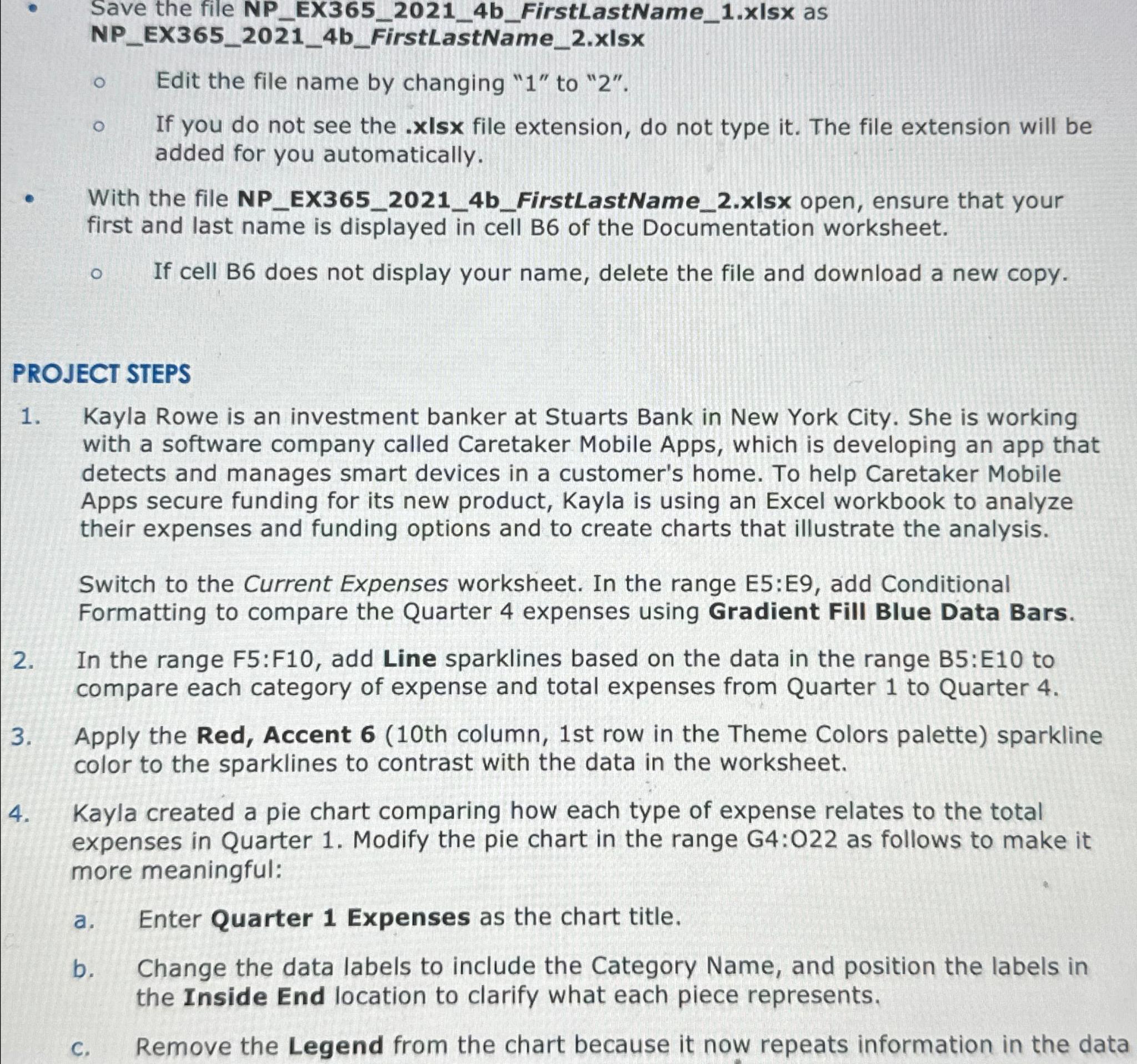
Question: Save the file NP _ EX 3 6 5 _ 2 0 2 1 _ 4 b _ FirstLastName _ 1 . xIsx as NP
Save the file NPEXbFirstLastNamexIsx as
NPEXbFirstLastNamexIsx
Edit the file name by changing to
If you do not see the xIsx file extension, do not type it The file extension will be added for you automatically.
With the file NPEXbFirstLastNamexIsx open, ensure that your first and last name is displayed in cell B of the Documentation worksheet.
If cell B does not display your name, delete the file and download a new copy.
PROJECT STEPS
Kayla Rowe is an investment banker at Stuarts Bank in New York City. She is working with a software company called Caretaker Mobile Apps, which is developing an app that detects and manages smart devices in a customer's home. To help Caretaker Mobile Apps secure funding for its new product, Kayla is using an Excel workbook to analyze their expenses and funding options and to create charts that illustrate the analysis.
Switch to the Current Expenses worksheet. In the range E:E add Conditional Formatting to compare the Quarter expenses using Gradient Fill Blue Data Bars.
In the range : add Line sparklines based on the data in the range : to compare each category of expense and total expenses from Quarter to Quarter
Apply the Red, Accent th column, st row in the Theme Colors palette sparkline color to the sparklines to contrast with the data in the worksheet.
Kayla created a pie chart comparing how each type of expense relates to the total expenses in Quarter Modify the pie chart in the range G: as follows to make it more meaningful:
a Enter Quarter Expenses as the chart title.
b Change the data labels to include the Category Name, and position the labels in the Inside End location to clarify what each piece represents.
c Remove the Legend from the chart because it now repeats information in the data
Step by Step Solution
There are 3 Steps involved in it
1 Expert Approved Answer
Step: 1 Unlock

Question Has Been Solved by an Expert!
Get step-by-step solutions from verified subject matter experts
Step: 2 Unlock
Step: 3 Unlock
 Study Help