







Question: Select cell C23 and use the SUMIF Function to calculate the total for the category in cell B23 . Use relative and absolute references so
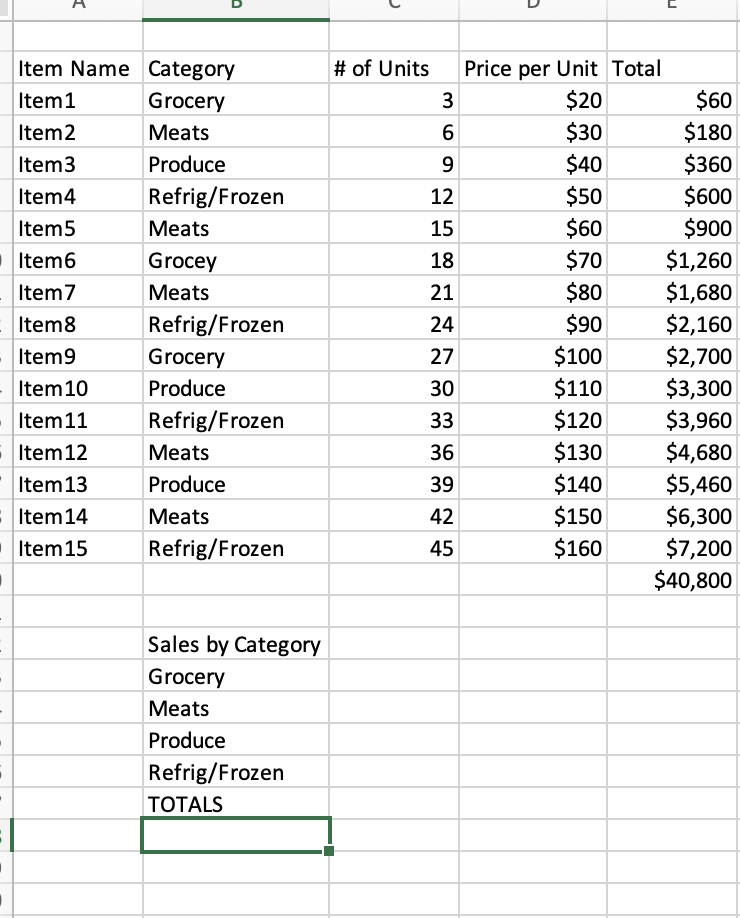
Select cell C23 and use the SUMIF Function to calculate the total for the category in cell B23. Use relative and absolute references so that you can copy the formula to cells C24:C26. Format the results as Currency with two decimal places.
Check results of the SUMIF formula in cell C23 before you copy it by selecting the appropriate cells in column E for the category and viewing the AutoCalculate results in the Status bar.
Calculate a total in cell C27. (This total should sum up the values in cells C23:C26. If you created your SUMIF formulas correctly, the total in C27 should match the total in E20.)
\begin{tabular}{|l|l|r|r|r|} \hline Item Name & Category & \# of Units & Price per Unit & Total \\ \hline Item1 & Grocery & 3 & $20 & $60 \\ \hline Item2 & Meats & 6 & $30 & $180 \\ \hline Item3 & Produce & 9 & $40 & $360 \\ \hline Item4 & Refrig/Frozen & 12 & $50 & $600 \\ \hline Item5 & Meats & 15 & $60 & $900 \\ \hline Item6 & Grocey & 18 & $70 & $1,260 \\ \hline Item7 & Meats & 21 & $80 & $1,680 \\ \hline Item8 & Refrig/Frozen & 24 & $90 & $2,160 \\ \hline Item9 & Grocery & 27 & $100 & $2,700 \\ \hline Item10 & Produce & 30 & $110 & $3,300 \\ \hline Item11 & Refrig/Frozen & 33 & $120 & $3,960 \\ \hline Item12 & Meats & 36 & $130 & $4,680 \\ \hline Item13 & Produce & 39 & $140 & $5,460 \\ \hline Item14 & Meats & 42 & $150 & $6,300 \\ \hline Item15 & Refrig/Frozen & 45 & $160 & $7,200 \\ \hline & & & $40,800 \\ \hline \end{tabular} Sales by Category Grocery Meats Produce Refrig/Frozen TOTALS
Step by Step Solution
There are 3 Steps involved in it

Get step-by-step solutions from verified subject matter experts
 Study Help