







Question: Setup Install the provided forensic imaging program FTK Imager ( in the tools folder ) on your Windows computer. Copy the Target 1 folder onto
Setup
Install the provided forensic imaging program FTK Imager
in the tools folder on your Windows computer.
Copy the Target folder onto your thumb drive.
a The thumb drive need not be brand new or empty for
this exercise.
b Copy the folder onto the root of your thumb drive.
Eject the thumb drive this is now your evidence.
Creating Forensic Images
Before we proceed with the imaging, we need to do some
documentation of our evidence. Provide the following
information, if available.
a Make, Model, serial number, and size of the thumb
drive as printed or marked on the device. Note serial
number is not always printed on the thumb drive
Q Click or tap here to enter text.
b Digital photographs of the thumb drive should be
recorded. Photographs should include all visible
markings on the thumb drive, front and back.
Install and activate a write blocker.
a I have provided a simple software USB write blocking
program called thumbscrew in the tools folder
b See the tool guide for tips and tricks on using
thumbscrew properly.
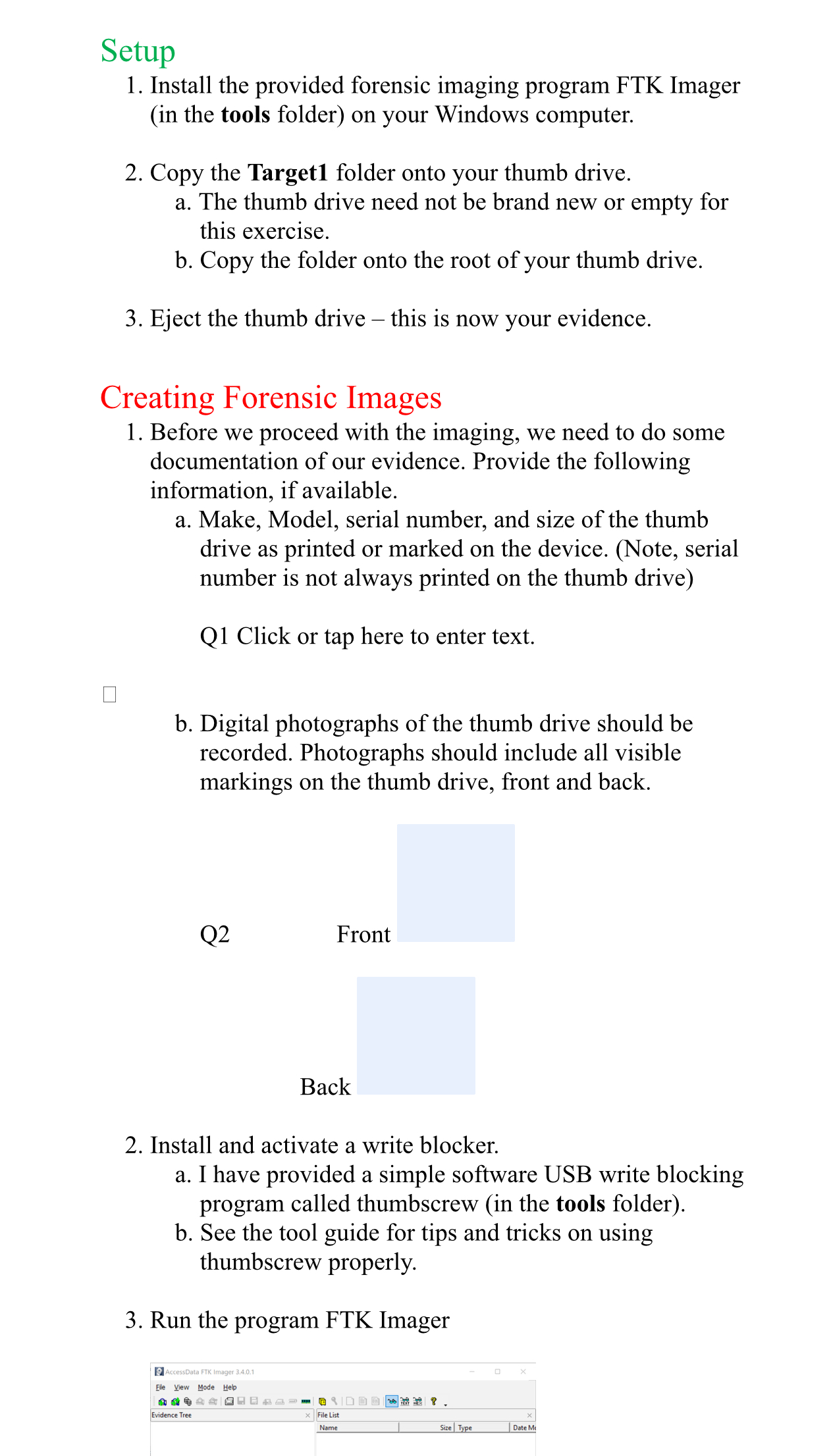
Run the program FTK Imager
Run the program FTK Imager
Make sure the write block is activated and insert the
evidence thumb drive.
Review the tool guide for FTK Imager
Create a forensic image with the following parameters:
a E format
b No fragmentation set to
c No compression set to
d File name: USB
Answer the following questions about the imaging process:
a How many sectors are on the device?
Q Click or tap here to enter text.
b What is the MD hash value of the device?
Q Click or tap here to enter text.
c How long did the acquisition take?
Q Click or tap here to enter text.
d How big is the image file that was created?
Q Click or tap here to enter text.
Create another forensic image of the same device with the
following parameters:
a E format
b No fragmentation set to
c Max compression set to
d File name: USB
Answer the following questions about the imaging process:
a How many sectors are on the device?
Q Click or tap here to enter text.
b What is the MD hash value of the device?
Q Click or tap here to enter text.
c How long did the acquisition take?
Q Click or tap here to enter text.
d How big is the image file that was created?
Q Click or tap here to enter text.
What effect does compression have on the MD hash
value of the data contained in the forensic image?
Q Click or tap here to enter text.
What is the size difference between the image files created
with no compression and max compression? USBE
versus USBE
Q Click or tap here to enter text.
Examine Physical Drives with FTK Imager
Close FTK Imager, eject the thumb drive and disable the
write blocker.
Reinsert the thumb drive and deleted the Target folder.
Start FTK Imager again and add the thumb drive as an
evidence item.
Using the Tree pane, navigate to the root of the thumb
drive.
AccessData FTK Imager
What do you notice about the "deleted" foldersfiles
Using the Tree pane, navigate to the root of the thumb
drive.
What do you notice about the "deleted" foldersfiles
Q Click or tap here to enter text.
Creating Forensic Images Part
Copy the Target folder onto your thumb drive.
a The thumb drive need not be brand new or empty for
this exercise.
b Copy the folder onto the root of your thumb drive.
Eject the thumb drive this is now your evidence.
Activate write blocker.
Create a forensic image with the following parameters:
a E format
b No fragmentation set to
c Compression set to
d File name: USB
Answer the following questions about the imaging process:
a How many sectors are on the device?
Q Click or tap here to enter text.
b What is the MD hash value of the device?
Q Click or tap here to enter text.
c How long did the acquisition take?
Q Click or tap here to enter text.
d How big is the image file that was created?
Q Click or tap here to enter text.
Mounting Forensic Images
Remove all evidence items from FTK Imager.
Using the Image Mounting feature in FTK Imager, mount
the forensic image as an emulated drive.
a What drive letter was your virtualemulated drive
assigned?
Q Click or tap here to enter text.
Using whichever antivirus program you have installed, run
a virus scan on the mounted drive.
a Which file was identified as malware?
Q Click or tap here to enter text.
Capturing RAM
Unmount any mounted images and remove any evidence
items from within FTK Imager.
Locate and open the file HenryV.txt and leave it open. It
should open in notepad, or a similar program.
Use the capture memory function in FTK Imager to create a
RAM dump into a folder on your desktop.
a Keep in mind, the size of this file will be the size of
your entire RAM, make sure you have enough room.
b The default file extension is mem"
Once complete, open the file as though it were an Image
file.
Using the Find command ctrlF or right click on the Data
pane and select Find search for the term "Swill'd"
obviously witho
Step by Step Solution
There are 3 Steps involved in it
1 Expert Approved Answer
Step: 1 Unlock

Question Has Been Solved by an Expert!
Get step-by-step solutions from verified subject matter experts
Step: 2 Unlock
Step: 3 Unlock
 Study Help