







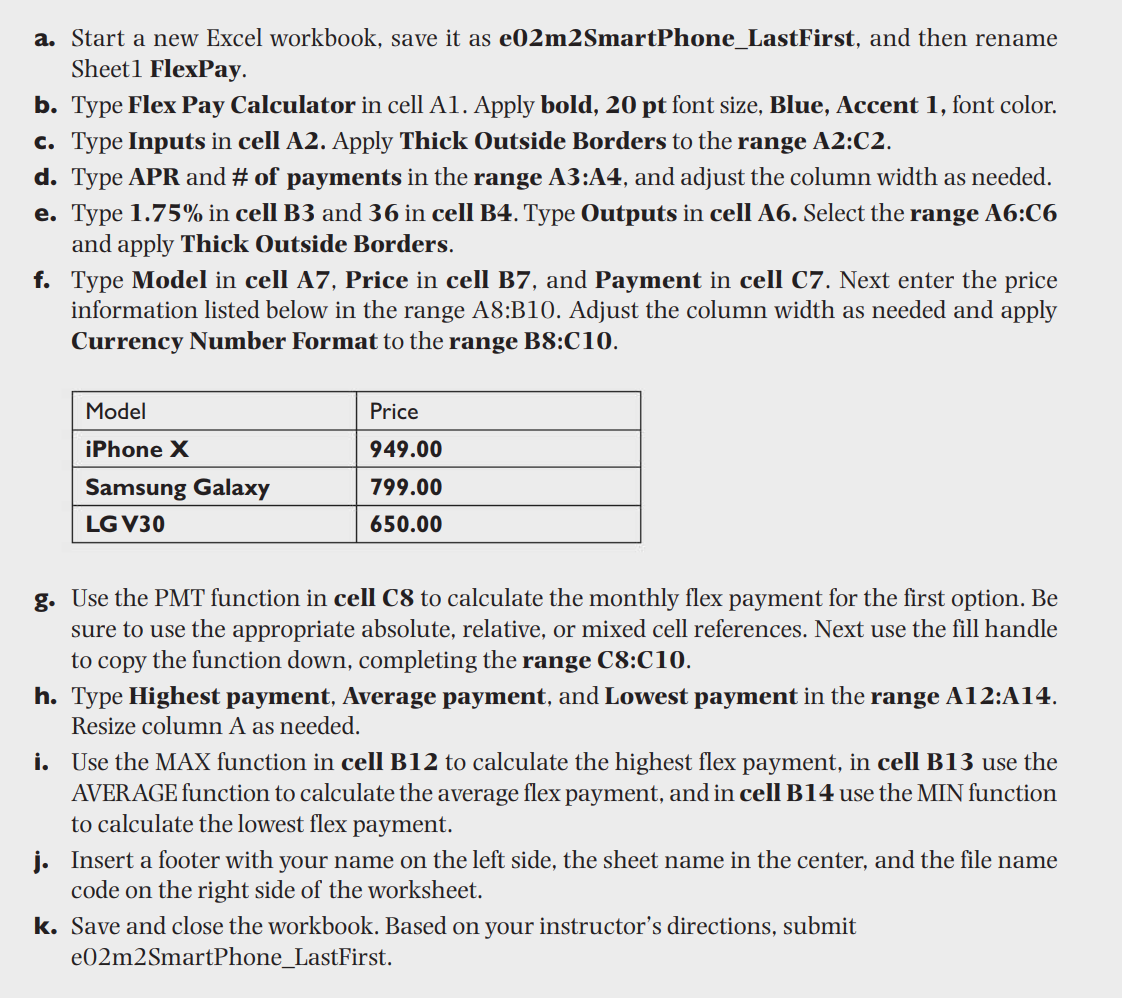
Question: Sheet 1 FlexPay. b . Type Flex Pay Calculator in cell A 1 . Apply bold, 2 0 pt font size, Blue, Accent 1 ,
Sheet FlexPay.
b Type Flex Pay Calculator in cell A Apply bold, pt font size, Blue, Accent font color.
c Type Inputs in cell A Apply Thick Outside Borders to the range A:C
d Type APR and # of payments in the range A:A and adjust the column width as needed.
e Type in cell B and in cell B Type Outputs in cell A Select the range A:C
and apply Thick Outside Borders.
f Type Model in cell A Price in cell B and Payment in cell C Next enter the price
information listed below in the range A:B Adjust the column width as needed and apply
Currency Number Format to the range B:C
g Use the PMT function in cell to calculate the monthly flex payment for the first option. Be
sure to use the appropriate absolute relative, or mixed cell references. Next use the fill handle
to copy the function down, completing the range C:C
h Type Highest payment, Average payment, and Lowest payment in the range A:A
Resize column A as needed.
i Use the MAX function in cell B to calculate the highest flex payment, in cell B use the
AVERAGE function to calculate the average flex payment, and in cell B use the MIN function
to calculate the lowest flex payment.
j Insert a footer with your name on the left side, the sheet name in the center, and the file name
code on the right side of the worksheet.
k Save and close the workbook. Based on your instructor's directions, submit
emSmartPhoneLastFirst.
Step by Step Solution
There are 3 Steps involved in it
1 Expert Approved Answer
Step: 1 Unlock

Question Has Been Solved by an Expert!
Get step-by-step solutions from verified subject matter experts
Step: 2 Unlock
Step: 3 Unlock
 Study Help