







Question: SHOW ALL FORMULAS FOR EACH ANSWER The following information is for FloorCo, Inc. for the year just ended: Floor Company did not record any gains
SHOW ALL FORMULAS FOR EACH ANSWER
The following information is for FloorCo, Inc. for the year just ended:
Floor Company did not record any gains or losses during the year.
Required:
Prepare a schedule of net cash provided by operating activites.
Use cells A to C from the given information to complete this question. Negative amounts or amounts to be deducted should be input and displayed as
negative values.Preparing the Operating Activities of a Statement of Cash Flows
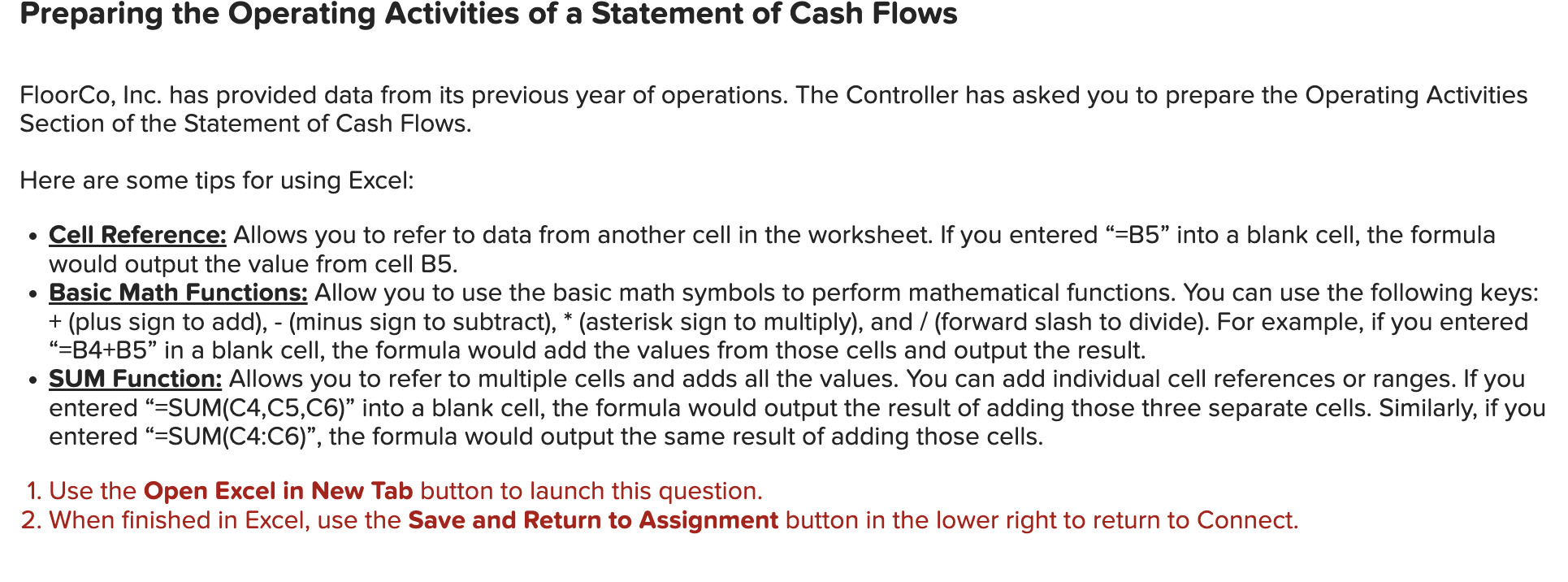
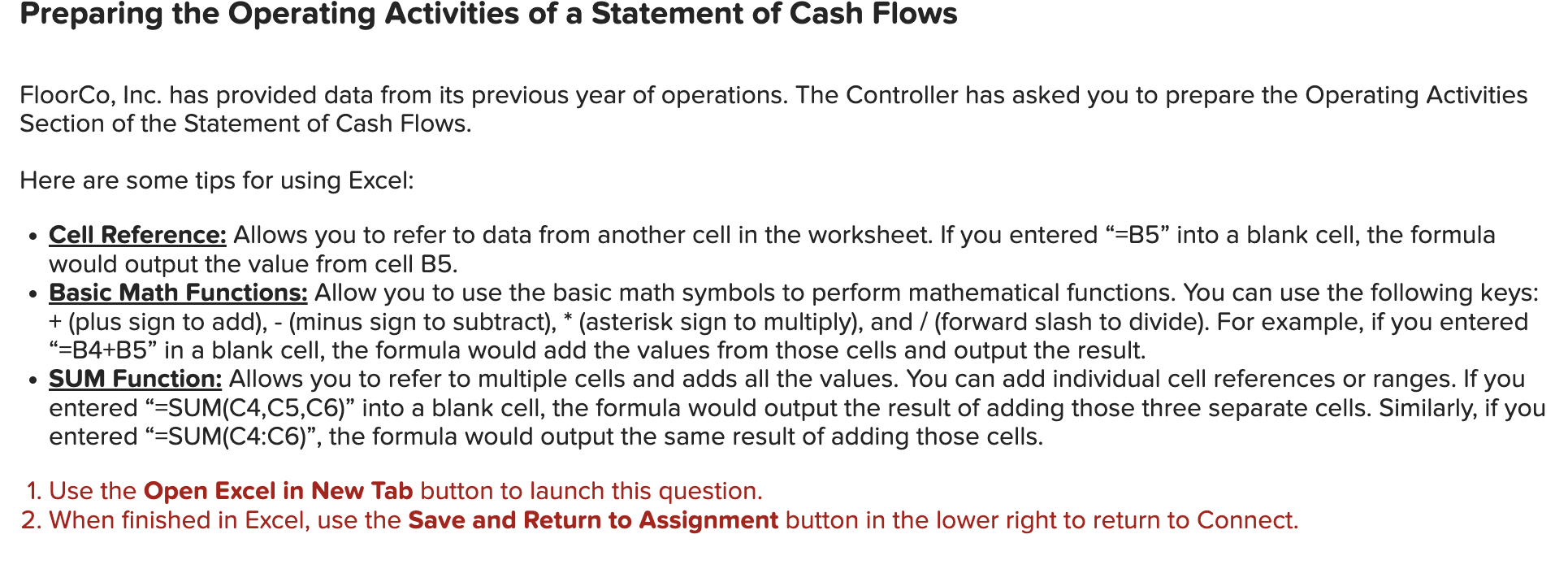
FloorCo, Inc. has provided data from its previous year of operations. The Controller has asked you to prepare the Operating Activities
Section of the Statement of Cash Flows.
Here are some tips for using Excel:
Cell Reference: Allows you to refer to data from another cell in the worksheet. If you entered B into a blank cell, the formula
would output the value from cell B
Basic Math Functions: Allow you to use the basic math symbols to perform mathematical functions. You can use the following keys:
plus sign to addminus sign to subtractasterisk sign to multiply and forward slash to divide For example, if you entered
BB in a blank cell, the formula would add the values from those cells and output the result.
SUM Function: Allows you to refer to multiple cells and adds all the values. You can add individual cell references or ranges. If you
entered SUMCCC into a blank cell, the formula would output the result of adding those three separate cells. Similarly, if you
entered SUMC:C the formula would output the same result of adding those cells.
Use the Open Excel in New Tab button to launch this question.
When finished in Excel, use the Save and Return to Assignment button in the lower right to return to Connect.
Step by Step Solution
There are 3 Steps involved in it
1 Expert Approved Answer
Step: 1 Unlock

Question Has Been Solved by an Expert!
Get step-by-step solutions from verified subject matter experts
Step: 2 Unlock
Step: 3 Unlock
 Study Help