







Question: Show me the steps to solve HTML 5 Css 3 Unit J Independent challenge 2 Independent Challenge 2 ( continued ) h . Return to
Show me the steps to solve HTML Css Unit J Independent challenge Independent Challenge continued
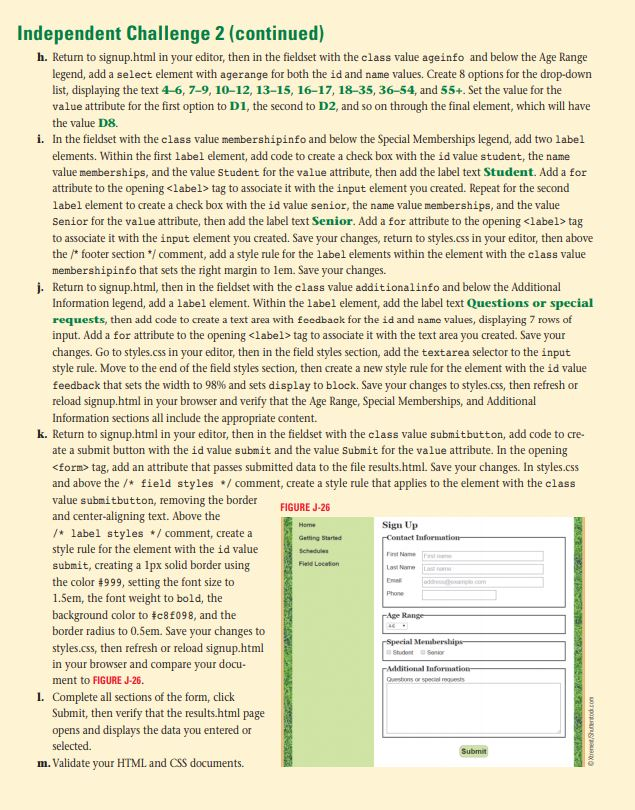
h Return to signup.html in your editor, then in the fieldset with the class value ageinfo and below the Age Range legend, add a select element with agerange for both the id and name values. Create options for the dropdown list, displaying the text and Set the value for the value attribute for the first option to D the second to D and so on through the final element, which will have the value D
i In the fieldset with the class value membershipinfo and below the Special Memberships legend, add two label elements. Within the first label element, add code to create a check box with the id value student, the name value memberships, and the value Student for the value attribute, then add the label text Student. Add a for attribute to the opening label tag to associate it with the input element you created. Repeat for the second label element to create a check box with the id value senior, the name value memberships, and the value Senior for the value attribute, then add the label text Senior. Add a for attribute to the opening tag to associate it with the input element you created. Save your changes, return to styles.css in your editor, then above the footer section comment add a style rule for the label elements within the element with the class value membershipinfo that sets the right margin to lem. Save your changes.
j Return to signup.html then in the fieldset with the class value additionalinfo and below the Additional Information legend, add a label element. Within the label element, add the label text Questions or special requests, then add code to create a text area with feedback for the id and name values, displaying rows of input. Add a for attribute to the opening label tag to associate it with the text area you created. Save your changes. Go to styles.css in your editor, then in the field styles section, add the textarea selector to the input style rule. Move to the end of the field styles section, then create a new style rule for the element with the id value feedback that sets the width to and sets display to block. Save your changes to styles.css then refresh or reload signup.html in your browser and verify that the Age Range, Special Memberships, and Additional Information sections all include the appropriate content.
k Return to signup.html in your editor, then in the fieldset with the class value submitbutton, add code to create a submit button with the id value submit and the value Submit for the value attribute. In the opening
Step by Step Solution
There are 3 Steps involved in it
1 Expert Approved Answer
Step: 1 Unlock

Question Has Been Solved by an Expert!
Get step-by-step solutions from verified subject matter experts
Step: 2 Unlock
Step: 3 Unlock
 Study Help