







Question: Show me the steps to solve Html 5 Css 3 Unit J Independent challenge 2 Independent Challenge 2 The coordinators of the Murfreesboro Regional Soccer
Show me the steps to solve Html Css Unit J Independent challenge
Independent Challenge
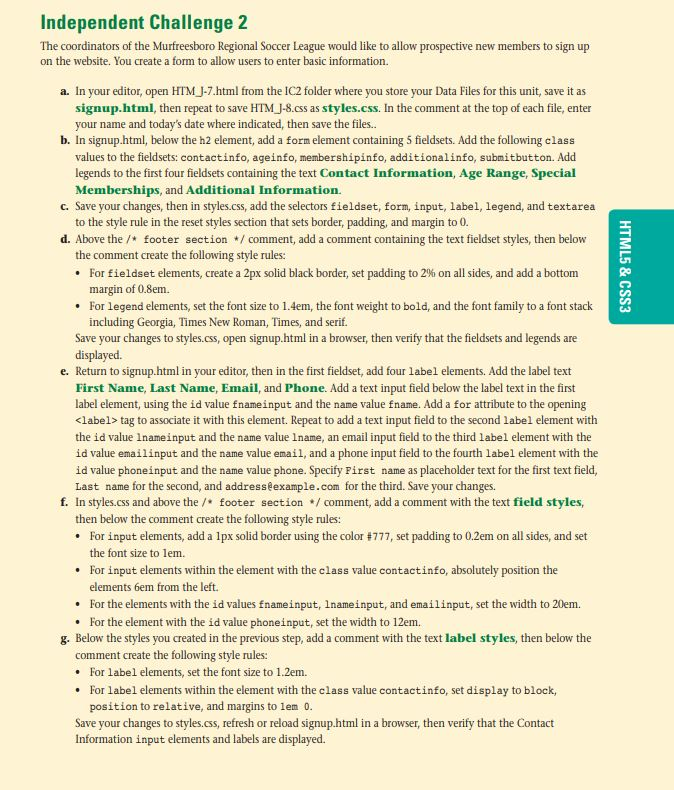
The coordinators of the Murfreesboro Regional Soccer League would like to allow prospective new members to sign up
on the website. You create a form to allow users to enter basic information.
a In your editor, open HTM Jhtml from the IC folder where you store your Data Files for this unit, save it as
signup.html then repeat to save HTM Jcss as styles.css In the comment at the top of each file, enter
your name and today's date where indicated, then save the files..
b In signup.html below the h element, add a form element containing fieldsets. Add the following class
values to the fieldsets: contactinfo, ageinfo, membershipinfo, additionalinfo, submitbutton. Add
legends to the first four fieldsets containing the text Contact Information, Age Range, Special
Memberships, and Additional Information.
c Save your changes, then in styles.css add the selectors fieldset, form, input, label, legend, and textarea
to the style rule in the reset styles section that sets border, padding, and margin to
d Above the footer section comment add a comment containing the text fieldset styles, then below
the comment create the following style rules:
For fieldset elements, create a px solid black border, set padding to on all sides, and add a bottom
margin of em
For legend elements, set the font size to em the font weight to bold, and the font family to a font stack
including Georgia, Times New Roman, Times, and serif.
Save your changes to styles.css open signup.html in a browser, then verify that the fieldsets and legends are
displayed.
e Return to signup.html in your editor, then in the first fieldset, add four label elements. Add the label text
First Name, Last Name, Email, and Phone. Add a text input field below the label text in the first
label element, using the id value fnameinput and the name value fname. Add a for attribute to the opening
tag to associate it with this element. Repeat to add a text input field to the second label element with
the id value Inameinput and the name value lname an email input field to the third label element with the
id value emailinput and the name value email, and a phone input field to the fourth label element with the
id value phoneinput and the name value phone. Specify Pirst name as placeholder text for the first text field,
Last name for the second, and addresslexample.com for the third. Save your changes.
f In styles.css and above the footer section comment, add a comment with the text field styles,
then below the comment create the following style rules:
For input elements, add a px solid border using the color $ set padding to em on all sides, and set
the font size to lem.
For input elements within the element with the class value contactinfo, absolutely position the
elements em from the left.
For the elements with the id values fnameinput, Inameinput, and emailinput, set the width to m
For the element with the id value phoneinput, set the width to em
g Below the styles you created in the previous step, add a comment with the text label styles, then below the
comment create the following style rules:
For label elements, set the font size to em
For label elements within the element with the class value contactinfo, set display to block,
position to relative, and margins to lem
Save your changes to styles.css refresh or reload signup.html in a browser, then verify that the Contact
Information input elements and labels are displayed. i need an expert
Step by Step Solution
There are 3 Steps involved in it
1 Expert Approved Answer
Step: 1 Unlock

Question Has Been Solved by an Expert!
Get step-by-step solutions from verified subject matter experts
Step: 2 Unlock
Step: 3 Unlock
 Study Help