







Question: skip Letter B new row: Word's design and bordering tools as well. a. Open wo3m1 Football and save it as w03m1 Football LastFirst. b. Select
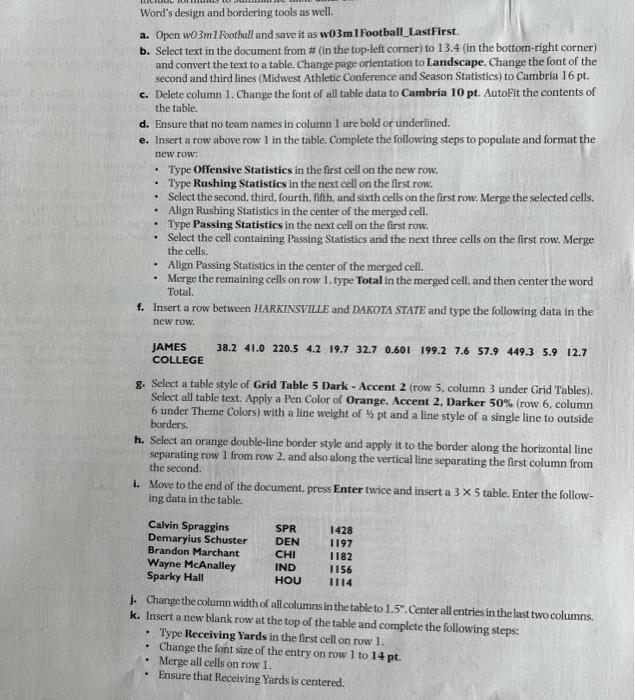
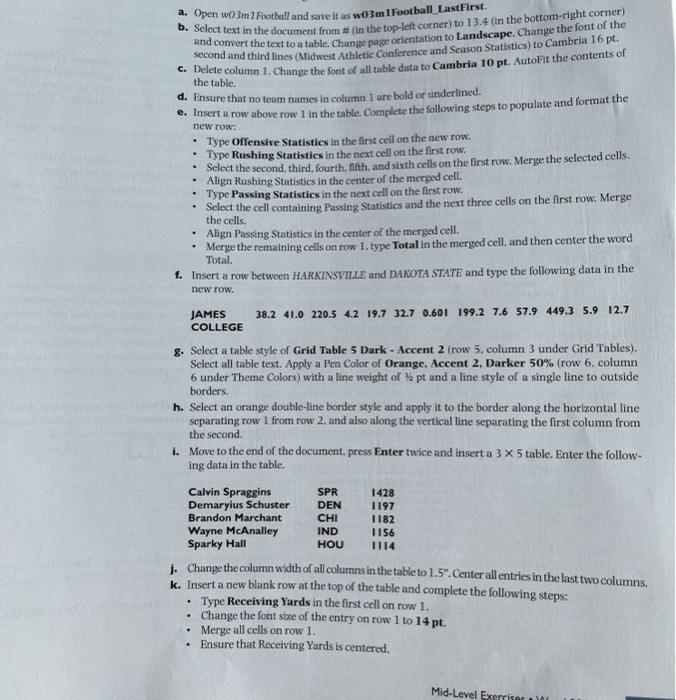
new row: Word's design and bordering tools as well. a. Open wo3m1 Football and save it as w03m1 Football LastFirst. b. Select text in the document from # (In the top-left corner) to 13.4 (in the bottom-right corner) and convert the text to a table. Change page orientation to Landscape. Change the font of the second and third lines Midwest Athletic Conference and Season Statistics) to Cambria 16 pt. c. Delete column 1. Change the font of all table data to Cambria 10 pt. AutoFit the contents of the table. d. Ensure that no team names in column 1 are bold or underlined. e. Insert a row above row 1 in the table. Complete the following steps to populate and format the Type Offensive Statistics in the first cell on the new row. Type Rushing Statistics in the next cell on the first row. Select the second third, fourth, fifth, and sixth cells on the first row. Merge the selected cells. Align Rushing Statistics in the center of the merged cell. Type Passing Statistics in the next cell on the first row. Select the cell containing Passing Statistics and the next three cells on the first row. Merge the cells. Align Passing Statistics in the center of the merged cell. Merge the remaining cells on row 1. type Total in the merged cell, and then center the word Total f. Insert a row between HARKINSVILLE and DAKOTA STATE and type the following data in the . new row: JAMES COLLEGE 38.2 41.0 220.5 4.2 19.7 32.7 0.601 199.2 7.6 57.9 449.3 5.9 12.7 g. Select a table style of Grid Table 5 Dark - Accent 2 row 5. column 3 under Grid Tables). Select all table text. Apply a Pen Color of Orange, Accent 2, Darker 50% (row 6 column 6 under Theme Colors) with a fine weight of spt and a line style of a single line to outside borders. h. Select an orange double-line border style and apply it to the border along the horizontal line separating row 1 from row 2. and also along the vertical line separating the first column from the second 1. Move to the end of the document.press Enter twice and insert a 3 x 5 table. Enter the follow- ing data in the table. Calvin Spraggins SPR 1428 Demaryius Schuster DEN 1197 Brandon Marchant CHI 1182 Wayne McAnalley IND 1156 Sparky Hall HOU 1. Change the column width of all columns in the table to 1.5". Center all entries in the last two columns k. Insert a new blank row at the top of the table and complete the following steps: Type Receiving Yards in the first cell on row 1. Change the font size of the entry on row 1 to 14 pt. Merge all cells on row 1. Ensure that Receiving Yards is centered. the table. a. Open wo3m1 Football and save it as w03m 1 Football LastFirst. B. Select text in the document from # in the top-left corner) to 13.4 (In the bottom-right corner) second and third lines (Midwest Athletic Conference and Season Statistics) to Cambria 16 pt. Delete column 1. Change the font of all table data to Cambria 10 pt. AutoFit the contents of d. Ensure that no team names in column 1 are bold or underlined. e. Insert a row above row 1 in the table. Complete the following steps to populate and format the new row: Type Offensive Statistics in the first cell on the new row. Type Rushing Statistics in the next cell on the first row. Select the second third, fourth, fifth, and sixth cells on the first row. Merge the selected cells. Align Rushing Statistics in the center of the merged cell. Type Passing Statistics in the next cell on the first row. Select the cell containing Passing Statistics and the next three cells on the first row. Merge the cells. Align Passing Statistics in the center of the merged cell. Merge the remaining cells on row 1. type Total in the merged cell, and then center the word Total. 1. Insert a row between HARKINSVILLE and DAKOTA STATE and type the following data in the new row. . . . JAMES 38.2 41.0 220.5 4.2 19.7 32.7 0.601 199.2 7.6 57.9 449.3 5.9 12.7 COLLEGE 8. Select a table style of Grid Table 5 Dark - Accent 2 (row 5. column 3 under Grid Tables). Select all table text. Apply a Pen Color of Orange, Accent 2, Darker 50% (row 6. column 6 under Theme Colors) with a line weight of pt and a line style of a single line to outside borders. h. Select an orange double-line border style and apply it to the border along the horizontal line separating row 1 from row 2. and also along the vertical line separating the first column from the second. 1. Move to the end of the document press Enter twice and insert a 3 x 5 table. Enter the follow- ing data in the table. Calvin Spraggins SPR 1428 Demaryius Schuster DEN 1197 Brandon Marchant CHI 1182 Wayne McAnalley IND 1156 Sparky Hall HOU 1. Change the column width of all columns in the table to 1.5". Center all entries in the last two columns k. Insert a new blank row at the top of the table and complete the following steps: Type Receiving Yards in the first cell on row 1. Change the font size of the entry on row 1 to 14 pt. Merge all cells on row 1. Ensure that Receiving Yards is centered. . Mid-Level Exercise new row: Word's design and bordering tools as well. a. Open wo3m1 Football and save it as w03m1 Football LastFirst. b. Select text in the document from # (In the top-left corner) to 13.4 (in the bottom-right corner) and convert the text to a table. Change page orientation to Landscape. Change the font of the second and third lines Midwest Athletic Conference and Season Statistics) to Cambria 16 pt. c. Delete column 1. Change the font of all table data to Cambria 10 pt. AutoFit the contents of the table. d. Ensure that no team names in column 1 are bold or underlined. e. Insert a row above row 1 in the table. Complete the following steps to populate and format the Type Offensive Statistics in the first cell on the new row. Type Rushing Statistics in the next cell on the first row. Select the second third, fourth, fifth, and sixth cells on the first row. Merge the selected cells. Align Rushing Statistics in the center of the merged cell. Type Passing Statistics in the next cell on the first row. Select the cell containing Passing Statistics and the next three cells on the first row. Merge the cells. Align Passing Statistics in the center of the merged cell. Merge the remaining cells on row 1. type Total in the merged cell, and then center the word Total f. Insert a row between HARKINSVILLE and DAKOTA STATE and type the following data in the . new row: JAMES COLLEGE 38.2 41.0 220.5 4.2 19.7 32.7 0.601 199.2 7.6 57.9 449.3 5.9 12.7 g. Select a table style of Grid Table 5 Dark - Accent 2 row 5. column 3 under Grid Tables). Select all table text. Apply a Pen Color of Orange, Accent 2, Darker 50% (row 6 column 6 under Theme Colors) with a fine weight of spt and a line style of a single line to outside borders. h. Select an orange double-line border style and apply it to the border along the horizontal line separating row 1 from row 2. and also along the vertical line separating the first column from the second 1. Move to the end of the document.press Enter twice and insert a 3 x 5 table. Enter the follow- ing data in the table. Calvin Spraggins SPR 1428 Demaryius Schuster DEN 1197 Brandon Marchant CHI 1182 Wayne McAnalley IND 1156 Sparky Hall HOU 1. Change the column width of all columns in the table to 1.5". Center all entries in the last two columns k. Insert a new blank row at the top of the table and complete the following steps: Type Receiving Yards in the first cell on row 1. Change the font size of the entry on row 1 to 14 pt. Merge all cells on row 1. Ensure that Receiving Yards is centered. the table. a. Open wo3m1 Football and save it as w03m 1 Football LastFirst. B. Select text in the document from # in the top-left corner) to 13.4 (In the bottom-right corner) second and third lines (Midwest Athletic Conference and Season Statistics) to Cambria 16 pt. Delete column 1. Change the font of all table data to Cambria 10 pt. AutoFit the contents of d. Ensure that no team names in column 1 are bold or underlined. e. Insert a row above row 1 in the table. Complete the following steps to populate and format the new row: Type Offensive Statistics in the first cell on the new row. Type Rushing Statistics in the next cell on the first row. Select the second third, fourth, fifth, and sixth cells on the first row. Merge the selected cells. Align Rushing Statistics in the center of the merged cell. Type Passing Statistics in the next cell on the first row. Select the cell containing Passing Statistics and the next three cells on the first row. Merge the cells. Align Passing Statistics in the center of the merged cell. Merge the remaining cells on row 1. type Total in the merged cell, and then center the word Total. 1. Insert a row between HARKINSVILLE and DAKOTA STATE and type the following data in the new row. . . . JAMES 38.2 41.0 220.5 4.2 19.7 32.7 0.601 199.2 7.6 57.9 449.3 5.9 12.7 COLLEGE 8. Select a table style of Grid Table 5 Dark - Accent 2 (row 5. column 3 under Grid Tables). Select all table text. Apply a Pen Color of Orange, Accent 2, Darker 50% (row 6. column 6 under Theme Colors) with a line weight of pt and a line style of a single line to outside borders. h. Select an orange double-line border style and apply it to the border along the horizontal line separating row 1 from row 2. and also along the vertical line separating the first column from the second. 1. Move to the end of the document press Enter twice and insert a 3 x 5 table. Enter the follow- ing data in the table. Calvin Spraggins SPR 1428 Demaryius Schuster DEN 1197 Brandon Marchant CHI 1182 Wayne McAnalley IND 1156 Sparky Hall HOU 1. Change the column width of all columns in the table to 1.5". Center all entries in the last two columns k. Insert a new blank row at the top of the table and complete the following steps: Type Receiving Yards in the first cell on row 1. Change the font size of the entry on row 1 to 14 pt. Merge all cells on row 1. Ensure that Receiving Yards is centered. . Mid-Level Exercise
Step by Step Solution
There are 3 Steps involved in it

Get step-by-step solutions from verified subject matter experts
 Study Help