Question: SMS210 Project 3 15% General Instructions Save your work frequently! The values to the right of each instruction indicate the marking scheme. The entire project
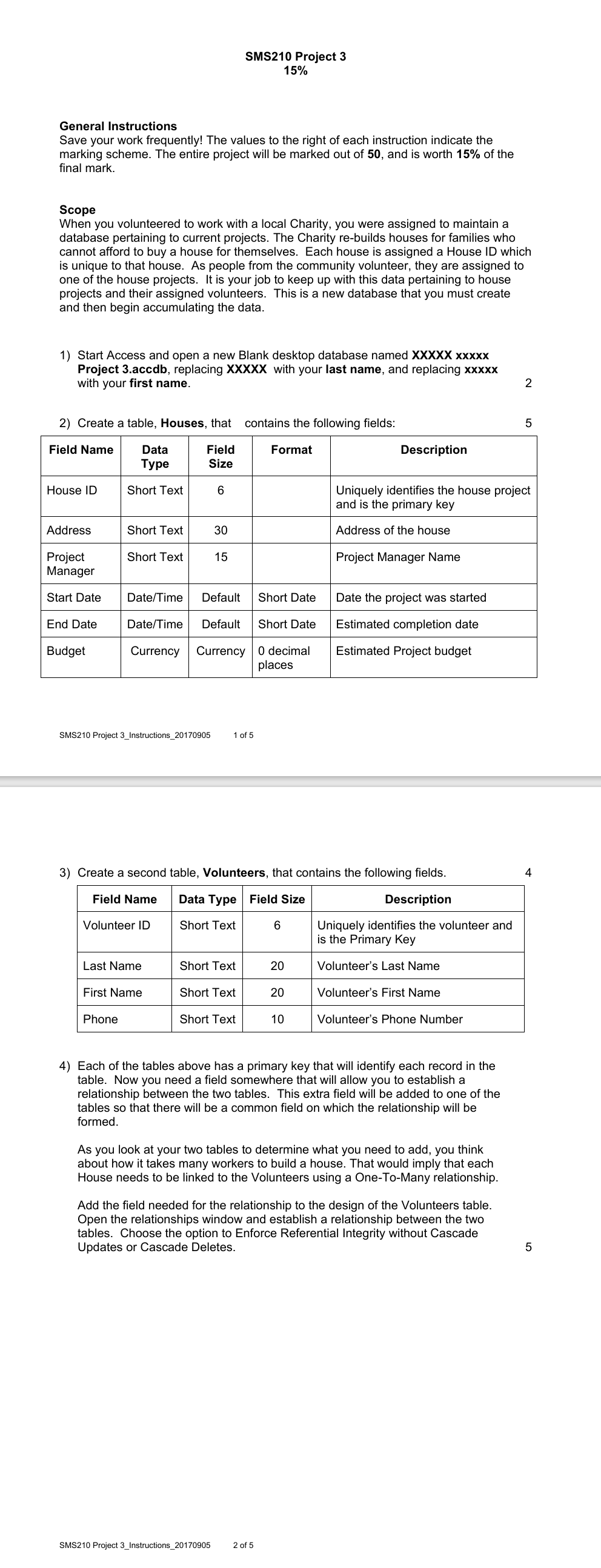
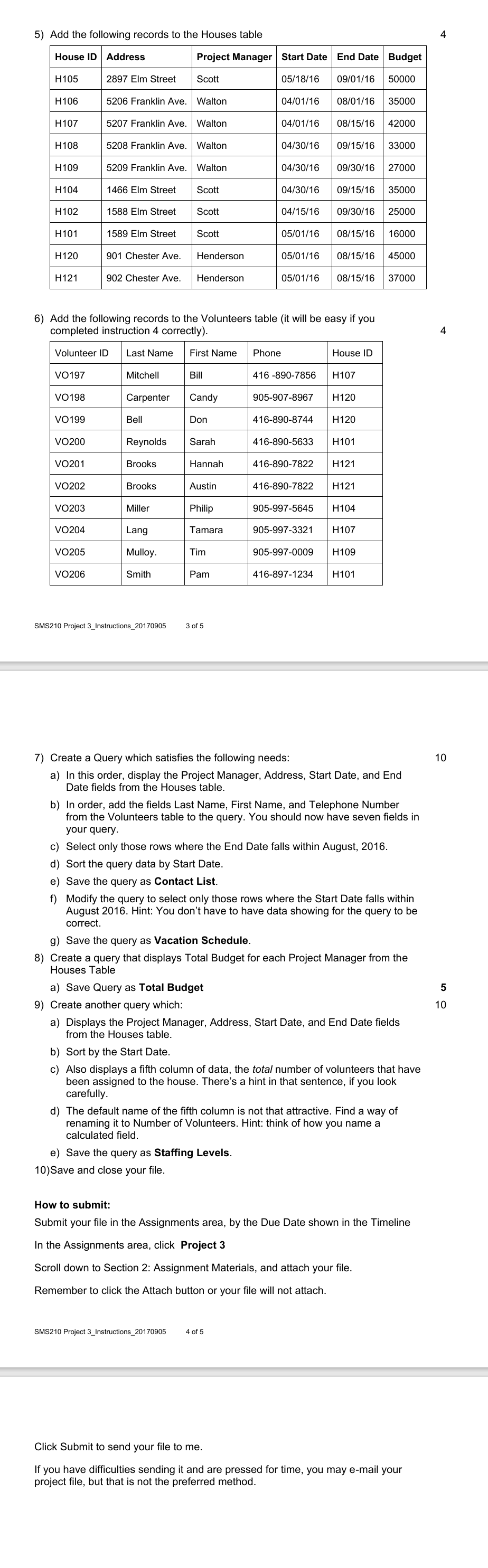
SMS210 Project 3 15% General Instructions Save your work frequently! The values to the right of each instruction indicate the marking scheme. The entire project will be marked out of 50, and is worth 15% of the final mark. Scope When you volunteered to work with a local Charity, you were assigned to maintain a database pertaining to current projects. The Charity re-builds houses for families who cannot afford to buy a house for themselves. Each house is assigned a House ID which is unique to that house. As people from the community volunteer, they are assigned to one of the house projects. It is your job to keep up with this data pertaining to house projects and their assigned volunteers. This is a new database that you must create and then begin accumulating the data. 1) Start Access and open a new Blank desktop database named XXXXX xxxxx Project 3.accedb, replacing XXXXX with your last name, and replacing xxxxx with your first name. 2 2) Create a table, Houses, that contains the following fields: 5 Field Name Data Field Format Description Type Size House ID Short Text 6 Uniquely identifies the house project and is the primary key Address Short Text 30 Address of the house Project Short Text 15 Project Manager Name Manager Start Date Date/Time | Default | Short Date | Date the project was started End Date Date/Time | Default | Short Date | Estimated completion date Budget Currency | Currency | 0 decimal Estimated Project budget places SMS210 Project 3_Instructions_20170905, 1 of & 3) Create a second table, Volunteers, that contains the following fields. 4 Field Name | Data Type | Field Size Description Volunteer ID Short Text 6 Uniquely identifies the volunteer and is the Primary Key Last Name Short Text 20 Volunteer's Last Name First Name Short Text 20 Volunteer's First Name Phone Short Text 10 Volunteer's Phone Number 4) Each of the tables above has a primary key that will identify each record in the table. Now you need a field somewhere that will allow you to establish a relationship between the two tables. This extra field will be added to one of the tables so that there will be a common field on which the relationship will be formed. As you look at your two tables to determine what you need to add, you think about how it takes many workers to build a house. That would imply that each House needs to be linked to the Volunteers using a One-To-Many relationship. Add the field needed for the relationship to the design of the Volunteers table. Open the relationships window and establish a relationship between the two tables. Choose the option to Enforce Referential Integrity without Cascade Updates or Cascade Deletes. 5 $MS210 Project 3_Instructions_20170905 2of5 5) 2 Add the following records to the Houses table 4 House ID | Address Project Manager | Start Date | End Date | Budget H105 2897 Elm Street Scott 05/18/16 | 09/01/16 | 50000 H106 5206 Franklin Ave. | Walton 04/01/16 08/01/16 | 35000 H107 5207 Franklin Ave. | Walton 04/01/16 | 08/15/16 | 42000 H108 5208 Franklin Ave. | Walton 04/30/16 | 09/15/16 | 33000 H109 5209 Franklin Ave. | Walton 04/30/16 09/30/16 | 27000 H104 1466 Elm Street Scott 04/30/16 | 09/15/16 | 35000 H102 1588 Elm Street Scott 04/15/16 | 09/30/16 | 25000 H101 1589 Elm Street Scott 05/01/16 08/15/16 | 16000 H120 901 Chester Ave. | Henderson 05/01/16 08/15/16 | 45000 H121 902 Chester Ave. | Henderson 05/01/16 | 08/15/16 | 37000 Add the following records to the Volunteers table (it will be easy if you completed instruction 4 correctly). 4 Volunteer ID LastName | FirstName | Phone House ID VO197 Mitchell Bill 416 -890-7856 | H107 VO198 Carpenter Candy 905-907-8967 H120 VO199 Bell Don 416-890-8744 H120 vo200 Reynolds Sarah 416-890-5633 H101 VO201 Brooks Hannah 416-890-7822 H121 VO202 Brooks Austin 416-890-7822 H121 VO203 Miller Philip 905-997-5645 H104 VO204 Lang Tamara 905-997-3321 H107 VO205 Mulloy. Tim 905-997-0009 H109 VO206 Smith Pam 416-897-1234 H101 'SMS210 Project 3_Instructions_20170905 30fS 7) & & Create a Query which satisfies the following needs: 10 In this order, display the Project Manager, Address, Start Date, and End Date fields from the Houses table. a = In order, add the fields Last Name, First Name, and Telephone Number from the Volunteers table to the query. You should now have seven fields in your query. Select only those rows where the End Date falls within August, 2016. Sort the query data by Start Date. Save the query as Contact List. f) Modify the query to select only those rows where the Start Date falls within August 2016. Hint: You don't have to have data showing for the query to be correct. gee g) Save the query as Vacation Schedule. Create a query that displays Total Budget for each Project Manager from the Houses Table a) Save Query as Total Budget Create another query which: 10 a) Displays the Project Manager, Address, Start Date, and End Date fields from the Houses table. b) Sort by the Start Date. c) Also displays a fifth column of data, the tota/ number of volunteers that have been assigned to the house. There's a hint in that sentence, if you look carefully. d) The default name of the fifth column is not that attractive. Find a way of renaming it to Number of Volunteers. Hint: think of how you name a calculated field. e) Save the query as Staffing Levels. 10)Save and close your file. How to submit: Submit your file in the Assignments area, by the Due Date shown in the Timeline In the Assignments area, click Project 3 Scroll down to Section 2: Assignment Materials, and attach your file. Remember to click the Attach button or your file will not attach. SMS210 Project 3_Instructions_20170905 4 of 5 Click Submit to send your file to me. If you have difficulties sending it and are pressed for time, you may e-mail your project file, but that is not the preferred method
Step by Step Solution
There are 3 Steps involved in it
1 Expert Approved Answer
Step: 1 Unlock
Question Has Been Solved by an Expert!
Get step-by-step solutions from verified subject matter experts
Step: 2 Unlock
Step: 3 Unlock
Students Have Also Explored These Related Accounting Questions!









 Study Help