







Question: Starting from part 2. Using the Riverbed Modeler Academic Edition theres a few graphs thats need to be creating using the steps about and the
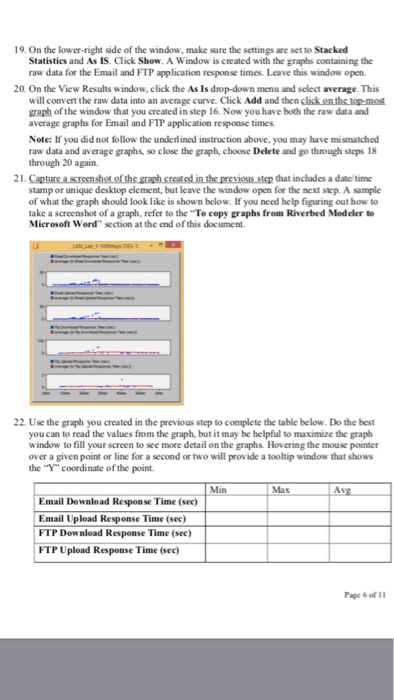
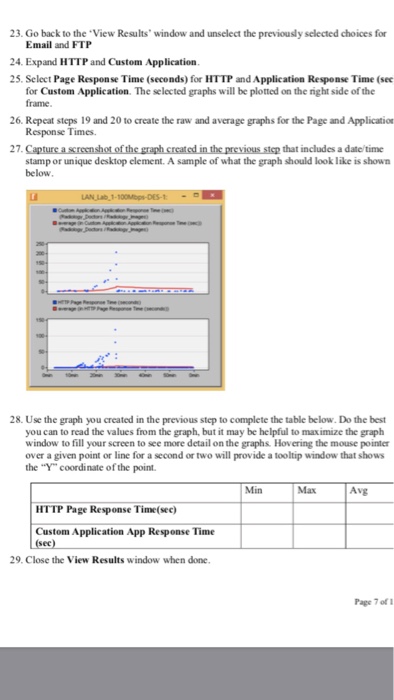
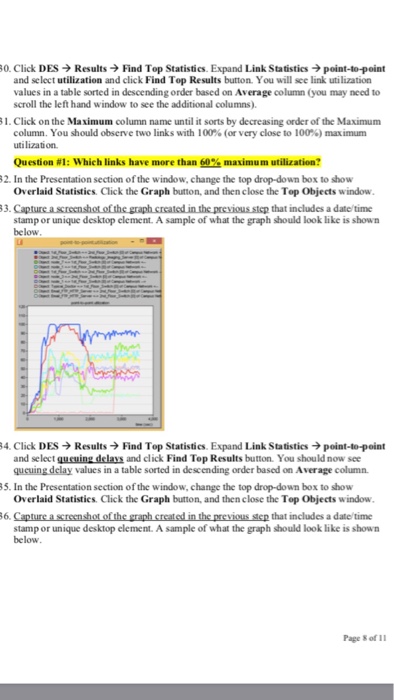
Starting from part 2. Using the Riverbed Modeler Academic Edition theres a few graphs thats need to be creating using the steps about and the charts need to be filled in. These a few in betweens steps 31 & 32
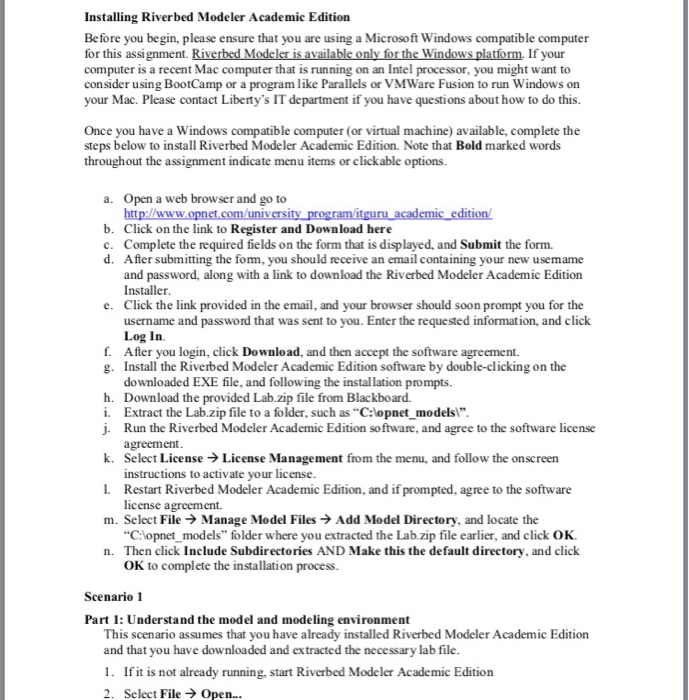
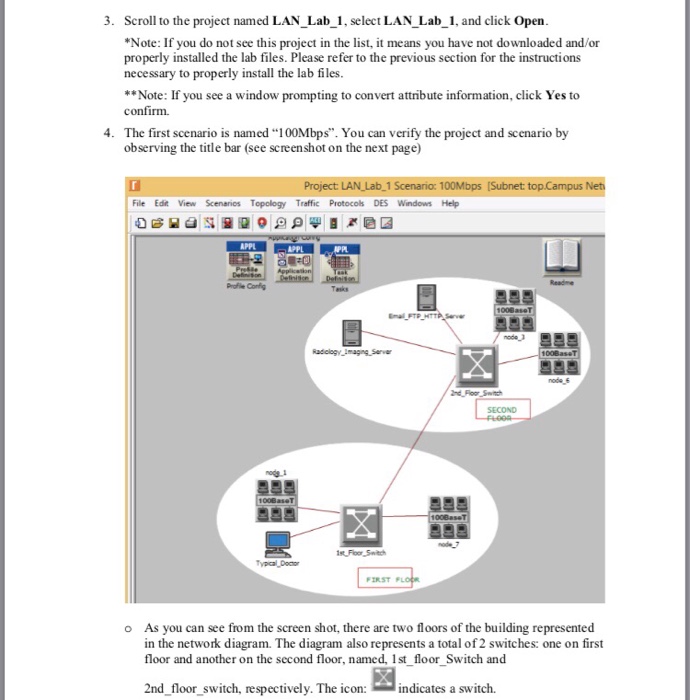
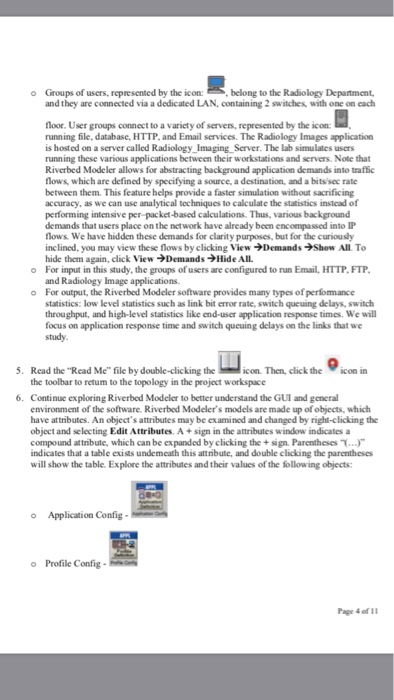
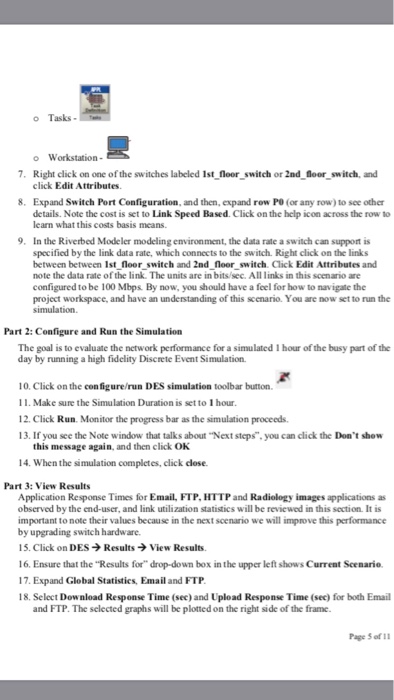
Installing Riverbed Modeler Academic Edition Before you begin, please ensure that you are using a Microsoft Windows compatible computer for this assignment. Riverbed Modeler is available only for the Windows platform, If your computer is a recent Mac computer that is running on an Intel processor, you might want to consider using BootCamp or a program like Parallels or VMWare Fusion to run Windows on your Mac. Please contact Liberty's IT department if you have questions about how to do this. Once you have a Windows compatible computer (or virtual machine) available, complete the steps below to install Riverbed Modeler Academic Edition. Note that Bold marked words throughout the assignment indicate menu items or clickable options. a. Open a web browser and go to b. Click on the link to Register and Download here c. Complete the required fields on the form that is displayed, and Submit the form. d. After submitting the fom, you should receive an email containing your new usemame and password, along with a link to download the Riverbed Modeler Academic Edition Installer Click the link provided in the email, and your browser should soon prompt you for the username and password that was sent to you. Enter the Log In After you login, click Download, and then accept the software agreement. Install the Riverbed Modeler Academic Edition software by double-clicking on the downloaded EXE file, and following the installation prompts. Download the provided Lab.zip file from Blackboard. Extract the Lab.zip file to a folder, such as "C:lopnet modelsl" Run the Riverbed Modeler Academic Edition software, and agree to the software license agreement e. reque sted information, and click f. g. h. i. j. k. Select License License Management from the menu, and follow the onscreen 1. Restart Riverbed Modeler Academic Edition, and if prompted, agree to the software m. Select File Manage Model Files Add Model Directory, and locate the n. Then click Include Subdirectories AND Make this the default directory, and click instructions to activate your license license agreement. C:lopnet models" folder where you extracted the Lab.zip file earlier, and click OK. OK to complete the installation Scenario1 Part 1: Understand the model and modeling environment This scenario assumes that you have already installed Riverbed Modeler Academic Edition and that you have downloaded and extracted the necessary lab file 1. Ifit is not already running, start Riverbed Modeler Academic Edition 2. Select File Open Installing Riverbed Modeler Academic Edition Before you begin, please ensure that you are using a Microsoft Windows compatible computer for this assignment. Riverbed Modeler is available only for the Windows platform, If your computer is a recent Mac computer that is running on an Intel processor, you might want to consider using BootCamp or a program like Parallels or VMWare Fusion to run Windows on your Mac. Please contact Liberty's IT department if you have questions about how to do this. Once you have a Windows compatible computer (or virtual machine) available, complete the steps below to install Riverbed Modeler Academic Edition. Note that Bold marked words throughout the assignment indicate menu items or clickable options. a. Open a web browser and go to b. Click on the link to Register and Download here c. Complete the required fields on the form that is displayed, and Submit the form. d. After submitting the fom, you should receive an email containing your new usemame and password, along with a link to download the Riverbed Modeler Academic Edition Installer Click the link provided in the email, and your browser should soon prompt you for the username and password that was sent to you. Enter the Log In After you login, click Download, and then accept the software agreement. Install the Riverbed Modeler Academic Edition software by double-clicking on the downloaded EXE file, and following the installation prompts. Download the provided Lab.zip file from Blackboard. Extract the Lab.zip file to a folder, such as "C:lopnet modelsl" Run the Riverbed Modeler Academic Edition software, and agree to the software license agreement e. reque sted information, and click f. g. h. i. j. k. Select License License Management from the menu, and follow the onscreen 1. Restart Riverbed Modeler Academic Edition, and if prompted, agree to the software m. Select File Manage Model Files Add Model Directory, and locate the n. Then click Include Subdirectories AND Make this the default directory, and click instructions to activate your license license agreement. C:lopnet models" folder where you extracted the Lab.zip file earlier, and click OK. OK to complete the installation Scenario1 Part 1: Understand the model and modeling environment This scenario assumes that you have already installed Riverbed Modeler Academic Edition and that you have downloaded and extracted the necessary lab file 1. Ifit is not already running, start Riverbed Modeler Academic Edition 2. Select File Open
Step by Step Solution
There are 3 Steps involved in it

Get step-by-step solutions from verified subject matter experts
 Study Help