







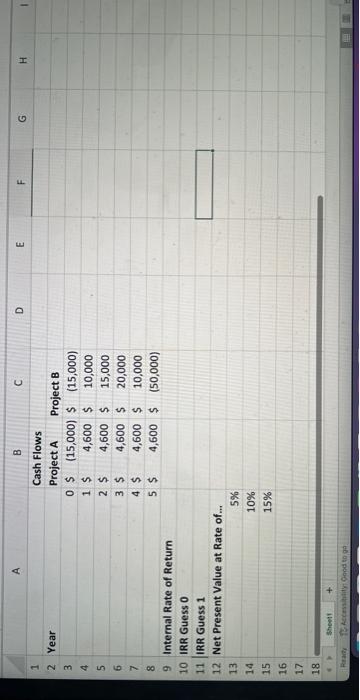
Question: Starting from the Excel spreadsheet and using the =IRR(values,[guess]) Excel func- tion, calculate the Internal Rate of Return (IRR) for Project A and for Project
Starting from the Excel spreadsheet and using the =IRR(values,[guess]) Excel func- tion, calculate the Internal Rate of Return (IRR) for Project A and for Project B. Leave the guess field empty. Round your answer to 0 decimal places.
Based on the IRR alone, which do you conclude is the better project to invest in?
Recalculate the IRR for Project A and for Project B - again, to 0 decimal places - but this time, add a guess to the =IRR(values,[guess]) function:
(a) If your guess in =IRR(values,[guess]) is 0, what is the IRR for each project? (b) If your guess in =IRR(values,[guess]) is 1, what is the IRR for each project?
Based on your recalculated IRR alone, which do you conclude is the better project to invest in?
![Starting from the Excel spreadsheet and using the =IRR(values,[guess]) Excel func- tion,](https://s3.amazonaws.com/si.experts.images/answers/2024/08/66d30ce20749c_42566d30ce181716.jpg)
1. Starting from the Excel spreadsheet and using the =IRR (values, [guess]) Excel function, calculate the Internal Rate of Return (IRR) for Project A and for Project B. Leave the guess field empty. Round your answer to 0 decimal places. Based on the IRR alone, which do you conclude is the better project to invest in? 2. Recalculate the IRR for Project A and for Project B - again, to 0 decimal places but this time, add a guess to the =IRR (values, [guess]) function: (a) If your guess in =IRR (values, [guess]) is 0, what is the IRR for each project? (b) If your guess in =IRR (values, [guess]) is 1, what is the IRR for each project? Based on your recalculated IRR alone, which do you conclude is the better project to invest in
Step by Step Solution
There are 3 Steps involved in it

Get step-by-step solutions from verified subject matter experts
 Study Help