







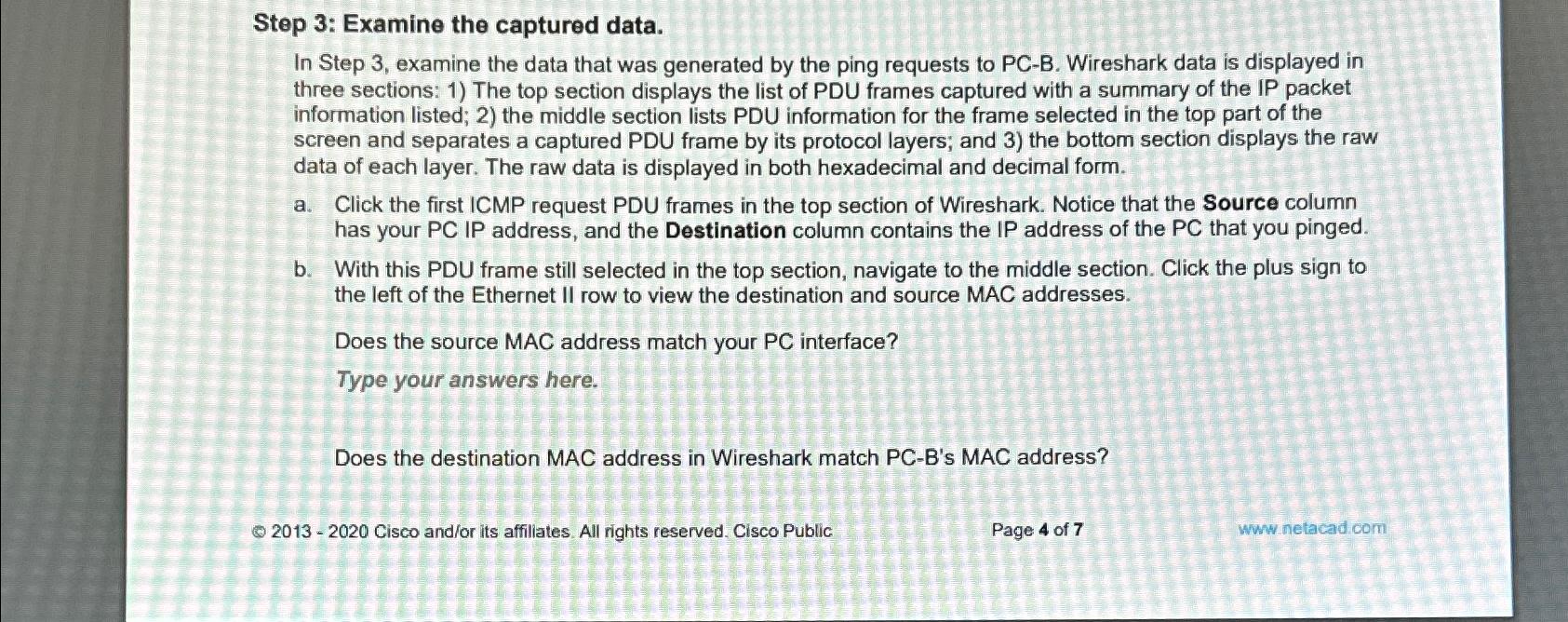
Question: Step 3 : Examine the captured data. In Step 3 , examine the data that was generated by the ping requests to PC - B
Step : Examine the captured data.
In Step examine the data that was generated by the ping requests to PCB Wireshark data is displayed in three sections: The top section displays the list of PDU frames captured with a summary of the IP packet information listed; the middle section lists PDU information for the frame selected in the top part of the screen and separates a captured PDU frame by its protocol layers; and the bottom section displays the raw data of each layer. The raw data is displayed in both hexadecimal and decimal form.
a Click the first ICMP request PDU frames in the top section of Wireshark. Notice that the Source column has your PC IP address, and the Destination column contains the IP address of the PC that you pinged.
b With this PDU frame still selected in the top section, navigate to the middle section. Click the plus sign to the left of the Ethernet II row to view the destination and source MAC addresses.
Does the source MAC address match your PC interface?
Type your answers here.
Does the destination MAC address in Wireshark match PCBs MAC address?
Q Cisco andor its affiliates. All rights reserved. Cisco Public:
Page of
Whw
netacad.com
Step by Step Solution
There are 3 Steps involved in it
1 Expert Approved Answer
Step: 1 Unlock

Question Has Been Solved by an Expert!
Get step-by-step solutions from verified subject matter experts
Step: 2 Unlock
Step: 3 Unlock
 Study Help