







Question: Step 3 : Use the ping command to verify network connectivity. Record your work for subnet calculations: CCNA: Introduction to Networks Skills Assessment - Student
Step : Use the ping command to verify network connectivity. Record your work for subnet calculations:
CCNA: Introduction to Networks
Skills Assessment Student Training Exam
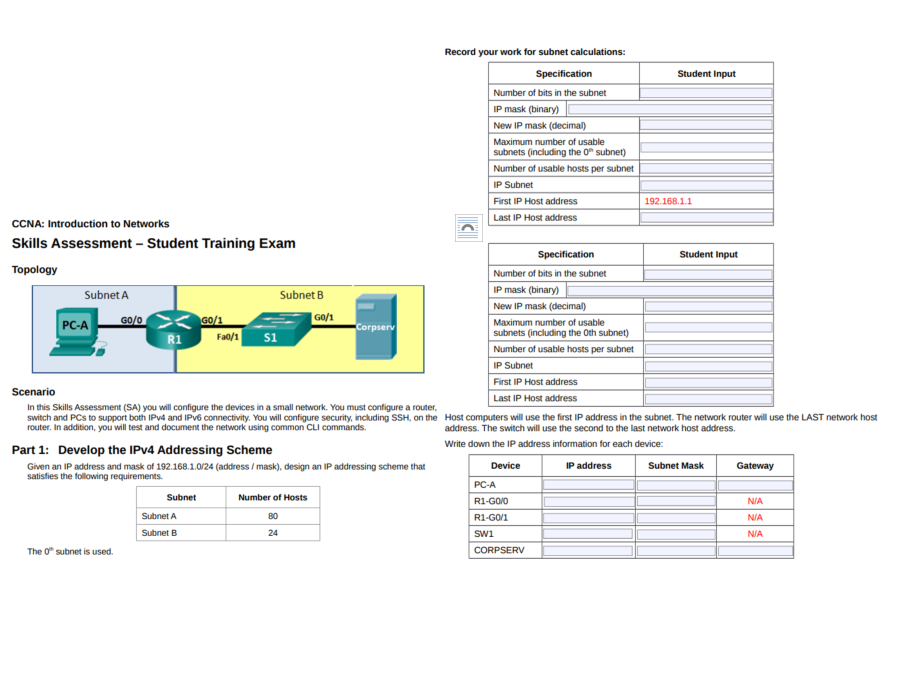
Topology
Scenario
In this Skills Assessment SA you will configure the devices in a small network. You must configure a router,
switch and PCs to support both IPv and IPv connectivity. You will configure security, including SSH on the
router. In addition, you will test and document the network using common CLI commands.
Part : Develop the IPv Addressing Scheme
Given an IP address and mask of address mask design an IP addressing scheme that
satisfies the following requirements.
The subnet is used.
Host computers will use the first IP address in the subnet. The network router will use the LAST network host
address. The switch will use the second to the last network host address.
Write down the IP address information for each device: Part : Test and Verify IPv EndtoEnd Connectivity
Step : Verify network connectivity.
Use the ping command to test connectivity between all network devices.
Note: If pings to host computers fail, temporarily disable the computer firewall and retest. To disable a
Windows firewall, select Start Control Panel System and Security Windows Firewall Tum Windows
Firewall on or off, select Turn off Windows Firewall, and click OK
Use the following table to methodically verify connectivity with each network device. Take corrective action to
establish connectivity if a test fails:
In addition to the ping command, what other command is useful in displaying network delay and breaks in the
path to the destination?
DNS Server CorpServ
Step : Configure R
Perform a basic configuration on Rand also include the following:
Step : Configure SW
Perform a basic configuration on SW and also include the following: Step : Use the ping command to verify network connectivity.
IPv network connectivity can be verified with the ping command. Use the following table to methodically
verify connectivity with each network device. Take corrective action to establish connectivity if a test fails:
Part : Use the IOS CLI to Gather Device Information
Step : Issue the appropriate command to discover the following information:
Part : Configure IPv Addressing on R
Given an IPV network address of :DB:ACAD:: confligure IPV addresses for the Gigabit interfaces
on R Use FE:: as the linklocal address on both interfaces. Use the first usable address in the subnet
and the first usable address in the first subnet for your IPv IP addresses.
Step : Configure R
Configuration tasks for R include the following:
Part : Test and Verify IPv EndtoEnd Connectivity
Step : Enable Autoconfiguration for IPv on both hosts in the network.
Step : Obtain the IPv address assigned to hosts.
Step : Enter the appropriate CLI command needed to display the following on R:
IPv network connectivity can be verified with the ping command. Use the following table to methodically
verify connectivity with each network device. Take corrective action to establish connectivity if a test fails:
Part : Use the IOS CLI to Gather Device Information
Step : Issue the appropriate command to discover the following information:
Part : Configure IPv Addressing on R
Given an IPV network address of :DB:ACAD:: confligure IPV addresses for the Gigabit interfaces
on R Use FE:: as the linklocal address on both interfaces. Use the first usable address in the subnet
and the first usable address in the first subnet for your IPv IP addresses.
Step : Configure R
Configuration tasks for R include the following:
Part : Test and Verify IPv EndtoEnd Connectivity
Step : Enable Autoconfiguration for IPv on both hosts in the network.
Step : Obtain the IPv address assigned to hosts.
Step : Enter the appropriate CLI command needed to display the following on R:
Step by Step Solution
There are 3 Steps involved in it
1 Expert Approved Answer
Step: 1 Unlock

Question Has Been Solved by an Expert!
Get step-by-step solutions from verified subject matter experts
Step: 2 Unlock
Step: 3 Unlock
 Study Help