







Question: Step 5 : Now, click the red triangle menu and choose Display Options > Show Tree. Don t be alarmed, but it won t fit
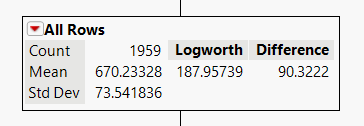
Step : Now, click the red triangle menu and choose Display Options Show Tree. Dont be alarmed, but it wont fit on your screen very well. Take a screenshot of the top node labeled All Rows and paste it into the space below again just the one box that says All Rows at the top IMPORTANT: If you click Split, Prune, or Go youll have to Redo the Analysis.
Step : Theres a lot to dive into here, but well keep it simple and accept the Decision Tree that JMP has given us This might look very intimidating, but this Decision Tree is just like the one we went over in the Classification Trees lecture video it just looks a little different! Let me provide a quick recapdescription of how the tree is formatted in JMP Pro:
Each node is giving us the criteria for entry into the node the bold label text along with some key metrics: the number of people in our Training Sample that meet the criteria to sort into this node which means they meet all the criteria from the nodes higher in the Tree as well the Mean credit score of those qualifying individuals which doubles as the predicted value at that node and the Standard Deviation of credit scores within those qualifying individuals.
So with that in mind, use the Decision Tree to predict the credit score of an individual who has had credit bureau inquiries, has used of her available credit, has $ of total available credit, has no collection reports or missed payments, is a homeowner, has an average credit age of years ie CreditAge and has worked continuously for the past years ie TimeOnJob Enter your estimate for the credit score, ie the Mean of the final node reached by the individual described above, into the space below, rounding your answer to two decimal places.
Step by Step Solution
There are 3 Steps involved in it
1 Expert Approved Answer
Step: 1 Unlock

Question Has Been Solved by an Expert!
Get step-by-step solutions from verified subject matter experts
Step: 2 Unlock
Step: 3 Unlock
 Study Help