Question: Step Instructions Points Possible 1 0 Start Access. Open the downloaded Access file named Exp19_Access_Ch4_ML1_Rewards. Grader has automatically added your last name to the beginning
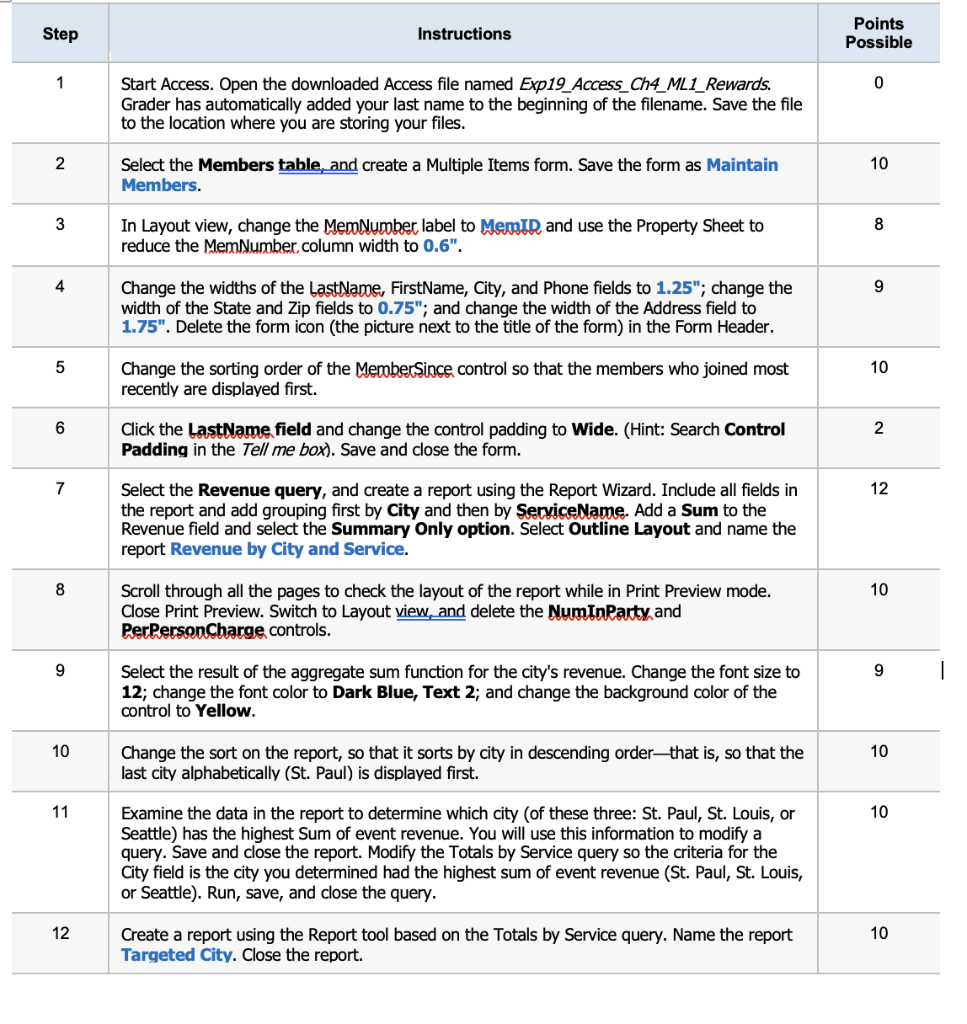
Step Instructions Points Possible 1 0 Start Access. Open the downloaded Access file named Exp19_Access_Ch4_ML1_Rewards. Grader has automatically added your last name to the beginning of the filename. Save the file to the location where you are storing your files. 2 10 Select the Members table, and create a Multiple Items form. Save the form as Maintain Members. 3 8 In Layout view, change the MemNumber label to MemID and use the Property Sheet to reduce the MemNumber, column width to 0.6". 4 9 Change the widths of the LastName, FirstName, City, and Phone fields to 1.25"; change the width of the State and Zip fields to 0.75"; and change the width of the Address field to 1.75". Delete the form icon (the picture next the title of the form) in the Form Header. 5 10 Change the sorting order of the Member Since control so that the members who joined most recently are displayed first. 6 2 Click the LastName field and change the control padding to Wide. (Hint: Search Control Padding in the Tell me box). Save and close the form. 7 12 Select the Revenue query, and create a report using the Report Wizard. Include all fields in the report and add grouping first by City and then by ServiceName. Add a Sum to the Revenue field and select the Summary Only option. Select Outline Layout and name the report Revenue by City and Service. 8 10 Scroll through all the pages to check the layout of the report while in Print Preview mode. Close Print Preview. Switch to Layout view, and delete the NumInParty and PerPersonCharge controls. 9 9 Select the result of the aggregate sum function for the city's revenue. Change the font size to 12; change the font color to Dark Blue, Text 2; and change the background color of the control to Yellow. 10 10 Change the sort on the report, so that it sorts by city in descending orderthat is, so that the last city alphabetically (St. Paul) is displayed first. 11 10 Examine the data in the report to determine which city of these three: St. Paul, St. Louis, or Seattle) has the highest Sum of event revenue. You will use this information to modify a query. Save and close the report. Modify the Totals by Service query so the criteria for the City field is the city you determined had the highest sum of event revenue (St. Paul, St. Louis, or Seattle). Run, save, and close the query. 12 10 Create a report using the Report tool based on the Totals by Service query. Name the report Targeted City. Close the report. Step Instructions Points Possible 1 0 Start Access. Open the downloaded Access file named Exp19_Access_Ch4_ML1_Rewards. Grader has automatically added your last name to the beginning of the filename. Save the file to the location where you are storing your files. 2 10 Select the Members table, and create a Multiple Items form. Save the form as Maintain Members. 3 8 In Layout view, change the MemNumber label to MemID and use the Property Sheet to reduce the MemNumber, column width to 0.6". 4 9 Change the widths of the LastName, FirstName, City, and Phone fields to 1.25"; change the width of the State and Zip fields to 0.75"; and change the width of the Address field to 1.75". Delete the form icon (the picture next the title of the form) in the Form Header. 5 10 Change the sorting order of the Member Since control so that the members who joined most recently are displayed first. 6 2 Click the LastName field and change the control padding to Wide. (Hint: Search Control Padding in the Tell me box). Save and close the form. 7 12 Select the Revenue query, and create a report using the Report Wizard. Include all fields in the report and add grouping first by City and then by ServiceName. Add a Sum to the Revenue field and select the Summary Only option. Select Outline Layout and name the report Revenue by City and Service. 8 10 Scroll through all the pages to check the layout of the report while in Print Preview mode. Close Print Preview. Switch to Layout view, and delete the NumInParty and PerPersonCharge controls. 9 9 Select the result of the aggregate sum function for the city's revenue. Change the font size to 12; change the font color to Dark Blue, Text 2; and change the background color of the control to Yellow. 10 10 Change the sort on the report, so that it sorts by city in descending orderthat is, so that the last city alphabetically (St. Paul) is displayed first. 11 10 Examine the data in the report to determine which city of these three: St. Paul, St. Louis, or Seattle) has the highest Sum of event revenue. You will use this information to modify a query. Save and close the report. Modify the Totals by Service query so the criteria for the City field is the city you determined had the highest sum of event revenue (St. Paul, St. Louis, or Seattle). Run, save, and close the query. 12 10 Create a report using the Report tool based on the Totals by Service query. Name the report Targeted City. Close the report









 Study Help