







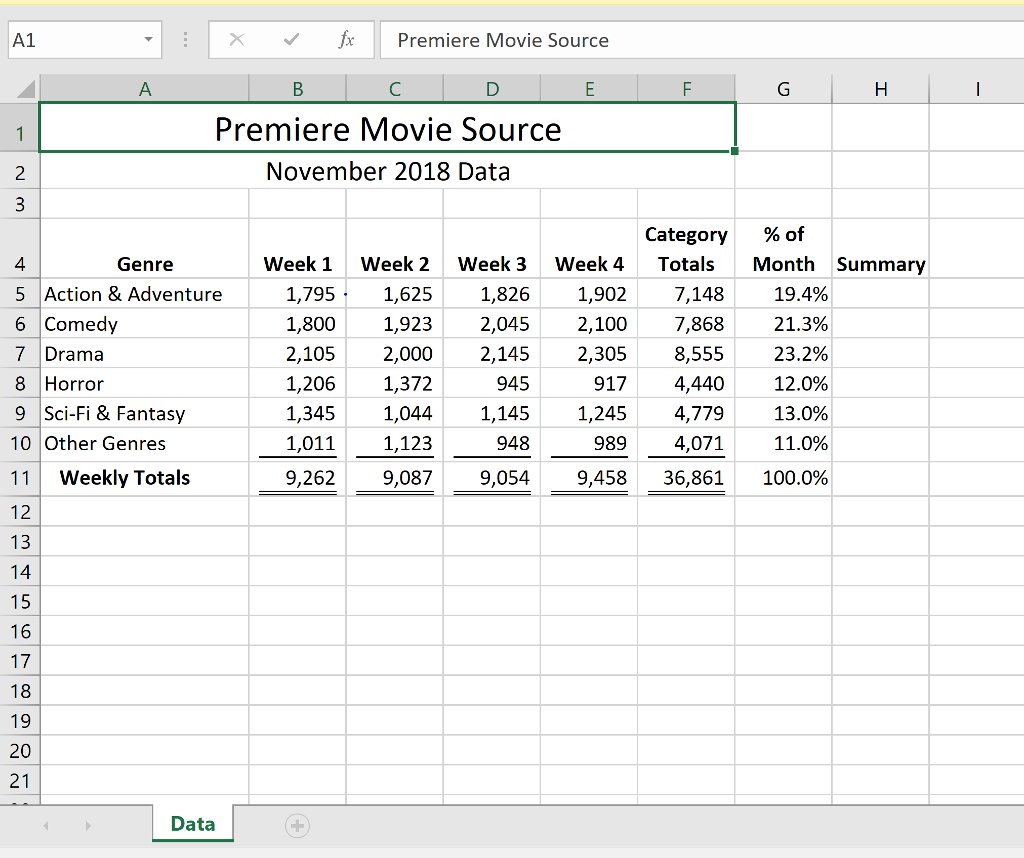
Question: Step Instructions Points Possible 1 Start Excel. Download and open the file named exploring_e03_grader_a1.xlsx . 0 2 Select the ranges A4:A10, F4:G10 and create a
| Step | Instructions | Points Possible |
|---|---|---|
| 1 | Start Excel. Download and open the file namedexploring_e03_grader_a1.xlsx. | 0 |
| 2 | Select the ranges A4:A10, F4:G10 and create a Clustered Column Line on Secondary Axis combo chart. | 10 |
| 3 | Position the chart to start in cell A13. Change the height to 3.5 inches and the width to 6 inches. | 6 |
| 4 | Change the chart title to November 2018 Downloads by Genre. Apply Black, Text 1 font color to the chart title. | 4 |
| 5 | Add a primary value axis title and type Number of Downloads. Add a secondary value axis title and type Percentage of Monthly Downloads. Apply Black, Text 1 font color to both value axis titles. | 6 |
| 6 | Remove the legend. | 2 |
| 7 | Add data labels for the % of Month line. Position the data labels Above. | 2 |
| 8 | Select the range A5:E11. Insert Line Sparklines in the range H5:H11. | 9 |
| 9 | Apply the Sparkline Style Accent 2, Darker 50% sparkline style. | 4 |
| 10 | Show the high point and markers for the sparklines. Change the high point marker color to Red. Change the low point marker to Blue. | 8 |
| 11 | Select the range A4:E10. Create a stacked bar chart. Move the chart to new sheet. Type Bar Chart for the sheet name. | 8 |
| 12 | Add a chart title above the bar chart and type November 2018 Weekly Downloads by Genre. Apply bold and Blue font color to the bar chart title. | 8 |
| 13 | Apply 11 pt font size to the category axis, value axis, and the legend for the bar chart. | 6 |
| 14 | Use the Axis Options to display the value axis in units of Thousands, set the Major Units to 500, apply the Number format with 1 decimal place for the bar chart. Use the Axis Options to format the category axis so that the category labels are in reverse order in the bar chart. | 10 |
| 15 | Change colors and apply Monochromatic Palette 8 to the bar chart. Note, depending on the version of Office used, the color may be listed as Color 12. | 5 |
| 16 | Apply a gradient fill, using any preset or color, to the plot area in the bar chart. | 5 |
| 17 | Apply landscape orientation for the Data worksheet. | 2 |
| 18 | Apply horizontal and vertical centering on the page options for the Data worksheet. | 4 |
| 19 | Ensure that the worksheets are correctly named and placed in the following order in the workbook: Bar Chart, Data. Save the workbook. Close the workbook and then exit Excel. Submit the workbook as directed. | 1 |
| Total Points | 100 |
A1 Premiere Movie Source Premiere Movie Source November 2018 Data Category %of Week 1Week 2 Week 3 Week 4Totals Month Summary 4 5 Action & Adventure 6 Comedy 7 Drama 8 Horror 9 Sci-Fi & Fantasy 10 Other Genres 11 Weekly Totals 12 13 Genre 1,625 1,826 7,148 1,795 1,800 1,923 2,045 2,100 7,868 21.3% 2,105 1,206 1,345 1,011 9,262 9,087 9,054 9,458 36,861 100.0% 1,902 19.4% 2,000 1,372 1,044 1,123 2,145 945 1,145 948 2,305 917 1,245 989 8,555 4,440 4,779 4,071 23.2% 12.0% 13.0% 11.0% 15 16 17 18 19 20 21 Data A1 Premiere Movie Source Premiere Movie Source November 2018 Data Category %of Week 1Week 2 Week 3 Week 4Totals Month Summary 4 5 Action & Adventure 6 Comedy 7 Drama 8 Horror 9 Sci-Fi & Fantasy 10 Other Genres 11 Weekly Totals 12 13 Genre 1,625 1,826 7,148 1,795 1,800 1,923 2,045 2,100 7,868 21.3% 2,105 1,206 1,345 1,011 9,262 9,087 9,054 9,458 36,861 100.0% 1,902 19.4% 2,000 1,372 1,044 1,123 2,145 945 1,145 948 2,305 917 1,245 989 8,555 4,440 4,779 4,071 23.2% 12.0% 13.0% 11.0% 15 16 17 18 19 20 21 Data
Step by Step Solution
There are 3 Steps involved in it

Get step-by-step solutions from verified subject matter experts
 Study Help