







Question: steps 11 through 15 please om Table Shape Collaborate 11 5 You are ready to calculate the number of days for the workshops. In cell
 steps 11 through 15 please
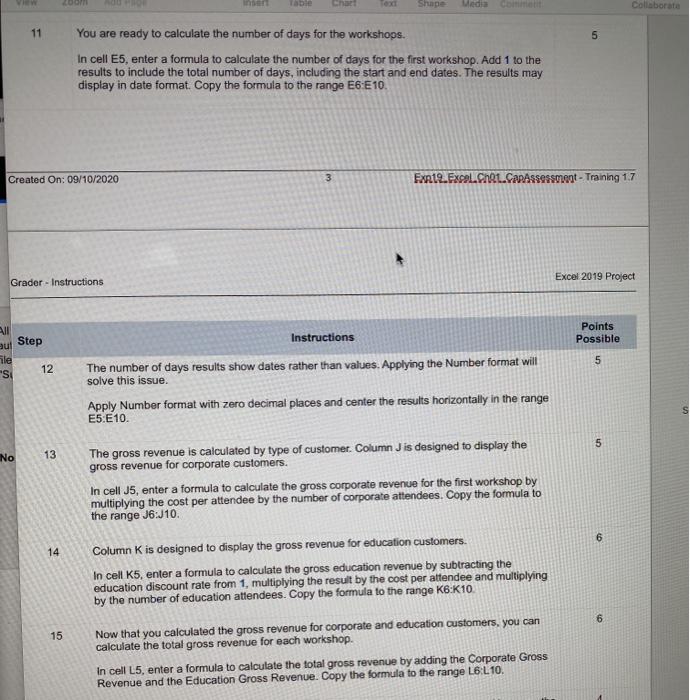
om Table Shape Collaborate 11 5 You are ready to calculate the number of days for the workshops. In cell E5, enter a formula to calculate the number of days for the first workshop. Add 1 to the results to include the total number of days, including the start and end dates. The results may display in date format. Copy the formula to the range E6:E 10. Created On: 09/10/2020 3 EXR12.Excel.ChAL.ConAssessment - Training 17 Excel 2019 Project Grader - Instructions Points Possible Instructions Step all aul ile 'S 5 12 The number of days results show dates rather than values. Applying the Number format will solve this issue, Apply Number format with zero decimal places and center the results horizontally in the range E5.E10. 5 No 13 The gross revenue is calculated by type of customer. Column J is designed to display the gross revenue for corporate customers. In cell J5, enter a formula to calculate the gross corporate revenue for the first workshop by multiplying the cost per attendee by the number of corporate attendees. Copy the formula to the range J6:J10 14 Column K is designed to display the gross revenue for education Customers. In cell K5, enter a formula to calculate the gross education revenue by subtracting the education discount rate from 1, multiplying the result by the cost per attendee and multiplying by the number of education attendees. Copy the formula to the range K6:10 15 Now that you calculated the gross revenue for corporate and education customers, you can calculate the total gross revenue for each workshop. In cell L5, enter a formula to calculate the total gross revenue by adding the Corporate Gross Revenue and the Education Gross Revenue. Copy the formula to the range L6-L10. om Table Shape Collaborate 11 5 You are ready to calculate the number of days for the workshops. In cell E5, enter a formula to calculate the number of days for the first workshop. Add 1 to the results to include the total number of days, including the start and end dates. The results may display in date format. Copy the formula to the range E6:E 10. Created On: 09/10/2020 3 EXR12.Excel.ChAL.ConAssessment - Training 17 Excel 2019 Project Grader - Instructions Points Possible Instructions Step all aul ile 'S 5 12 The number of days results show dates rather than values. Applying the Number format will solve this issue, Apply Number format with zero decimal places and center the results horizontally in the range E5.E10. 5 No 13 The gross revenue is calculated by type of customer. Column J is designed to display the gross revenue for corporate customers. In cell J5, enter a formula to calculate the gross corporate revenue for the first workshop by multiplying the cost per attendee by the number of corporate attendees. Copy the formula to the range J6:J10 14 Column K is designed to display the gross revenue for education Customers. In cell K5, enter a formula to calculate the gross education revenue by subtracting the education discount rate from 1, multiplying the result by the cost per attendee and multiplying by the number of education attendees. Copy the formula to the range K6:10 15 Now that you calculated the gross revenue for corporate and education customers, you can calculate the total gross revenue for each workshop. In cell L5, enter a formula to calculate the total gross revenue by adding the Corporate Gross Revenue and the Education Gross Revenue. Copy the formula to the range L6-L10
Step by Step Solution
There are 3 Steps involved in it

Get step-by-step solutions from verified subject matter experts
 Study Help