







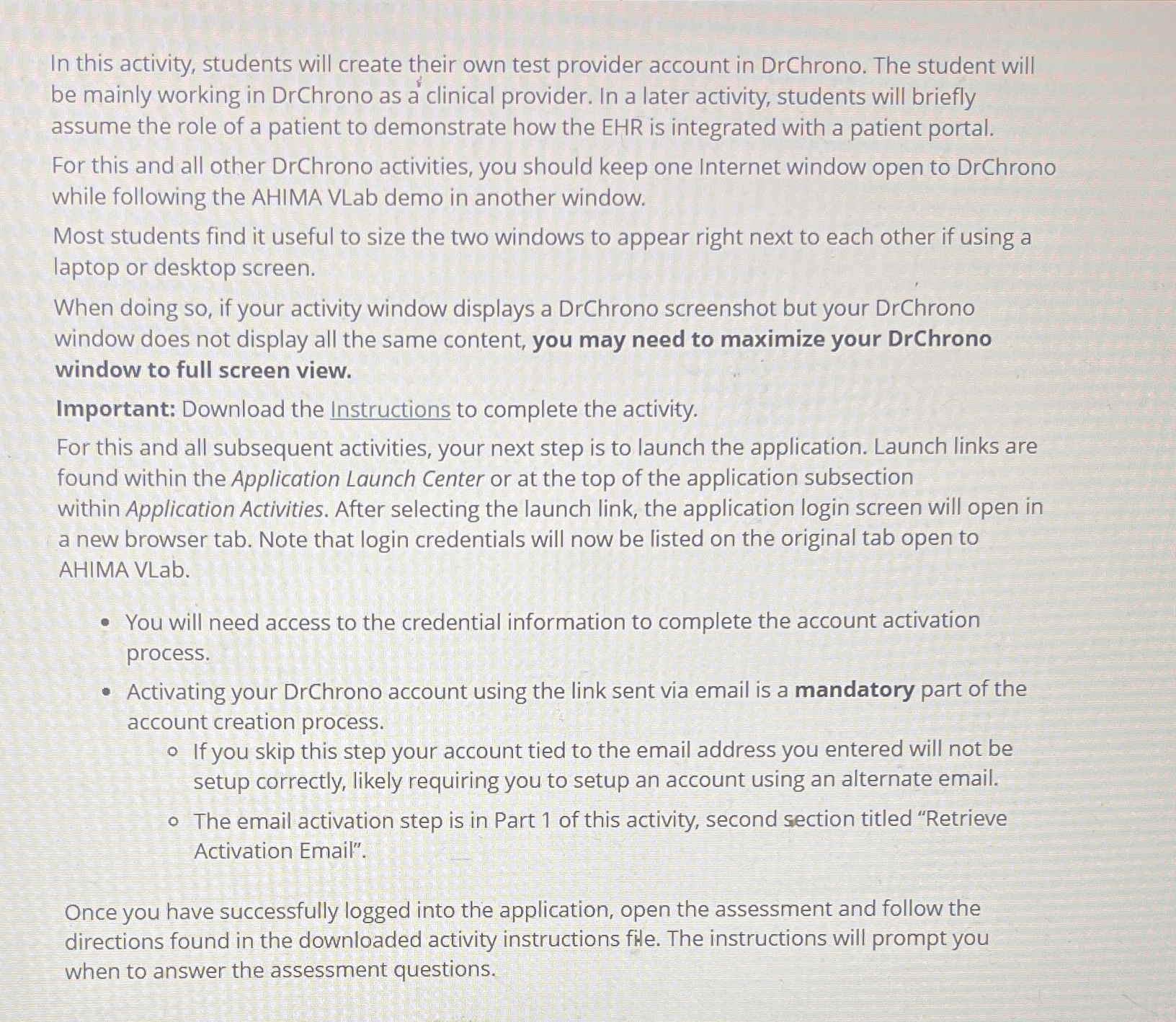
Question: Steps for In this activity, students will create their own test provider account in DrChrono. The student will be mainly working in DrChrono as a
Steps for
In this activity, students will create their own test provider account in DrChrono. The student will
be mainly working in DrChrono as a clinical provider. In a later activity, students will briefly
assume the role of a patient to demonstrate how the EHR is integrated with a patient portal.
For this and all other DrChrono activities, you should keep one Internet window open to DrChrono
while following the AHIMA VLab demo in another window.
Most students find it useful to size the two windows to appear right next to each other if using a
laptop or desktop screen.
When doing so if your activity window displays a DrChrono screenshot but your DrChrono
window does not display all the same content, you may need to maximize your DrChrono
window to full screen view.
Important: Download the Instructions to complete the activity.
For this and all subsequent activities, your next step is to launch the application. Launch links are
found within the Application Launch Center or at the top of the application subsection
within Application Activities. After selecting the launch link, the application login screen will open in
a new browser tab. Note that login credentials will now be listed on the original tab open to
AHIMA VLab.
You will need access to the credential information to complete the account activation
process.
Activating your DrChrono account using the link sent via email is a mandatory part of the
account creation process.
If you skip this step your account tied to the email address you entered will not be
setup correctly, likely requiring you to setup an account using an alternate email.
The email activation step is in Part of this activity, second section titled "Retrieve
Activation Email".
Once you have successfully logged into the application, open the assessment and follow the
directions found in the downloaded activity instructions file. The instructions will prompt you
when to answer the assessment questions.
Step by Step Solution
There are 3 Steps involved in it
1 Expert Approved Answer
Step: 1 Unlock

Question Has Been Solved by an Expert!
Get step-by-step solutions from verified subject matter experts
Step: 2 Unlock
Step: 3 Unlock
 Study Help