







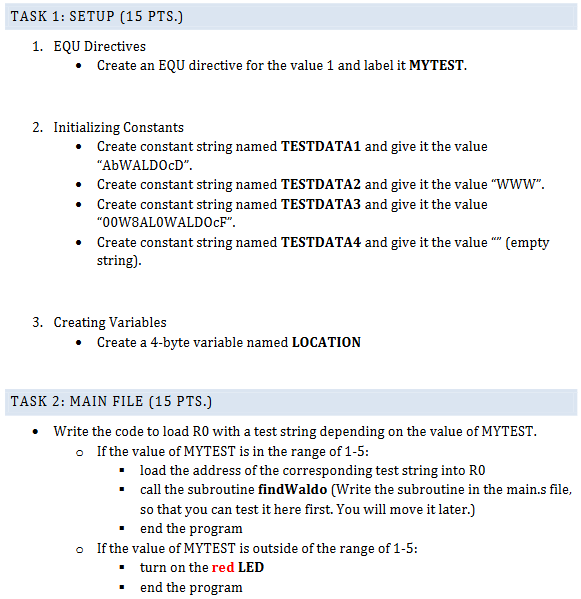
Question: TASK 1 : SETUP ( 1 5 PTS . ) 1 . EQU Directives - Create an EQU directive for the value 1 and label
TASK : SETUP PTS
EQU Directives
Create an EQU directive for the value and label it MYTEST.
Initializing Constants
Create constant string named TESTDATA and give it the value "AbWALDOcD".
Create constant string named TESTDATA and give it the value WWW
Create constant string named TESTDATA and give it the value WALWALDOcF".
Create constant string named TESTDATA and give it the value n empty string
Creating Variables
Create a byte variable named LOCATION
TASK : MAIN FILE PTS
Write the code to load R with a test string depending on the value of MYTEST.
If the value of MYTEST is in the range of :
load the address of the corresponding test string into R
call the subroutine findWaldo Write the subroutine in the main.s file, so that you can test it here first. You will move it later.
end the program
If the value of MYTEST is outside of the range of :
turn on the red LED
end the program TASK : SUBROUTINE PART I PTS
Write a subroutine named findWaldo that looks for the casesensitive full name "WALDO" in the string pointed to by the address in R
If the full string is found:
turn on only the green LED
return the address of the first byte of the WALDO string ie the W in Ro
If the full string is NOT found:
output the color yellow on the LEDs
return the value in R
IMPORTANT:
The first line of your subroutine should be:
PUSH LR R
The last lines of your subroutine should be:
POP LR R
BX LR
We will talk about why you need this in class.
For all tasks writing to the LEDs, you MUST use the function call setData as we used it in previous labs. That is the ONLY way that you are allowed to write to the LEDs. CAUTION: The subroutine setData will overwrite any values in R and R
Step by Step Solution
There are 3 Steps involved in it
1 Expert Approved Answer
Step: 1 Unlock

Question Has Been Solved by an Expert!
Get step-by-step solutions from verified subject matter experts
Step: 2 Unlock
Step: 3 Unlock
 Study Help