







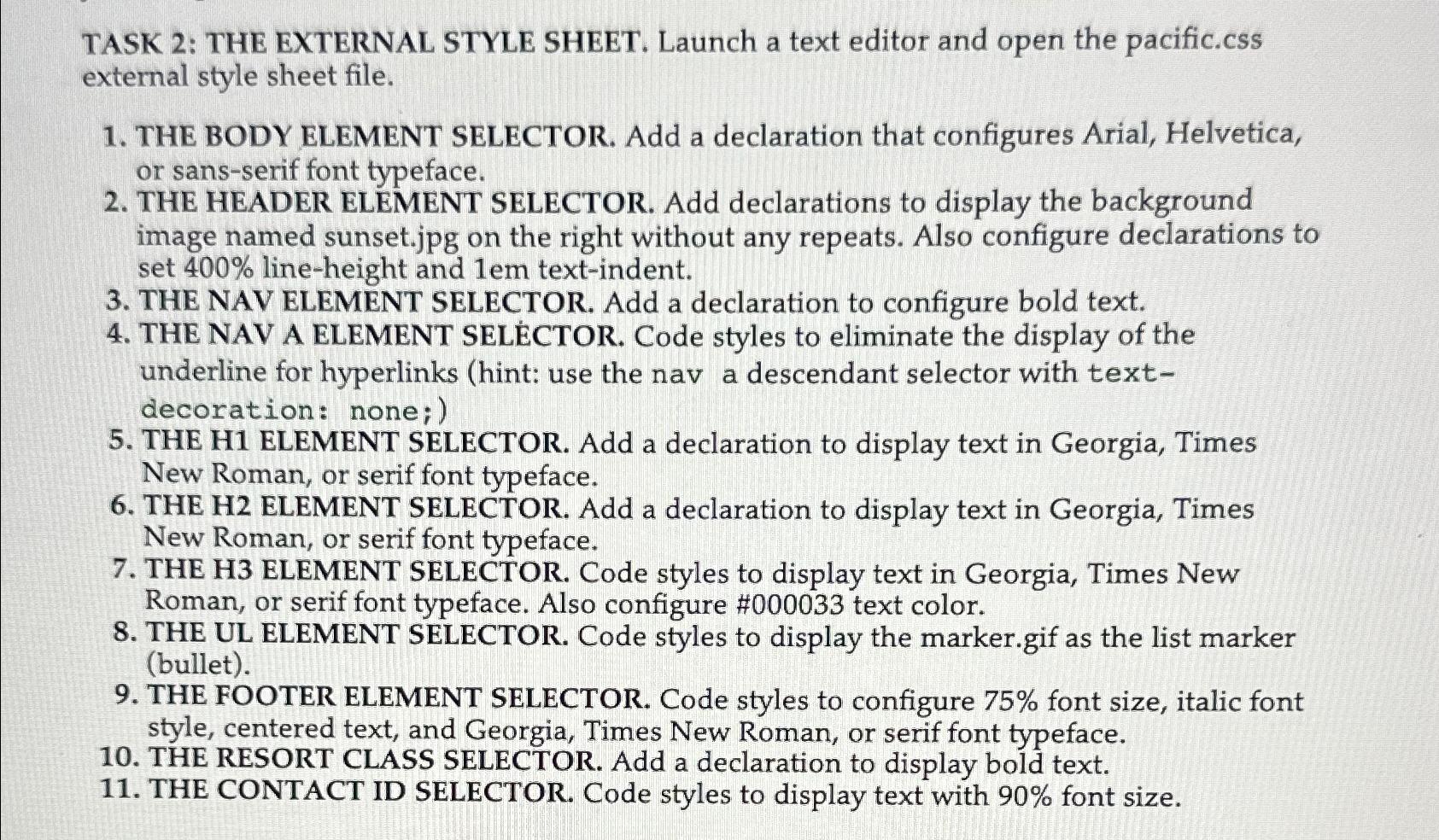
Question: TASK 2 : THE EXTERNAL STYLE SHEET. Launch a text editor and open the pacific.cSs external style sheet file. THE BODY ELEMENT SELECTOR. Add a
TASK : THE EXTERNAL STYLE SHEET. Launch a text editor and open the pacific.cSs external style sheet file.
THE BODY ELEMENT SELECTOR. Add a declaration that configures Arial, Helvetica, or sansserif font typeface.
THE HEADER ELEMENT SELECTOR. Add declarations to display the background image named sunset.jpg on the right without any repeats. Also configure declarations to set lineheight and textindent.
THE NAV ELEMENT SELECTOR. Add a declaration to configure bold text.
THE NAV A ELEMENT SELCTOR Code styles to eliminate the display of the underline for hyperlinks hint: use the nav a descendant selector with textdecoration: none;
THE H ELEMENT SELECTOR. Add a declaration to display text in Georgia, Times New Roman, or serif font typeface.
THE H ELEMENT SELECTOR. Add a declaration to display text in Georgia, Times New Roman, or serif font typeface.
THE H ELEMENT SELECTOR. Code styles to display text in Georgia, Times New Roman, or serif font typeface. Also configure # text color.
THE UL ELEMENT SELECTOR. Code styles to display the marker.gif as the list marker bullet
THE FOOTER ELEMENT SELECTOR. Code styles to configure font size, italic font style, centered text, and Georgia, Times New Roman, or serif font typeface.
THE RESORT CLASS SELECTOR. Add a declaration to display bold text.
THE CONTACT ID SELECTOR. Code styles to display text with font size.
Step by Step Solution
There are 3 Steps involved in it
1 Expert Approved Answer
Step: 1 Unlock

Question Has Been Solved by an Expert!
Get step-by-step solutions from verified subject matter experts
Step: 2 Unlock
Step: 3 Unlock
 Study Help