







Question: Tasks Using the Simple Calculator + program developed for Programming Project 4 , you will add some additional functionality and write a report about it
Tasks
Using the Simple Calculator program developed for Programming Project you will add some additional functionality and write a report about it
IMPORTANT: Before you begin, copy the code for Programming Project to a new file named simplecalc py to use for this project.
Required:
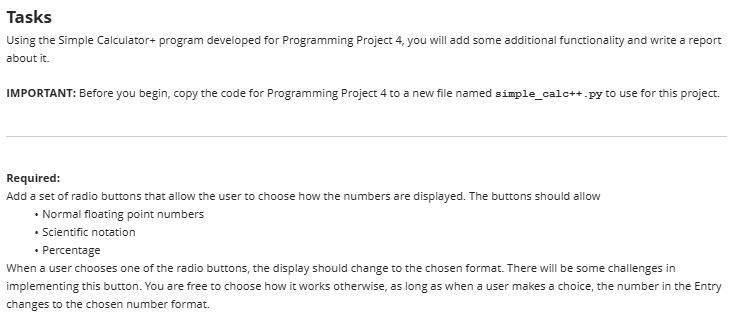
Add a set of radio buttons that allow the user to choose how the numbers are displayed. The buttons should allow
Normal floating point numbers
Scientific notation
Percentage
When a user chooses one of the radio buttons, the display should change to the chosen format. There will be some challenges in implementing this button. You are free to choose how it works otherwise, as long as when a user makes a choice, the number in the Entry changes to the chosen number format.
Below is my simple calculator code:
import tkinter as tk
from math import pi e sqrt factorial, pow
def insertpi:
inputfield.delete tkEND # Clear the input field
inputfield.insert strpi # Insert
# Insert the value of e into the input field
def inserte:
inputfield.delete tkEND # Clear the input field
inputfield.insert stre # Insert e
# Calculate the square of the number in the input field
def calculatesquare:
try:
number floatinputfield.get # Get the number
result number # Calculate square
inputfield.delete tkEND # Clear input field
inputfield.insert strresult # Display result
except ValueError:
inputfield.insert "Error" # Display error if invalid input
# Calculate the cube of the number in the input field
def calculatecube:
try:
number floatinputfield.get # Get the number
result number # Calculate cube
inputfield.delete tkEND # Clear input field
inputfield.insert strresult # Display result
except ValueError:
inputfield.insert "Error" # Display error if invalid input
# Calculate the square root of the number in the input field
def calculatesquareroot:
try:
number floatinputfield.get # Get the number
result sqrtnumber # Calculate square root
inputfield.delete tkEND # Clear input field
inputfield.insert strresult # Display result
except ValueError:
inputfield.insert "Error" # Display error if invalid input
# Calculate the factorial of the number in the input field
def calculatefactorial:
try:
number intinputfield.get # Get the number
result factorialnumber # Calculate factorial
inputfield.delete tkEND # Clear input field
inputfield.insert strresult # Display result
except ValueError:
inputfield.insert "Error" # Display error if invalid input
# Calculate raised to the power of the number in the input field
def calculatepowerof:
try:
number floatinputfield.get # Get the number
result pow number # Calculate number
inputfield.delete tkEND # Clear input field
inputfield.insert strresult # Display result
except ValueError:
inputfield.insert "Error" # Display error if invalid input
# Append a number or character to the input field
def appendnumbervalue:
currentvalue inputfield.get # Get current value in input field
inputfield.delete tkEND # Clear the field
inputfield.insert currentvalue strvalue # Append the new value
# Clear the input field
def clearinput:
inputfield.delete tkEND
# Evaluate the expression in the input field
def evaluateexpression:
try:
result evalinputfield.get # Evaluate the expression
inputfield.delete tkEND # Clear input field
inputfield.insert strresult # Display result
except:
inputfield.delete tkEND # Clear input field
inputfield.insert "Error" # Display error if invalid input
# Main Application Setup
# Create the main application window
app tkTk
app.titleCalculator # Set window title
# Create the input field
inputfield tkEntryapp width fontArial borderwidth
inputfield.gridrow column columnspan padx pady # Position input field
# Standard Buttons Setup
# Button layout text row, column
buttonlayout
# Create standard buttons
for text, row, col in buttonlayout:
if text.isdigit or text : # For numeric and decimal point buttons
tkButtonapp texttext, width fontArial
commandlambda ttext: appendnumbertgridrowrow, columncol
elif text : # For equals button
tkButtonapp texttext, width fontArial
commandevaluateexpressiongridrowrow, columncol
else: # For operator buttons
tkButtonapp texttext, width fontArial
commandlambda ttext: appendnumbertgridrowrow, columnc
Step by Step Solution
There are 3 Steps involved in it
1 Expert Approved Answer
Step: 1 Unlock

Question Has Been Solved by an Expert!
Get step-by-step solutions from verified subject matter experts
Step: 2 Unlock
Step: 3 Unlock
 Study Help