







Question: The answers are not listed. Please help Module 12 Developing an Excel Application | Eucel Roberta's worksheet includes a Driving Form worksheet in which vou
The answers are not listed. Please help
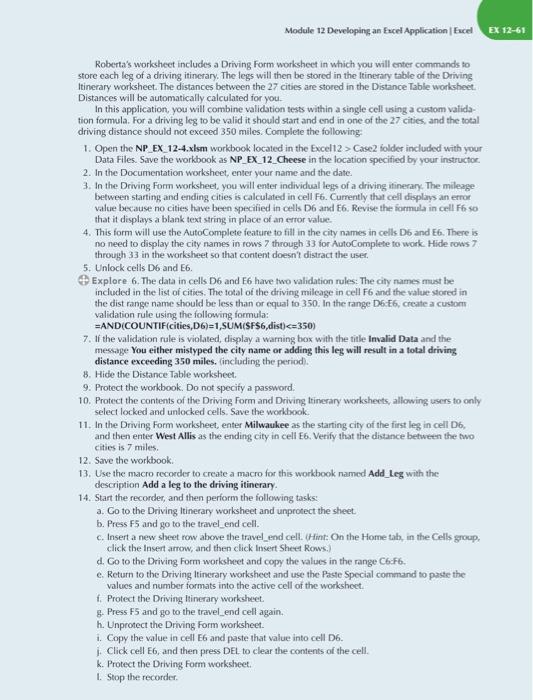
Module 12 Developing an Excel Application | Eucel Roberta's worksheet includes a Driving Form worksheet in which vou will enter commands to store each leg of a driving itinerary. The legs will then be stored in the Itinerary thble of the Driving Itinerary worksheet. The distances between the 27 cities are stored in the Distance Table worksheet. Distances will be automatically calculated for you. In this application, you will combine validation teses within a single cell using a custom validation formula. For a driving leg to be valid it should start and end in one of the 27 cities, and the total driving distance should not exceed 350 miles. Complete the following: 1. Open the NP_EX_12-4.xlsm worlbook located in the Excel12 > Case2 folder included with your Data Files. Save the workbook as NP_EX_12_Cheese in the location specified by vour instructor: 2. In the Documentation workshoet, enter your name and the date. 3. In the Driving Form worksheet, you will enter individual legs of a driving itinerary. The mileage between starting and ending cities is calculated in cell F6. Cumently that cell cisplays an error value because no cities have been specified in cells D6 and E6. Revise the formula in cell F6 so that it displays a blank text string in place of an error value. 4. This form will use the AutoComplete feature to fill in the city names in cells Db and E6. There is no need to display the city names in rows 7 through 33 for AutoComplete to work. Hide rows? through 33 in the worksheet so that content doesn't distract the user. 5. Unlock cells D6 and E6. Explore 6. The data in cells D6 and E6 have two validation rules: The city names must be included in the list of cities. The total of the driving mileage in cell F6 and the value stored in the dist range name should be less than or equal to 350 . In the range D6.E6, create a custom validation rule using the following formula: =AND(COUNTIF(cities,D6)=1,SUM(SF$6,dist) Case2 folder included with your Data Files. Save the workbook as NP_EX_12_Cheese in the location specified by vour instructor: 2. In the Documentation workshoet, enter your name and the date. 3. In the Driving Form worksheet, you will enter individual legs of a driving itinerary. The mileage between starting and ending cities is calculated in cell F6. Cumently that cell cisplays an error value because no cities have been specified in cells D6 and E6. Revise the formula in cell F6 so that it displays a blank text string in place of an error value. 4. This form will use the AutoComplete feature to fill in the city names in cells Db and E6. There is no need to display the city names in rows 7 through 33 for AutoComplete to work. Hide rows? through 33 in the worksheet so that content doesn't distract the user. 5. Unlock cells D6 and E6. Explore 6. The data in cells D6 and E6 have two validation rules: The city names must be included in the list of cities. The total of the driving mileage in cell F6 and the value stored in the dist range name should be less than or equal to 350 . In the range D6.E6, create a custom validation rule using the following formula: =AND(COUNTIF(cities,D6)=1,SUM(SF$6,dist)
Step by Step Solution
There are 3 Steps involved in it

Get step-by-step solutions from verified subject matter experts
 Study Help