







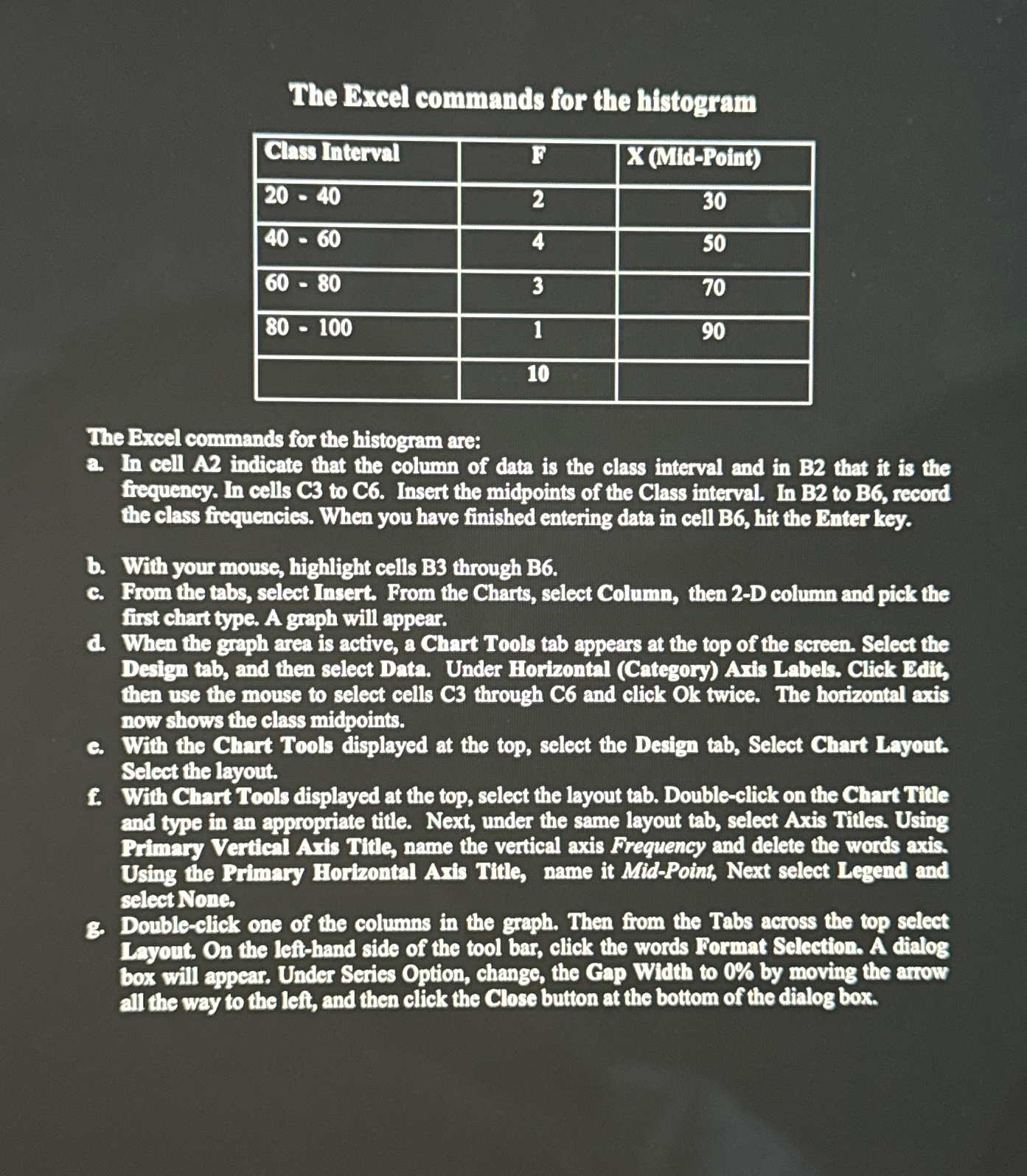
Question: The Excel commands for the histogram table [ [ Class Interval,F , X ( Mid - Point ) ] , [ 2 0 -
The Excel commands for the histogram
tableClass Interval,FX MidPoint
The Excel commands for the histogram are:
a In cell A indicate that the column of data is the class interval and in B that it is the frequency. In cells to Insert the midpoints of the Class interval. In B to B record the class frequencies. When you have finished entering data in cell B hit the Enter key.
b With your mouse, highlight cells B through B
c From the tabs select Insert. From the Charts, select Column, then D column and pick the first chart type. A graph will appear.
d When the graph area is active, a Chart Tools tab appears at the top of the screen. Select the Design tab, and then select Data. Under Horizontal Category Aris Labels. Click Bdit, then use the mouse to select cells C through C and click Ok twice. The horizontal axis now shows the class midpoints.
e With the Chart Tools displayed at the top, select the Design tab, Select Chart Layout. Select the layout.
f With Chart Tools displayed at the top, select the layout tab. Doubleclick on the Chart Title and type in an appropriate title. Next, under the same layout tab, select Axis Titles. Using Primary Vertical Aris Title, name the vertical axis Frequency and delete the words axis. Using the Primary Horizontal Aris Title, name it MidPoint, Next select Legend and select None.
g Doubleglick one of the columns in the graph. Then from the Tabs across the top select Layout. On the lefthand side of the tool bar, click the words Format Selection. A dialog box will appear. Under Series Option, change, the Gap Width to by moving the arrow all the way to the left, and then click the Close buttion at the bottom of the dialog box.
Please show examples on Excel of the steps! :)
Step by Step Solution
There are 3 Steps involved in it
1 Expert Approved Answer
Step: 1 Unlock

Question Has Been Solved by an Expert!
Get step-by-step solutions from verified subject matter experts
Step: 2 Unlock
Step: 3 Unlock
 Study Help